
Connectors
Zoom Connector
Connectors in Bloo
Updated 2026-08-17
Overview
Zoom is a widely used cloud-based video conferencing platform used for video and audio conferencing, webinars, meeting recordings, and more. Bloo can collect, normalize, and monitor Zoom logs to help you identify abnormal activity within your Zoom account in real time.
Prerequisites
- Account ID
- Client ID
- Client Secret
Create a Server-to-Server OAuth App in Zoom
Log in to the Zoom App Marketplace.
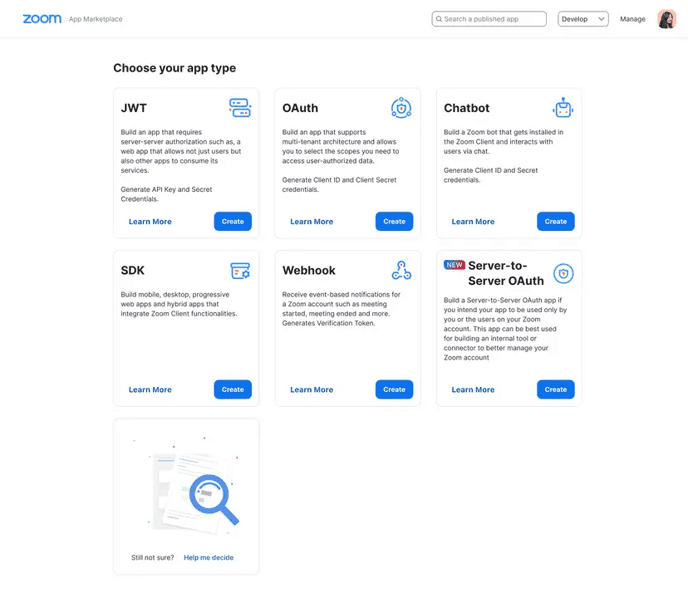
Click Develop and select Build App.
Select Server-to-Server OAuth app type and click Create.
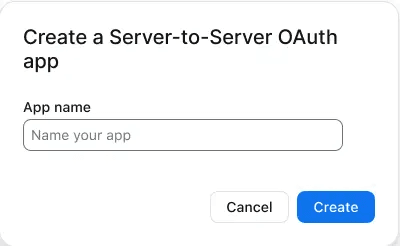
- Enter a name for your app and click Create.
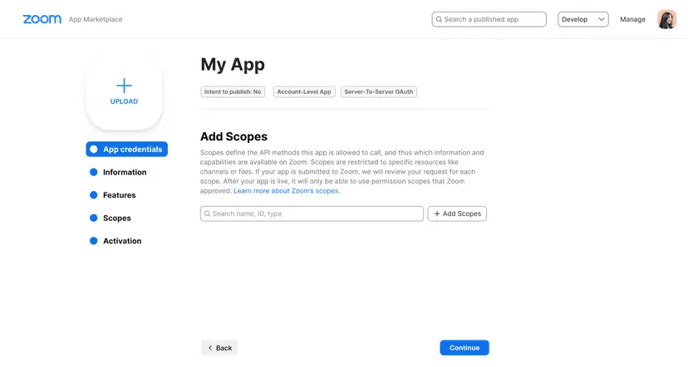
On the App Credentials tab, copy and save your Account ID, Client ID, and Client Secret. You will need these to configure the connector in Bloo.
Go to the Information tab and fill in your Company Name, developer Name, and Email Address (required for activation).
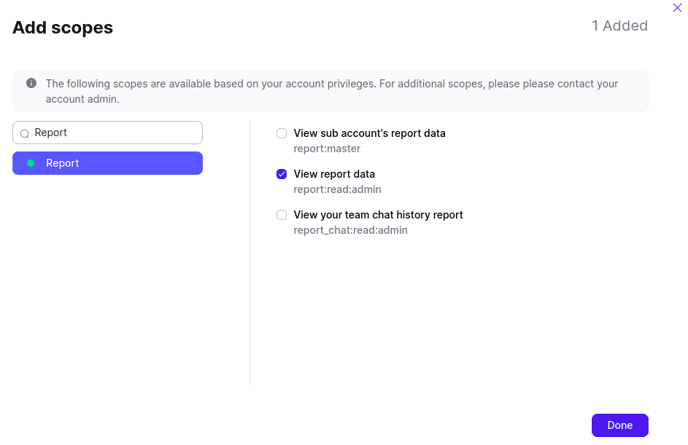
Go to the Scopes tab and add the required scopes for your integration.
- Go to the Activation tab and click Activate your app.
| ℹ The app must be activated before the credentials can be used in Bloo. |
Configure the Zoom Connector in Bloo
All connector configuration is done from the Datasource page in Bloo.
| Field Name | Description |
|---|---|
| Connector Name | Enter a name for the connector. |
| Account ID | Enter the Zoom Account ID from the App Credentials tab. |
| Client ID | Enter the Zoom Client ID from the App Credentials tab. |
| Client Secret | Enter the Zoom Client Secret from the App Credentials tab. |
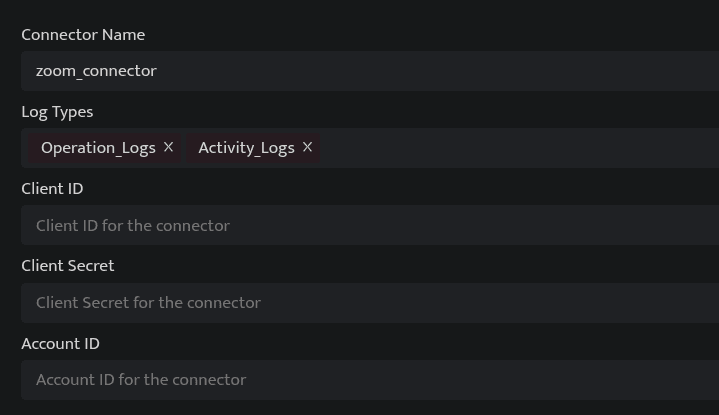
Click Save after entering all the required details.
Bloo will validate the configuration automatically.
Navigate to Collection Status and confirm the connector is listed with a status of Active. This signifies the connector is configured successfully and data is ready to ingest.
| ✓ When the connector appears in Collection Status with status Active, it is configured successfully and data is ready to ingest. |
Related Links
Bloo — Collection Status | Bloo — Connector Validation | Zoom — Create Server-to-Server OAuth App | Zoom App Marketplace | Bloo — Troubleshooting Connector Validations
Related
Was this page helpful?