
How-to guides
Manage Cases
Managing Cases allows users to effectively handle and update existing Cases to ensure smooth workflows and accurate record-keeping.
Updated 2026-08-17
Managing Cases allows users to effectively handle and update existing Cases to ensure smooth workflows and accurate record-keeping. Below are the actions users can perform to manage Cases:
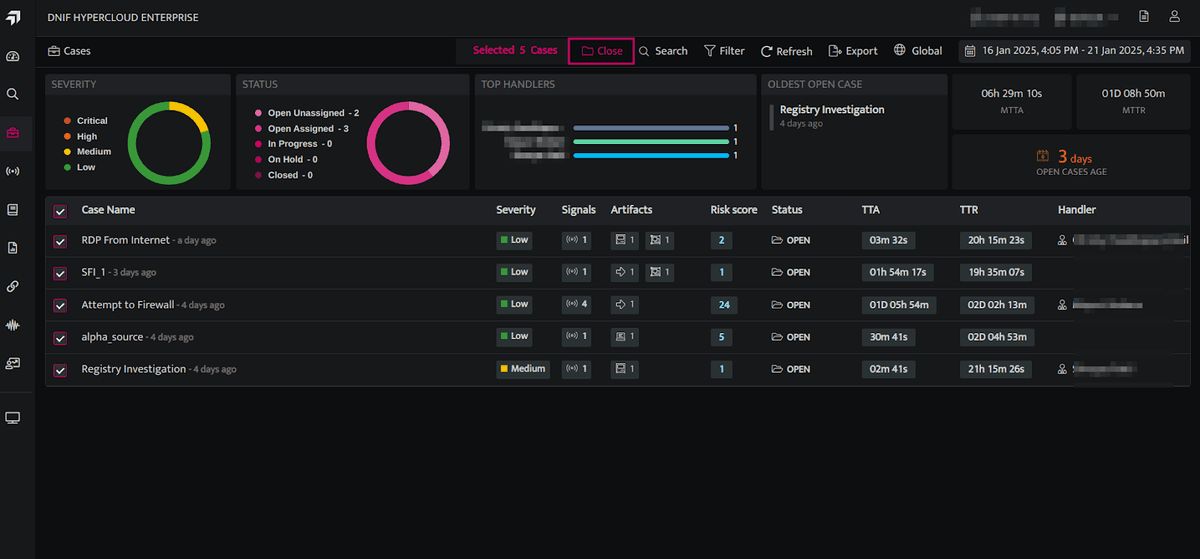
- Close Multiple Cases
- Click the Cases icon on the left navigation bar of the Home screen.
- Select the cases you want to close and click "Close."
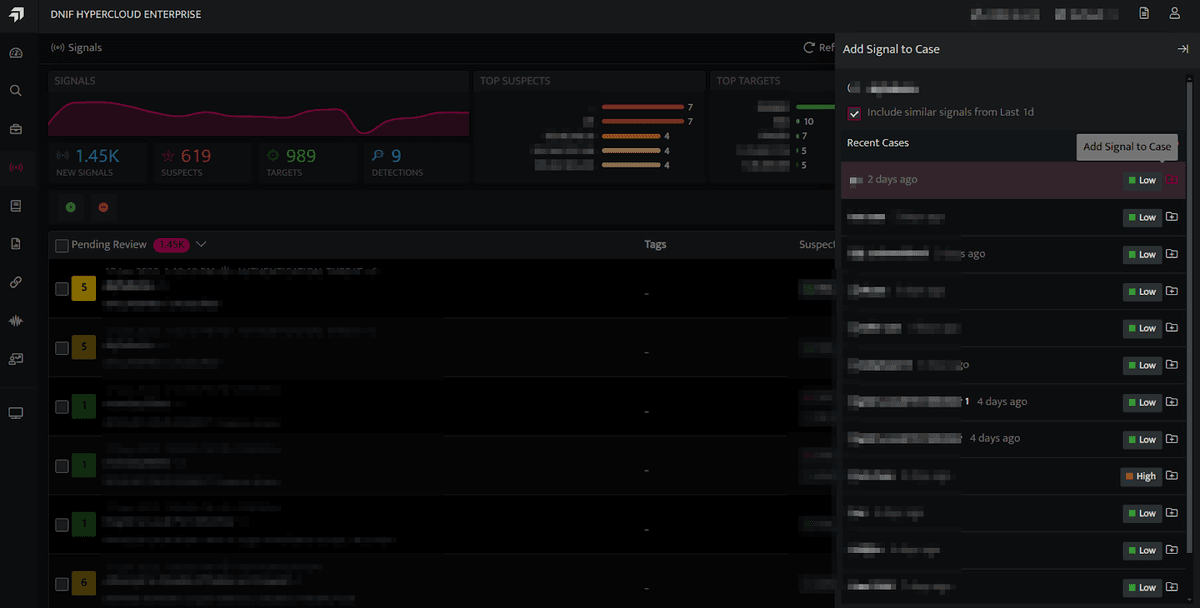
- Add Signals to an Existing Case
- On the Signals page, when users select a signal and choose Add to Case, a side drawer appears. In the side drawer, click the icon
 next to an existing case to add the signal to it.
- On the Signals page, when users select a signal and choose Add to Case, a side drawer appears. In the side drawer, click the icon
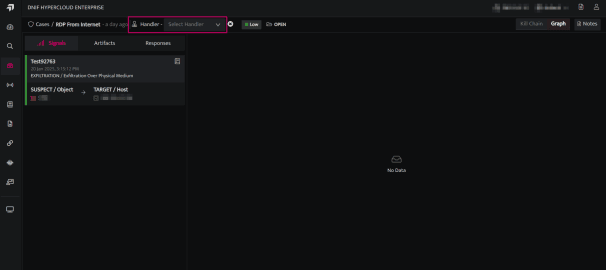
- Assign or Update the Handler
- On the case listing page, click the desired case to view the case details page.
- Users can assign a handler to the case if none is assigned or update the existing handler.
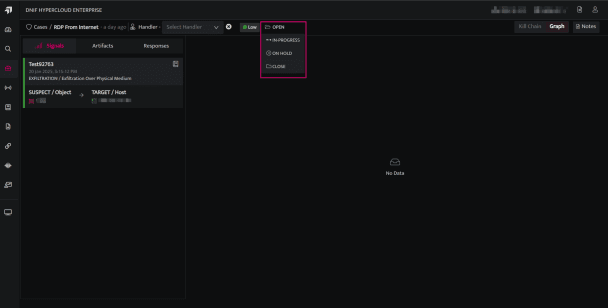
- Change the Status of a Case
- Users can update the status (Open, In-Progress, On-Hold, Close) of an existing Case within the case details page. Learn more about the Bloo Case lifecycle.
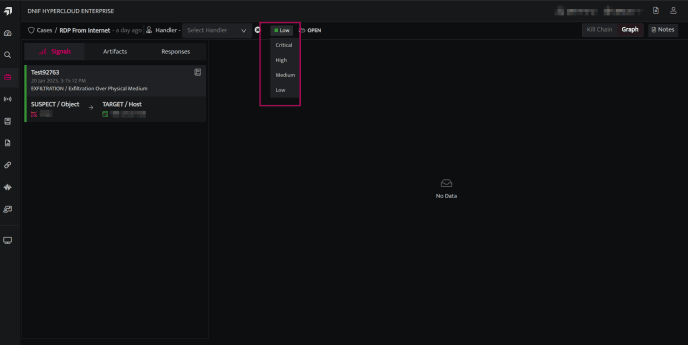
- Change the Severity of a Case
- Users can update the severity(Low, Medium, High, Critical) of an existing Case within the case details page.
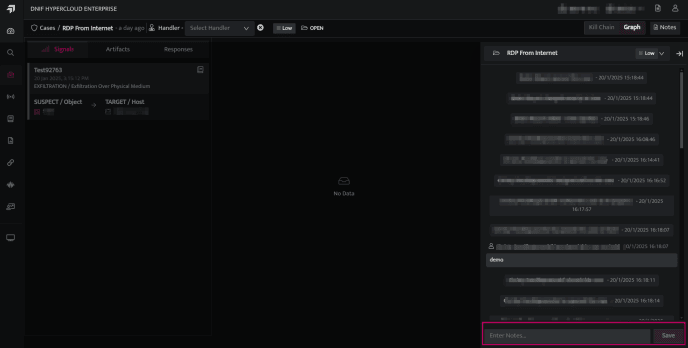
- Add Notes to the Case
- Users can view the details of actions performed on the case and add detailed notes to it.
Related
Was this page helpful?