
Connectors
Snowflake Connector
Connectors in Bloo
Updated 2026-08-17
Overview
Snowflake Connector pulls audit logs from the Snowflake database, account_usage schema from various default audit views provided by Snowflake.
Prerequisites
You will need the following:
- A valid Snowflake account with the following credentials:
- Username
- Password
- Account Name
- Read Snowflake database privileges
Granting Privileges
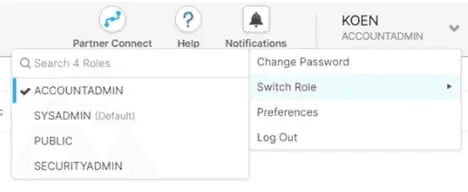
By default, you're logged in using the SYSADMIN role. However, to view and change account information, you need to switch to the ACCOUNTADMIN role, which is the super admin role.
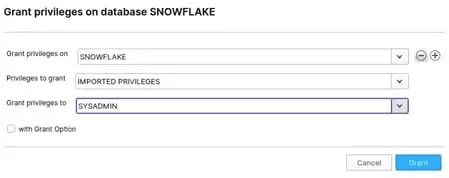
- Navigate to the Databases tab.
- Click on the Snowflake database (not on the database name) — a grant privileges drawer will open.

- Grant imported privileges to the SYSADMIN role.
How to Get the Account Name
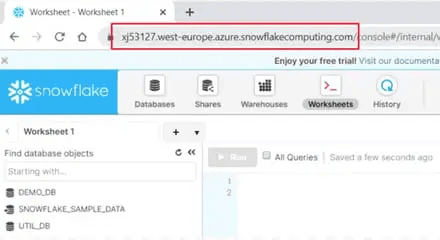
You'll have a unique URL with your account name in it to access your Snowflake environment. You can get the account name with the help of the following example:
Example:
<account_name>.snowflakecomputing.com
Configure the Snowflake Connector in Bloo
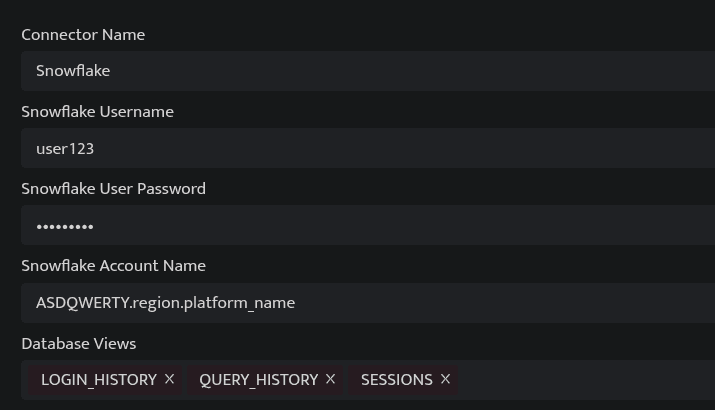
All connector configuration is done from the Datasource page in Bloo.
| Field | Description |
|---|---|
| Connector Name | Enter a name for the connector. |
| Snowflake Username | Enter the name of the Snowflake user. |
| Snowflake User Password | Enter the password for the Snowflake user. |
| Snowflake Account Name | Enter the account name for Snowflake. |
| Database Views | Select the database views you want to get audit logs for. By default, QUERY_HISTORY, SESSIONS and LOGIN_HISTORY are selected. Views can be selected from the provided list: ACCESS_HISTORY, AUTOMATIC_CLUSTERING_HISTORY, COPY_HISTORY, DATABASE_STORAGE_USAGE_HISTORY, DATA_TRANSFER_HISTORY, LOAD_HISTORY, LOGIN_HISTORY, MATERIALIZED_VIEW_REFRESH_HISTORY, METERING_DAILY_HISTORY, METERING_HISTORY, PIPE_USAGE_HISTORY, QUERY_HISTORY, REPLICATION_USAGE_HISTORY, SEARCH_OPTIMIZATION_HISTORY, SESSIONS, STAGE_STORAGE_USAGE_HISTORY, STORAGE_USAGE, TASK_HISTORY, WAREHOUSE_EVENTS_HISTORY, WAREHOUSE_LOAD_HISTORY, WAREHOUSE_METERING_HISTORY |
- Click Save after entering all the required details.
- Bloo will validate the configuration automatically.
- Navigate to Collection Status and confirm the connector is listed with a status of Active. This signifies the connector is configured successfully and data is ready to ingest.
Confirmed When the connector appears in Collection Status with status Active, it is configured successfully and data is ready to ingest.
Related Links
Bloo — Collection Status | Bloo — Connector Validation | Snowflake — Account Usage | Bloo — Troubleshooting Connector Validations
Related
Was this page helpful?