
How-to guides
Create an SQL Block
Bloo supports query processing and analysis with SQL.
Updated 2026-08-14
Bloo supports query processing and analysis with SQL. You can interpret the data using SQL for targeted analysis and fetch relevant data.
- SQL Block could be the first block to be added in Workbook.
- The output data from the SQL block can be used as an input to other blocks such as DQL / Code / Signal block etc to generate an output.
- All the standard SQL functions and operations are allowed.
How to add an SQL Block?
- Hover on the Workbooks icon on the left navigation bar, it will display the folder wise view of existing workbooks in the tenant (previously known as cluster).
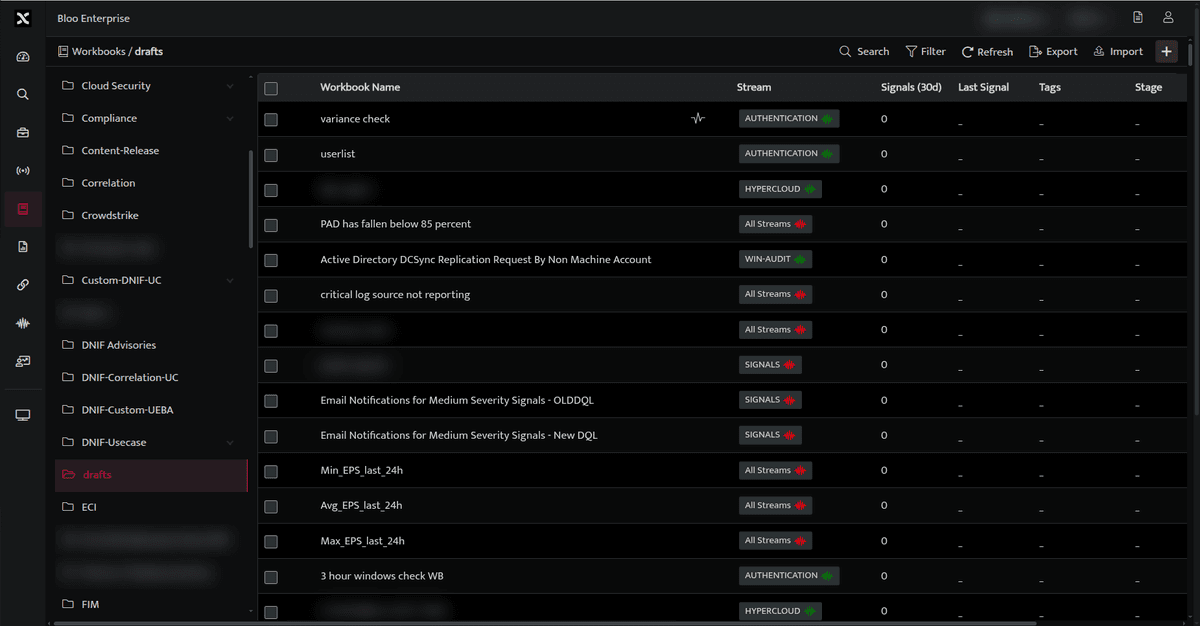
- Click the plus icon on the Workbook page and select SQL Block from the list, the following screen will be displayed.

- Enter the query and click Run to execute the query, the result dataset will be displayed.
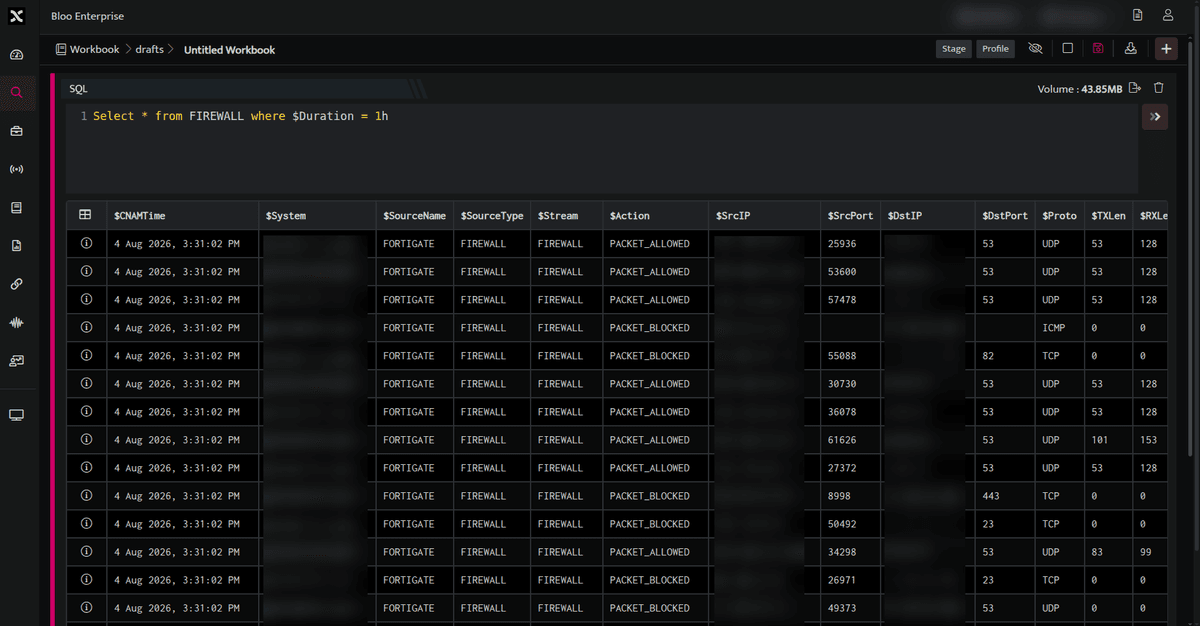
Example SQL Query
SELECT *
FROM FIREWALL
WHERE $Duration = 1hIn the above example, the query result is displaying all the details of Stream= Firewall within an hour.
- Click Information icon, to view log details. You can view the log details in JSON and TABLE format.
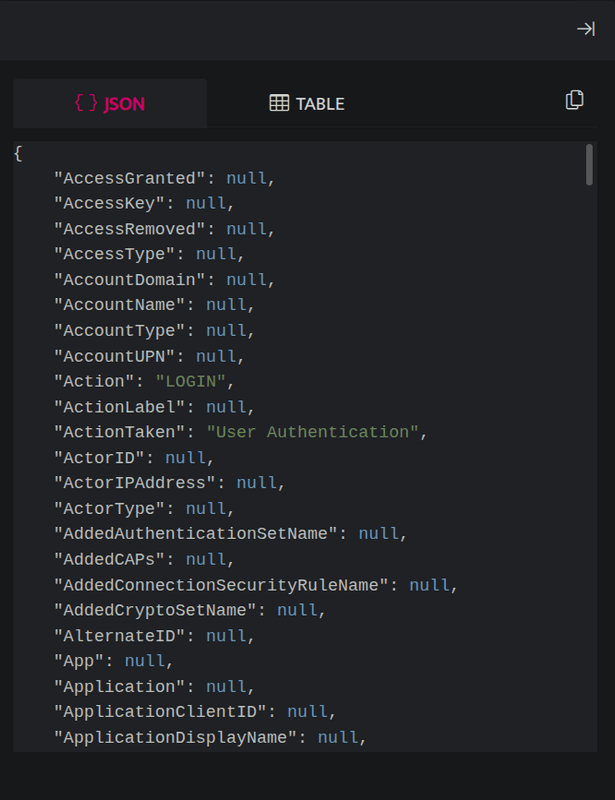
- Click Copy icon, to copy the details to clipboard.
SQL Block Functions
| Icons | Functionality |
|---|---|
 |
Used to filter the query result based on your requirement. |
 |
User to delete the block |
 |
Used to export logs in CSV format |
For more details on Workbooks, refer to Create a Workbook.
Related
Was this page helpful?