
Connectors
AlienVault OTX
Alien vault OTX
Updated 2026-08-16
Automation Guide for Bloo
1. Overview
AlienVault Open Threat Exchange (OTX) is the world's most authoritative open threat information sharing and analysis network. OTX provides access to a global community of threat researchers and security professionals. 200,000 participants in 140 countries contribute over 20 million threat indicators daily. OTX allows anyone in the security community to actively discuss, research, validate, and share the latest threat data, trends, and techniques.
OTX provides information on the reliability of threat information, the reporter of the threat, and other details of threat investigations. OTX data can be used to enhance threat detection capabilities of security monitoring systems such as Bloo.
2. Prerequisites
You can sign up and set up an OTX account using your email address, or you can use your existing Twitter account.
To create an OTX account:
1. Go to https://otx.alienvault.com
2. In the upper-right corner of the home page, click Sign Up.
3. Enter your details in the form that appears and click Sign Up.
4. Once you have logged in to the OTX interface, click Settings to view your user profile and access the Settings page.
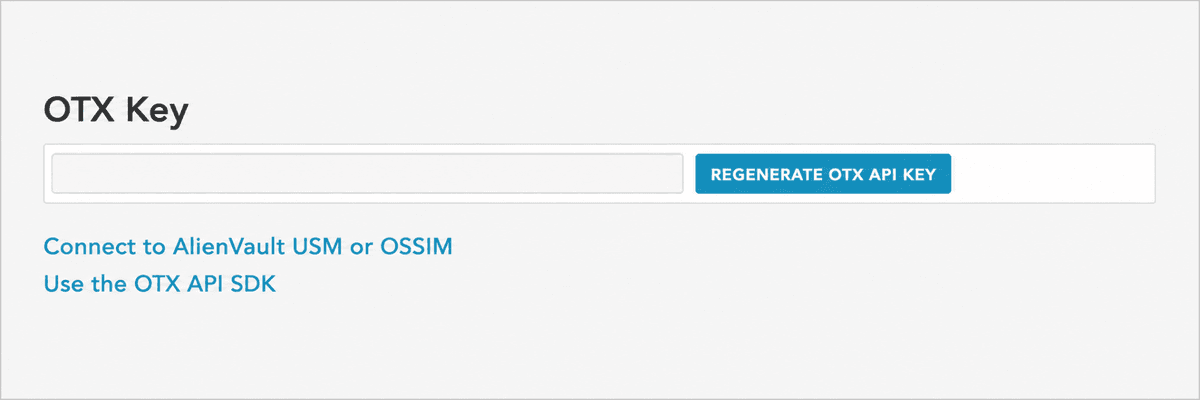
5. On the Settings page you can access your OTX account key. This key is used to authenticate API calls to AlienVault OTX.
3. Configuration
Follow the initial configuration steps in How to Configure Automation? — refer to the Bloo Knowledge Base.
Click the edit icon to add details.
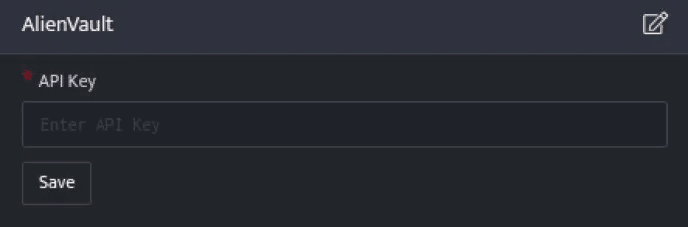
| Field | Description |
|---|---|
| API Key | AlienVault OTX API Key |
- Enter the above details and click Save.
| Note: API Usage and Rate LimitsOTX is completely free to use. There are no paid tiers.With an API key: up to 10,000 requests per hour.Without an API key: up to 1,000 requests per hour.The API key is free and is generated from your OTX account Settings page. |
4. Lookups Integrated with AlienVault OTX
4.1 Retrieve Domain Reports
This function returns a complete report of all threat indicators for a given domain, including data from all the sub-reports.
Function name: get_domain_report
Input
A domain name.
_retrieve query DomainDetailsThe DomainDetails is a custom event store created to demonstrate this example. The _retrieve directive fetches the Domain field for each event in the DomainDetails (custom) event store. The output looks like this:

Output
_lookup alienvault get_domain_report DomainThe _lookup directive calls the get_domain_report function of the AlienVault plugin. Domain is passed as a parameter. This report contains details about the domain, the source domain, pulse count, and so on. The output looks like this:

The lookup call returns output in the following structure for available data:
| Field | Type | Description |
|---|---|---|
| Domain | text | Source domain for lookup |
| PulseCount | number | Number of pulses that reference the given domain |
| MalwareCount | number | Malware count for the domain |
| City | text | City in which the domain is registered |
| Country | text | Country in which the domain is registered |
| Org | text | The organization or ISP associated with the domain's hosting server |
| Registrar | text | Name of the domain's official registrar |
4.2 Retrieve IP Address Details
This function returns a complete report of all threat indicators for a given IP address.
Function name: get_ip_report
Input
A valid IPv4 address in dotted quad notation. For the time being only IPv4 addresses are supported.
_fetch SrcIP from event where Stream=FIREWALL limit 1The _fetch directive retrieves SrcIP (source IP address) for each event. The result set is limited to the latest event. The output looks like this:

Output
_lookup alienvault get_ip_report SrcIPThe _lookup directive calls the get_ip_report function of the AlienVault plugin. SrcIP is passed as a parameter. This report contains details about the IP address such as malware count and threat score. The output looks like this:

The lookup call returns output in the following structure for available data:
| Field | Type | Description |
|---|---|---|
| IP | text | Source IP for lookup |
| MalwareCount | number | Malware count for the IP address |
| ThreatScore | number | AlienVault Labs threat score for the given IP address |
| PulseCount | number | AlienVault pulse count |
4.3 Retrieve Host Details
This function returns a complete report of all threat indicators for a given hostname.
Function name: get_hostname_report
Input
_retrieve query HostDetailsThe HostDetails is a custom event store created to demonstrate this example. The search query retrieves the DevSrcIP field for each event in the HostDetails (custom) event store. The output looks like this:
Output
_lookup alienvault get_hostname_report DevSrcIPThe _lookup directive calls the get_hostname_report function of the AlienVault plugin. DevSrcIP is passed as a parameter. This output contains details about the device such as the hostname, pulse count, malware count, and so on. The output looks like this:
The lookup call returns output in the following structure for available data:
| Field | Type | Description |
|---|---|---|
| Hostname | text | Host name being queried |
| PulseCount | number | Pulse count for the hostname |
| MalwareCount | number | Malware count for the hostname |
4.4 Retrieve URL Scan Reports
This function returns the following information for the given URL:
Historical geographic information
Threat indicators gathered from the OTX community pulse stream
AlienVault Labs' URL analysis results
Function name: get_url_report
Input
A URL for which AlienVault will retrieve the most recent report. You may also specify a scan_id (sha256-timestamp as returned by the URL submission API) to access a specific report.
_retrieve query UrldetailsThe Urldetails is a custom event store created to demonstrate this example. The _retrieve directive fetches the Url field for each event in the Urldetails (custom) event store. The output looks like this:

Output
_lookup alienvault get_url_report UrlThe _lookup directive calls the get_url_report function of the AlienVault plugin. Url is passed as a parameter. This report contains details about the URL, its pulse count, the country it belongs to, and so on. The output looks like this:

The lookup call returns output in the following structure for available data:
| Field | Type | Description |
|---|---|---|
| Url | text | The URL being queried |
| PulseCount | number | AlienVault pulse count |
| Country | text | Country in which the given URL's hosting server is deployed |
4.5 Retrieve Hash Reports
This function returns the metadata about the file hash, as well as dynamic and static analysis of the given file hash. The SHA1, MD5, or SHA256 hashing algorithm (formats) are acceptable.
Function name: get_hash_report
Input
A SHA1, MD5, or SHA256 hash will retrieve the most recent report on a given sample.
_retrieve query FileThe File is a custom event store created to demonstrate this example. The _retrieve directive fetches the Filehash field for each event in the File (custom) event store. The output looks like this:

Output
_lookup alienvault get_hash_report FilehashThe _lookup directive calls the get_hash_report function of the AlienVault plugin. Filehash is passed as a parameter. This report contains details of the file hash, file SHA256 hash, MD5 sum of the file, and so on. The output looks like this:
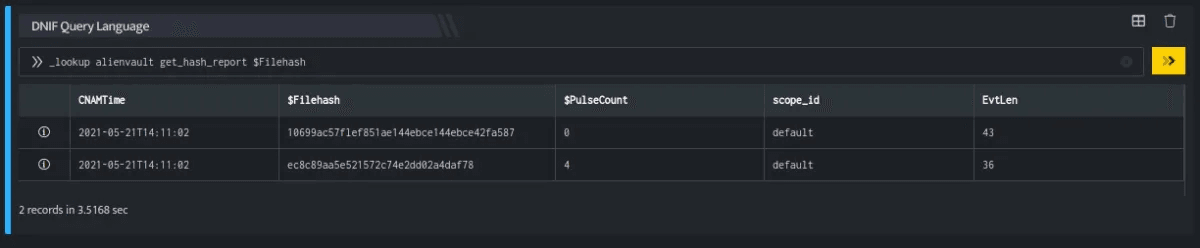
The lookup call returns output in the following structure for available data:
| Field | Type | Description |
|---|---|---|
| Hash | text | File hash to be searched |
| PulseCount | number | AlienVault pulse count |
| Filesize | text | File size (in bytes) of the given hash's malware file |
| FileType | text | File type of the given hash's malware file |
| SHA1 | text | SHA1 hash of the given hash's malware file |
| SHA256 | text | SHA256 hash of the given hash's malware file |
5. Related Links
Related
Was this page helpful?