
Connectors
Cisco Duo Connector
Connectors in Bloo
Updated 2026-08-17
Overview
Cisco Duo integrates with Bloo using the Cisco Duo Connector. The connector uses the Duo Authentication Logs API to collect, normalise, and monitor Cisco Duo authentication logs, helping you identify suspicious activity within your workspace in real time.
Prerequisites
The following are required before configuring the connector in Bloo:
- Role required: Owner — only administrators with the Owner role can create or modify an Admin API application in the Duo Admin Panel.
- Integration Key
- Secret Key
- API Hostname
Follow Step 1 below to obtain these values from the Duo Admin Panel.
Step 1 — Obtain Credentials from the Duo Admin Panel
Sign up for a Duo account if you do not already have one.
Log in to the Duo Admin Panel and navigate to Applications → Application Catalog.
Locate the entry for Admin API in the catalog. Click + Add to create the application. Your Integration Key, Secret Key, and API Hostname will be displayed. You will need these values when configuring the connector in Bloo.
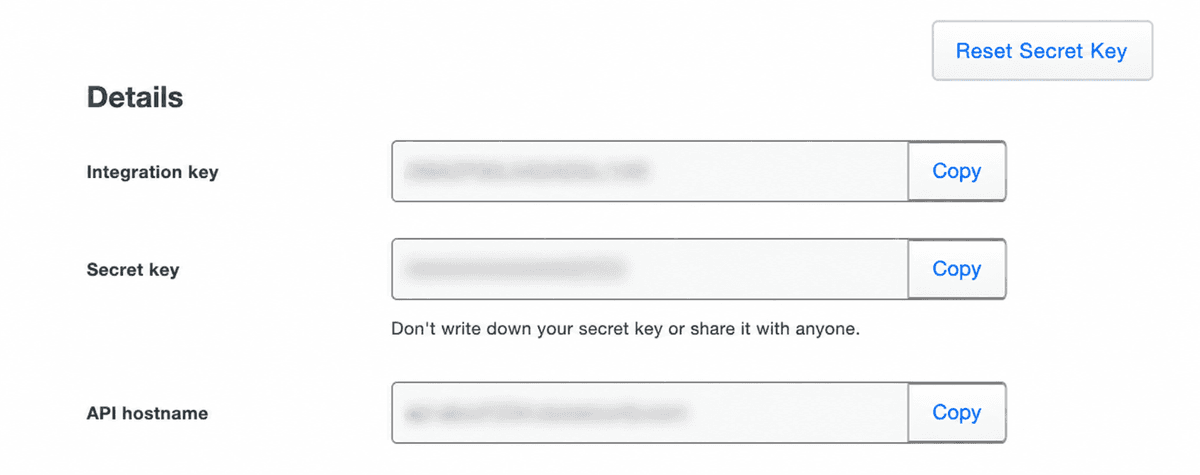
⚠ Treat your Secret Key like a password. The security of your Duo application is tied to the security of your Secret Key. Do not share it with unauthorised individuals or send it by email under any circumstances.
Scroll down to the Permissions section. Deselect all options except Grant read log. This allows the Admin API application to read authentication, offline access, telephony, and administrator action log information.
Optionally, specify which IP addresses or ranges are allowed to use this Admin API application under Networks for API Access. If you do not specify any IP addresses or ranges, the application may be accessed from any network.
ℹ The Admin API performs the IP check after verifying the authentication signature in a request. If you restrict allowed networks and see logged events for blocked Admin API requests from unrecognised IP addresses, this may indicate that your Secret Key has been compromised.
Reference: Cisco Duo Admin API Documentation
Step 2 — Configure the Cisco Duo Connector in Bloo
All connector configuration is done from the Datasource page in Bloo.
| Field | Description |
|---|---|
| Connector Name | Enter a name for this connector. |
| Integration Key | Enter the Integration Key obtained from the Duo Admin Panel. |
| Secret Key | Enter the Secret Key obtained from the Duo Admin Panel. |
| API Hostname | Enter the API Hostname obtained from the Duo Admin Panel. |
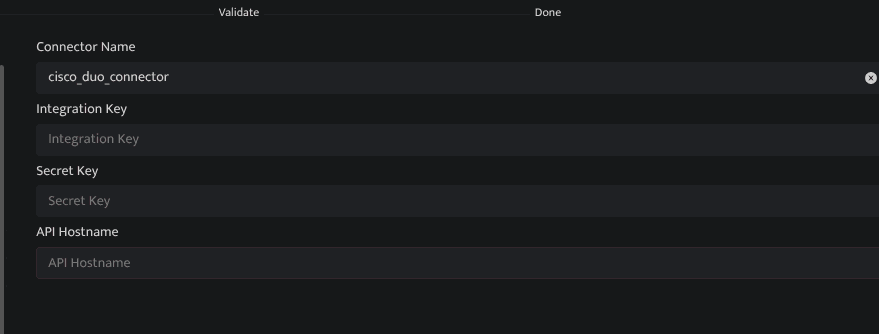
Click Save after entering all the required details.
Bloo will validate the configuration automatically.
Navigate to Collection Status and confirm the connector is listed with a status of Active.
✓ When the connector appears in Collection Status with status Active, it is configured successfully and data is ready to ingest.
Related Links
Bloo — Collection Status | Bloo — Connector Validation | Cisco Duo Admin API | Duo Admin Roles | Duo — Protecting Applications
Related
Was this page helpful?