
Connectors
HTTP Connector
Connectors in Bloo
Updated 2026-08-17
Overview
HTTP Connector can receive logs from various devices and log sources via HTTPS connection.
Warning You can create only ONE HTTP connector. If you need to integrate with multiple devices using the HTTP connector, please add a different authentication block for each device within the same HTTP connector.
Authentication
To secure the HTTPS endpoint, ensure it only processes requests from authenticated sources. The following modes of authentication are available:
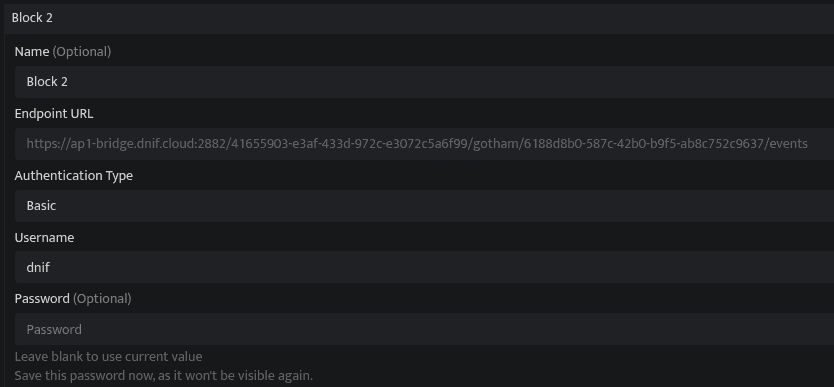
Basic
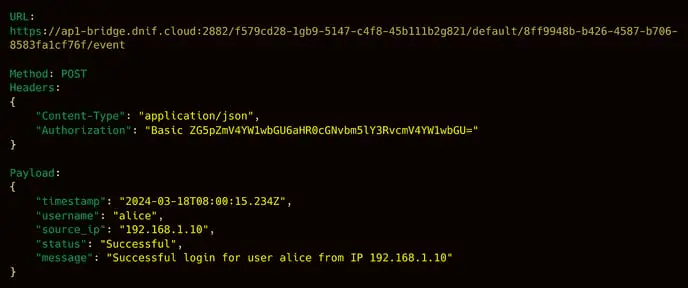
With basic authentication, define the username and password during the setup. The entity making the POST request to Bloo must include a header of the format Authorization: Basic <base64_string>. The string after the Basic keyword follows RFC 7617, which means the sender must encode the value of username:password using base64. Bloo only accepts requests with a matching username and password.
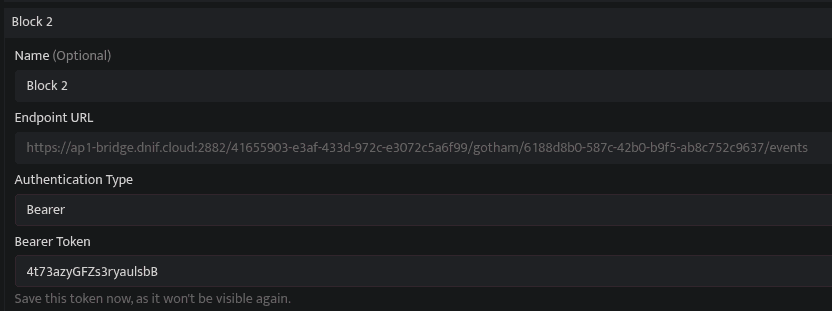
Bearer
With bearer authentication, define the bearer token value during the setup. The entity making the POST request to Bloo must include a header of the format Authorization: Bearer <token_value>. Bloo will only accept requests with matching bearer tokens.
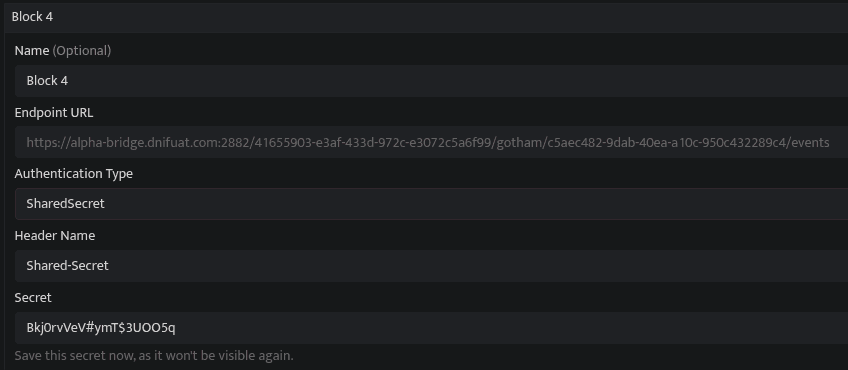
Shared Secret
With shared secret authentication (token authentication), configure the header name and shared secret value during the setup. The entity making the POST request to Bloo must include the same header name and shared secret value in its request header. Bloo will only accept payloads with headers and secrets that match your configuration.
This method is called shared-secret because the secret is shared between Bloo and the entity making the POST request — for example, a third-party SaaS tool emitting log events.
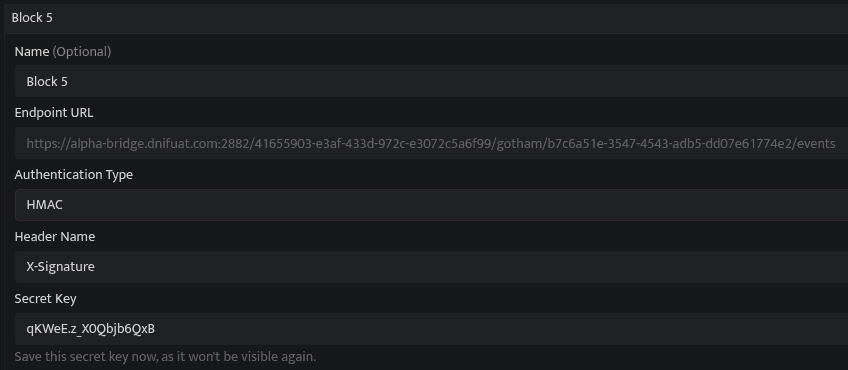
HMAC
With HMAC authentication, configure the header name and secret key value during the setup. The entity making the POST request to Bloo must hash the payload using the hashing algorithm and secret key specified. This signature is then included in the header. On receiving the request, Bloo will independently hash the payload using the same hashing algorithm and secret key. Only requests with matching signatures will be accepted.
Supported Log Formats
- JSON
- New line separated JSON string/string
Create a Connector
All connector configuration is done from the Datasource page in Bloo. Follow the steps below to create an HTTP connector:
Fill out the connector form and enter the Connector Name.

A single HTTP connector supports multiple modes of authentication. Instead of creating different connectors for different log sources, create a single HTTP connector with multiple authentication modes, then use an authentication mode-specific Endpoint URL to send the logs to Bloo.

Click the Add button to add an authentication mode.
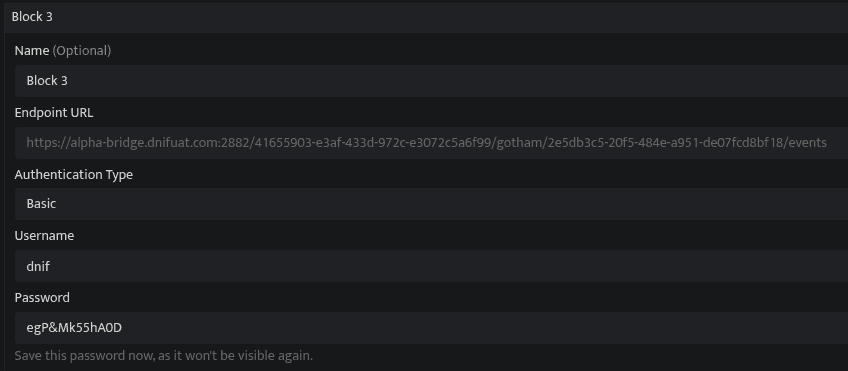
Once the authentication mode is added, change the authentication type and modify the authentication mode-specific fields. To add multiple authentication modes, click the Add button again and modify the added authentication mode as required.
Once you have added and modified the authentication mode, copy the Endpoint URL and use it to ingest logs to Bloo via this authentication method.
Click the Next button to create the connector.
Bloo will validate the configuration automatically.
Navigate to Collection Status and confirm the connector is listed with a status of Active.
Confirmed When the connector appears in Collection Status with status Active, it is configured successfully and ready to receive data.
Sending Data to Bloo
Two methods are supported for forwarding logs through the HTTP connector:
- Bulk logs
- Single log
Bulk Logs
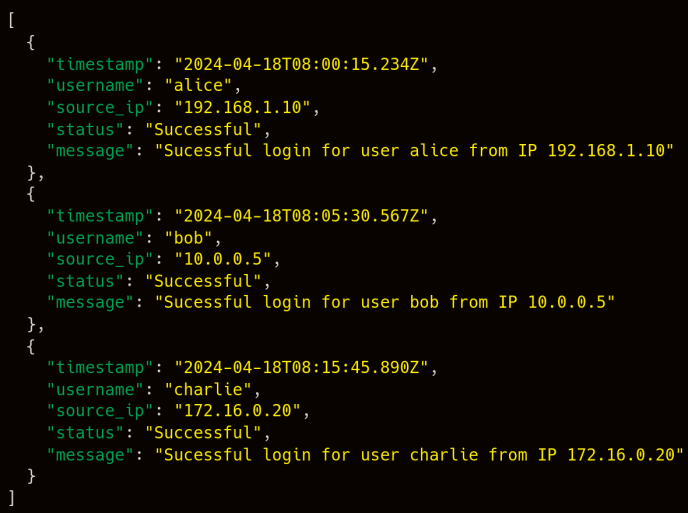
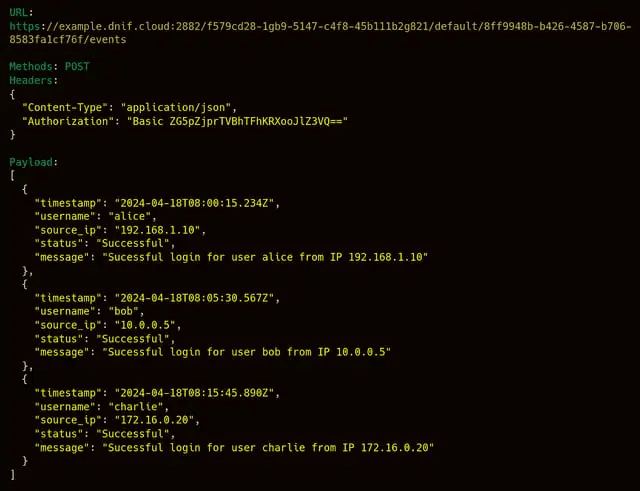
Using bulk logs API endpoint, you can forward logs in a bunch. Multiple logs can be forwarded at a time.
| Field | Description |
|---|---|
| URL | https://example.dnif.cloud:2882/f579cd28-1gb9-5147-c4f8-45b111b2g821/default/8ff9948b-b426-4587-b706-8583fa1cf76f/events Note: The URL for bulk logs ends with /events |
| Method | POST |
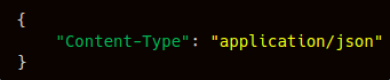
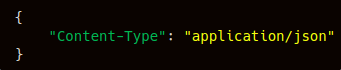
| Headers | The header's value differs depending on the current authentication mode. Refer to the Authentication section above. The common header is: Note: Content-Type: application/json |
Single Log
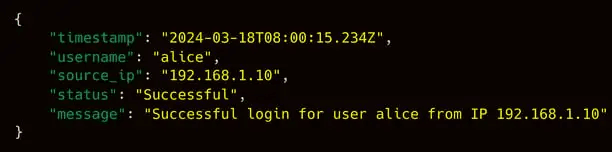
Using the single log API endpoint, you can forward a single log event at a time.
| Field | Description |
|---|---|
| URL | https://example.dnif.cloud:2882/f579cd28-1gb9-5147-c4f8-45b111b2g821/default/8ff9948b-b426-4587-b706-8583fa1cf76f/event Note: The URL for a single log ends with /event |
| Method | POST |
| Headers | The header's value differs depending on the current authentication mode. Refer to the Authentication section above. |
Configurations
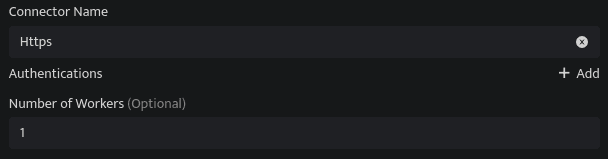
Using the HTTP Connector, follow the configuration requirements to forward logs to Bloo.
| Field | Description |
|---|---|
| Connector Name | Enter a name for the connector. |
| Authentications | Add various Authentication modes to be supported. |
| Number of Workers | Number of threads to publish logs. |
Authentication Mode-Specific Fields
All authentication modes have the following common fields:
| Field | Description |
|---|---|
| Name | The name of the Authentication mode for reference. |
| Endpoint URL | The generated endpoint URL for the specific Authentication Mode. |
| Authentication Type | Authentication mode — either Basic, Bearer, SharedSecret, or HMAC. |
Basic
| Field | Description |
|---|---|
| Username | Enter a Username. Note: Save this username safely as it will be used for authentication. |
| Password | Enter a Password. Note: Save this password safely as it will be used for authentication. |
Bearer
| Field | Description |
|---|---|
| Bearer token | Enter a Token (Password). Note: Save this token safely as it will be used for authentication. |
Shared Secret
| Field | Description |
|---|---|
| Header Name | Enter a Header Name. Note: Include this header in the Authentication request. |
| Secret | Enter a Secret. Note: Save this Secret safely as it will be used for authentication. |
HMAC
| Field | Description |
|---|---|
| Header Name | Enter a Header Name. Note: Include this header in the Authentication request. |
| Secret Key | Enter a Secret Key. Note: Use this Secret Key to hash the request payload. |
| Hashing Algorithm | Select a Hashing Algorithm for generating the signature. |
Optional Configuration
The following optional configurations can be done based on requirements.
| Field | Description |
|---|---|
| Log Level | Set the log level. 0: DEBUG 1: INFO 4: WARNING 5: ERROR 6: CRITICAL |
| Number of Threads | Number of threads to publish logs. |
| Size limit | Size limit for creating bunching of logs to be sent. |
| Wait Time | Max time to wait for log bunching in seconds. |
Related Links
Related
Was this page helpful?