
Connectors
TLS Connector
Connectors in Bloo
Updated 2026-08-17
Overview
TLS Connector can receive logs from various devices and log sources via TCP connection with SSL on any custom port of the Adapter.
Certificate and Key Files
The certificate and key are generated in pairs using the following command:
openssl req -newkey rsa:2048 -nodes -keyout DNIF_TLS.key -x509 -days 365 -out DNIF_TLS.crtNote This certificate with -days 365 is valid for 365 days from the date of generation. The command prompts for organisational information on execution.
These are self-signed certificate-key pairs stored at the location:
/dnif/connectors/tls_connector/If there is a requirement of individual cert-key pair for every TLS Connector process, or if you have your own cert-key pair (for example: org-x.crt and org-x.key), the files need to be moved to the Adapter Host at the following locations:
/DNIF/AD/connectors/tls_connector/org-x.crt
/DNIF/AD/connectors/tls_connector/org-x.keyAs the mount point of Host /DNIF/AD/ is /dnif/ inside the container, the TLS Connector configuration should have:
- Certificate Path:
/dnif/connectors/tls_connector/org-x.crt - Key Path:
/dnif/connectors/tls_connector/org-x.key
Configure the TLS Connector in Bloo
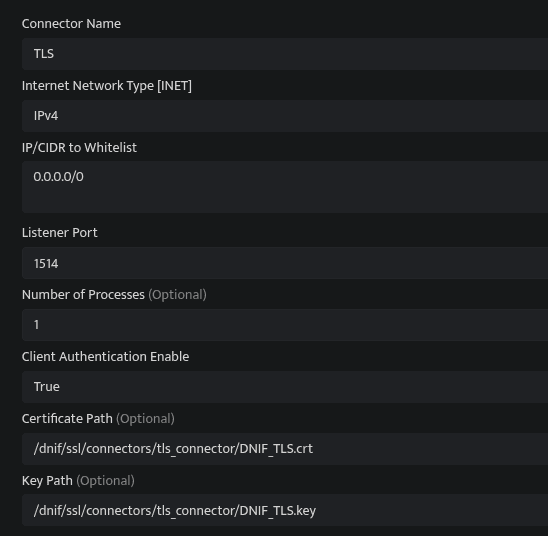
All connector configuration is done from the Datasource page in Bloo. The TLS Connector supports two modes:
Mode 1 — With Certificate and Key
| Field Name | Description |
|---|---|
| Connector Name | Enter a name for the connector. |
| Listener Port | Enter the port number at which you want to start the connector. |
| Number of Processes | Number of processes to run for the connector. |
| Certificate Path | Enter the path to the certificate file (e.g. /dnif/connectors/tls_connector/DNIF_TLS.crt). |
| Key Path | Enter the path to the key file (e.g. /dnif/connectors/tls_connector/DNIF_TLS.key). |
Mode 2 — Without Certificate
Configuring TLS connector in this mode can allow the client to communicate with the server (TLS Listener) without using the Certificate (.crt) file.
| Field Name | Description |
|---|---|
| Connector Name | Enter a name for the connector. |
| Listener Port | Enter the port number at which you want to start the connector. |
| Number of Processes | Number of processes to run for the connector. |
| Certificate Path | Leave blank. |
| Key Path | Leave blank. |
Save and Validate
Click Save after entering all the required details.
Bloo will validate the configuration automatically.
Navigate to Collection Status and confirm the connector is listed with a status of Active. This signifies the connector is configured successfully and data is ready to ingest.
Confirmed When the connector appears in Collection Status with status Active, it is configured successfully and data is ready to ingest.
Related Links
Bloo — Collection Status | Bloo — Connector Validation | Bloo — TLS Troubleshooting | Bloo — Troubleshooting Connector Validations
Related
Was this page helpful?