
Connectors
Box Connector
Connectors in Bloo
Updated 2026-08-17
Overview
Box integrates with Bloo SIEM using the Box Connector. The connector uses the Box SDK to pull enterprise event logs from a Box account into Bloo, providing visibility across all events occurring within the enterprise.
Prerequisites
- A Box account with administrator access.
- A Box Platform App must be created before configuring the connector in Bloo. Follow the steps below to create one.
Step 1 — Create a Box Platform App
Go to the Box Developer Console: https://app.box.com/developers/console and click Create Platform App.
- Select Platform App as the application type.
- Enter the App Name and select a Purpose from the dropdown (for example, Integration). Fill in any additional details Box asks for based on your selection.
- For the authentication method, select Server Authentication (with JWT), then click Create Platform App.
Note Once an authentication method is selected it cannot be changed. If you need a different method later, you will need to create a new app.
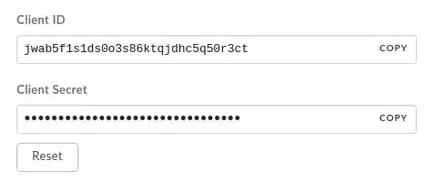
- Go to the Configuration tab. Your Client ID and Client Secret will be displayed here.
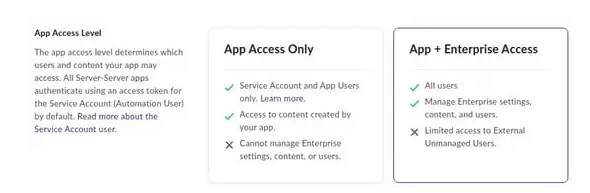
- In the same Configuration tab, change the App access level to App Access + Enterprise Access.
- Under Application Scopes in the Configuration tab, select the scopes that match the data you want to pull from Box. Select all where possible to ensure complete event coverage.
| Scope | What it allows |
|---|---|
| Read all files and folders stored in Box | Allows Bloo to read file and folder data from Box. |
| Write all files and folders stored in Box | Allows Bloo to write file and folder data in Box. |
| Manage users | Allows Bloo to pull user-related events. |
| Manage groups | Allows Bloo to pull group-related events. |
| Manage enterprise properties | Allows Bloo to pull enterprise-level events. |
- Under Add and Manage Public Keys in the Configuration tab, click Generate public/private key pair. Box may ask you to verify your identity using two-factor authentication (2FA) before proceeding — this is a standard security step. Once confirmed, Box will automatically download a JSON configuration file to your computer.
Warning Save the downloaded JSON file immediately and securely. You will need to paste its contents into Bloo when configuring the connector. Box does not store the private key — if the file is lost, you must generate a new key pair.
- Save all changes, then go to the Authorization tab and click Review, then Submit the application.
Warning If you make any changes to the application after submission, you must re-submit it for the changes to take effect.
- A Box Admin must now authorise the app before it can be used. Go to https://app.box.com/master and navigate to Integrations → Platform Apps Manager. Locate the app and click Authorize.
Step 2 — Configure the Box Connector in Bloo
All connector configuration is done from the Datasource page in Bloo.
| Field | Description |
|---|---|
| Connector Name | Enter a name for this connector. |
| Config File | Paste the full contents of the JSON configuration file downloaded from Box when generating the key pair. Note: This is the file automatically downloaded in Step 1. |
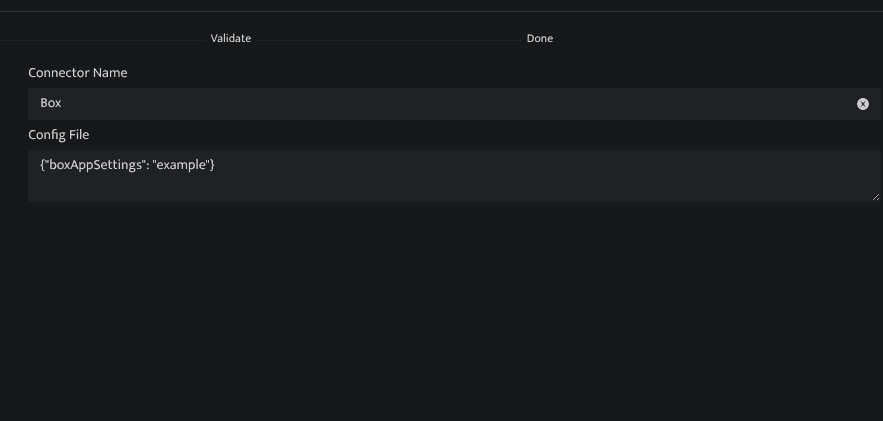
- Click Save after entering all the required details.
- Bloo will validate the configuration automatically.
- Navigate to Collection Status and confirm the connector is listed with a status of Active.
Confirmed When the connector appears in Collection Status with status Active, it is configured successfully and data is ready to ingest.
Related Links
Bloo — Collection Status | Bloo — Connector Validation | Box Developer Console | Box — Managing Platform Apps | Box JWT Setup Guide
Related
Was this page helpful?