
How-to guides
UBA: Coalescing User Identities
In an organization, multiple identities could be associated to a specific user.
Updated 2026-08-14
In an organisation, multiple identities could be associated with a specific user.
For Example: An Employee named John Doe might be accessing multiple applications in the organisation using different User details.
| Applications | User Details |
|---|---|
| Application 1 | [email protected] |
| Application 2 | john_doe |
| Application 3 | Employee ID 111 |
In the above scenario, the user details look different although they are the same user. Using enrichments, we can coalesce all the multiple identities of the same user into a single identity.
It is possible to maintain an eventstore with details for each user in an organisation, including the different user IDs, email IDs, user names of different applications, etc.
Let's consider another example: the eventstore UserInfo has data imported from a csv file. Displayed below is a sample csv file
Upload a Custom Eventstore
A custom event store called UserInfo can be created by uploading the csv file containing user data. The event store that you created will be listed as shown below:

An enrichment bucket for the field $User can be created to refer values from the UserInfo eventstore.
Define a Custom Enrichment Bucket
The enrichment bucket would identify different identities of a specific user observed ($ObservedUser) in the log events coming from different sources and point to a specific user in the $User field.
The yaml format is as follows:
bucket: User
fields:
- User
schema-version: 1.0
source:
- enr_key: '{$UserID1}'
enr_values:
translate:
$User: User
$UserID1: ObservedUser
eventstore: UserInfo
sourcetype: event_store
- enr_key: '{$EmployeeID}'
enr_values:
translate:
$EmployeeID: ObservedUser
$User: User
'{$Department}/{$Designation}': Role
'{$Manager}': Manager
eventstore: UserInfo
sourcetype: event_store| Field | Description |
|---|---|
| Bucket | Enter the name for the enrichment bucket. |
| Fields | Enter the field names to be enriched. |
| schema-version | Enter the schema version |
| Source | List of sources for the enrichment bucket. Note: There can be multiple sources for one enrichment bucket. Source Type: Enter the source type i.e. dql/sql/eventstore. Eventstore: For this scenario, enter the eventstore name. Enr_key: Enter the desired values to be detected output representation. For example, '{UserID1}'. Enr_values — Translate: Allows you to replace the column names of the query result. To replace enter: For example, $EmployeeID: ObservedUser — In this case, the column name $EmployeeID is replaced with $ObservedUser. |
Save the enrichment bucket.
Run a Search
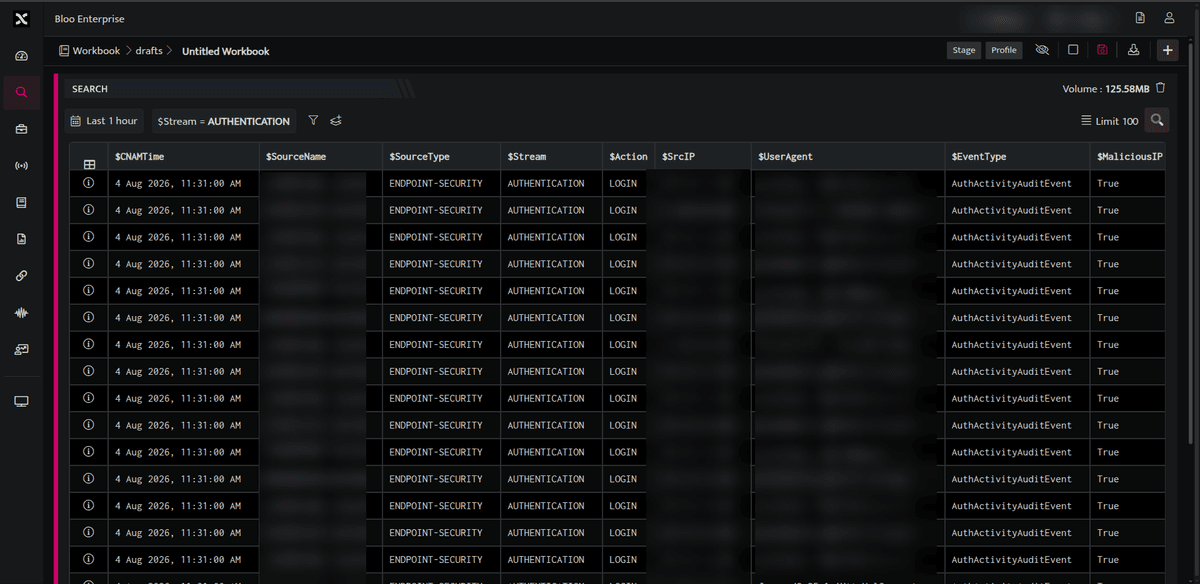
To check if enrichment has been added successfully, run a search on data to fetch enriched details. Enrichment will be applied to the field values mentioned in the enrichment bucket of yml file.

In the above screen, the user identities in $ObservedUser field displays the identities that are correlated to the user in $User field.
From the query result, you can click the Information icon to further drill down to each entity in the result and verify the enriched details.
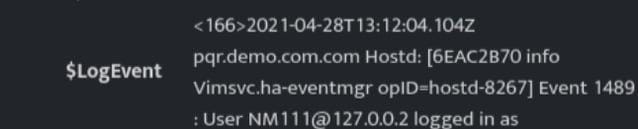
In the above example, the $ObservedUser (shumbham_gilada / NM111) are correlated to the same $User (Shubham Gilada).
Related
Was this page helpful?