
Connectors
Salesforce Connector
Connectors in Bloo
Updated 2026-08-17
Overview
Salesforce is a customer relationship management solution that brings companies and customers together. Salesforce Connector pulls the event monitoring data that contains information useful for assessing organisation usage trends and user behavior.
Prerequisites
- Connectivity with Salesforce API using valid credentials
- Required credentials:
- Username
- Password
- Consumer key
- Consumer secret
- Security token
- Instance URL
Steps to Set Up Salesforce Account
Create a Connected App
Note As of Salesforce Spring '26 (February 2026), creation of new Connected Apps is disabled by default. If you already have a Connected App configured, proceed with the steps below — existing Connected Apps continue to work. If you need to create a new Connected App, contact Salesforce Support to enable this capability for your org.
Login to Salesforce Administrator account.
Click on the setup icon on the navigation bar.
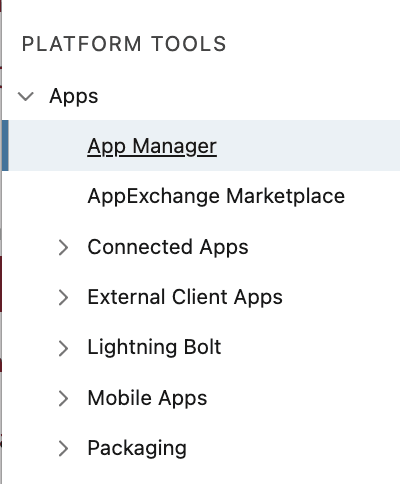
Navigate to the Platform Tools tab on the left panel.
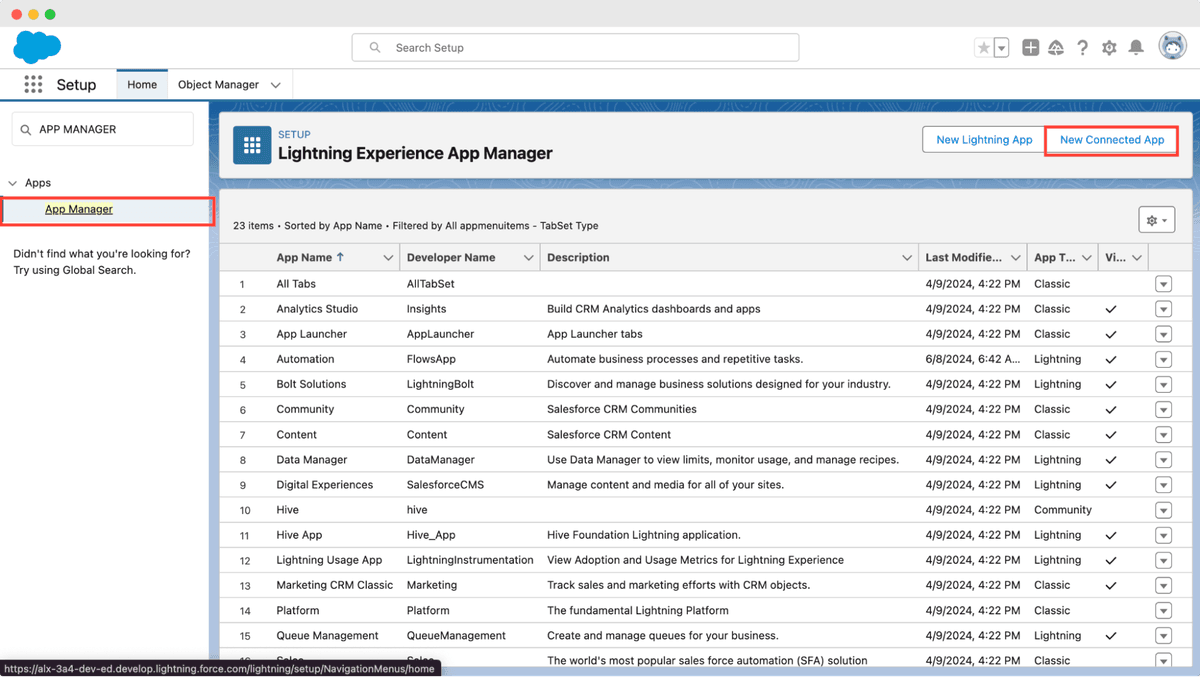
Navigate to Apps → App Manager.
- Click New Connected App.
Fill out the necessary fields, select Enable OAuth Settings checkbox.
Enter value for callback URL.
Select Manage user data via APIs (api) and Perform requests at any time (refresh_token, offline_access) in the Selected OAuth Scopes column.
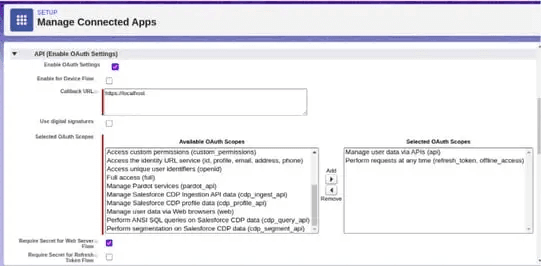
Uncheck Require Secret for Refresh Token Flow checkbox.
Click Save.

Navigate to Platform Tools → Apps → App Manager.
Navigate to your created connected app and click on the arrow on the right side.
Select view option from the menu.
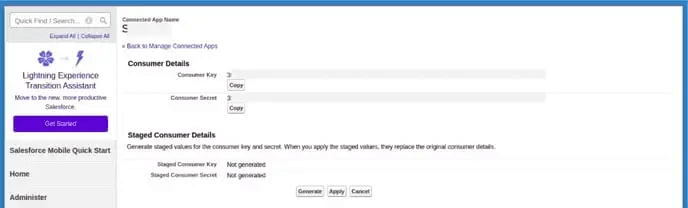
Navigate to API (Enable OAuth Settings) section, click on Manage Consumer Details button.
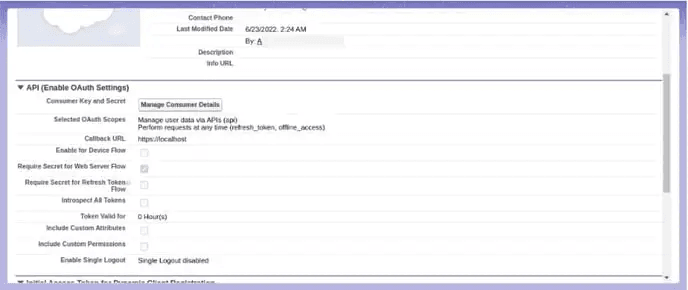
- Copy the values of the consumer key and consumer secret and keep it.
Create User Profiles
User profiles define user's access to objects and data, and tasks allowed to the user within the application.
Login to Salesforce administrator account.
Click on the setup icon on the navigation bar.
Navigate to ADMINISTRATION tab on the left panel.
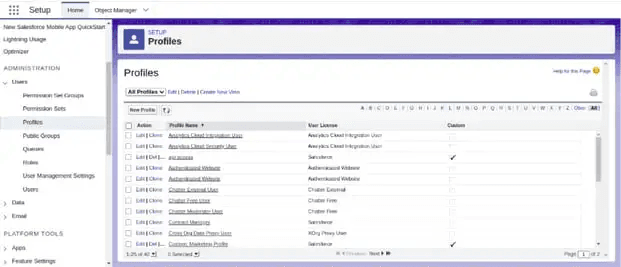
Navigate to Users → Profiles section.

Click on the New Profile button.
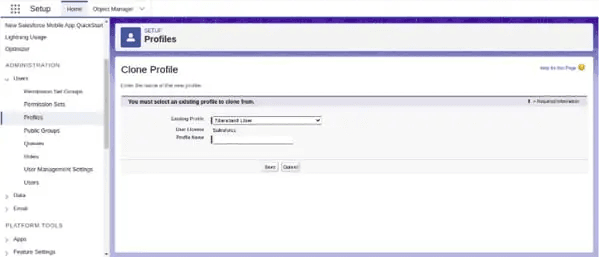
Select, existing profile as Standard User and specify a name for the profile.
Click Save.
Now click on the edit button.
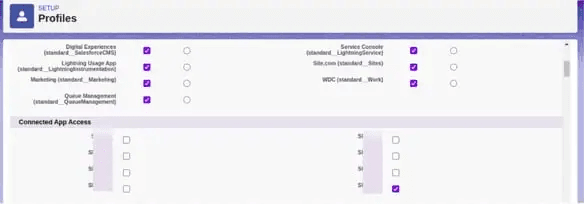
- Navigate to Connected App Access, select the connected apps you want to access using this profile.
Navigate to Administrative Permissions, select API Enabled and Manage Users checkbox.
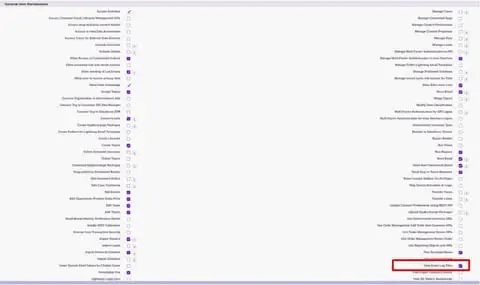
Navigate to General User Permissions, select View Event Log Files checkbox.
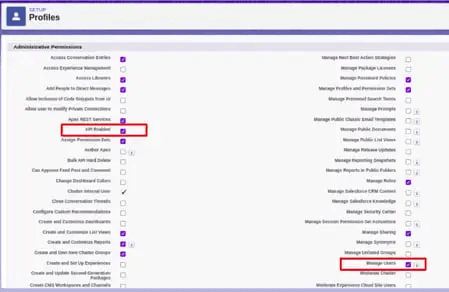
- Click Save.
Create a User in Salesforce
Login to Salesforce administrator account.
Click on the setup icon on the navigation bar.
Navigate to the ADMINISTRATION tab on the left panel.
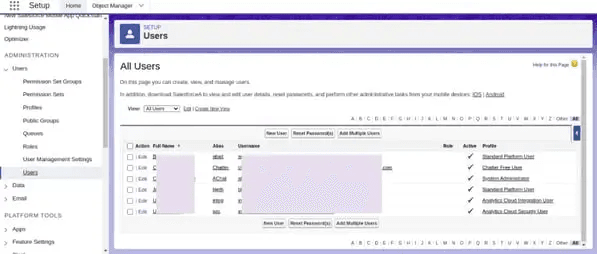
Navigate to Users → Users.
Click on New User.
Fill out the necessary fields, select user license as Salesforce and select the profile created in the previous step.
- To obtain a user password, select the Generate new password and notify the user immediately checkbox.
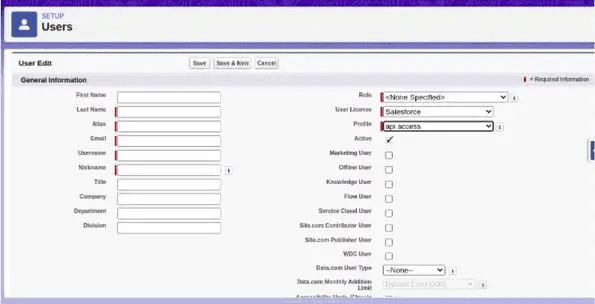
- Click Save.
Get Security Token
Login to Salesforce using the Salesforce account to be used by the connector.
Click the view profile section located in the upper right corner, then click Settings.
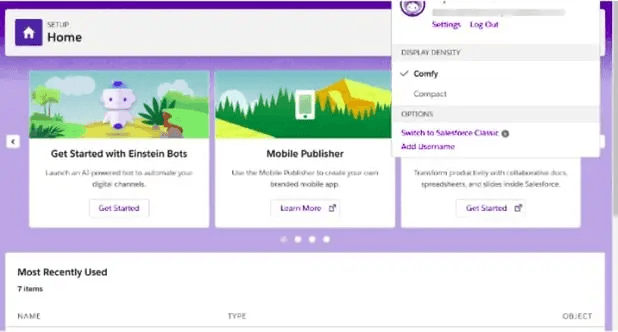
In the right panel, navigate to My Personal Information → Reset My Security Token.
Click Reset Security Token.
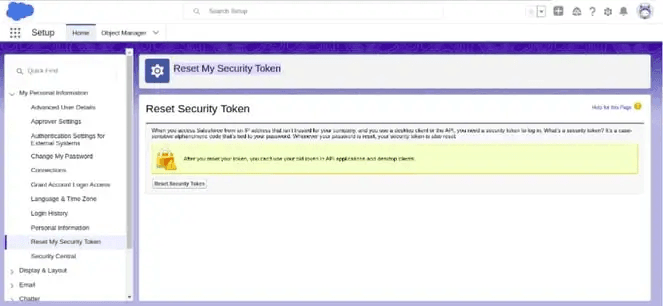
- The token will be sent to you via email.
Configure the Salesforce Connector in Bloo
All connector configuration is done from the Datasource page in Bloo.
| Field Name | Description |
|---|---|
| Connector Name | Enter a connector name. |
| Instance URL | Enter Salesforce instance URL. |
| Salesforce User | Enter Salesforce username. |
| Salesforce User Password | Enter Salesforce user password. |
| Consumer Key | Enter Salesforce Consumer key. |
| Consumer Secret | Enter Salesforce Consumer secret. |
| Security Token | Enter Salesforce Security Token. |
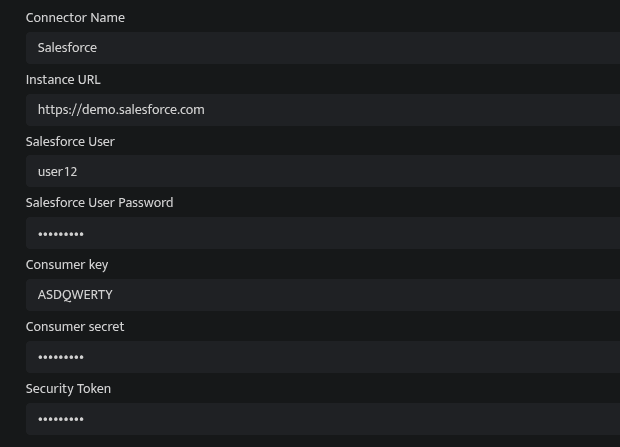
Click Save after entering all the required details.
Bloo will validate the configuration automatically.
Navigate to Collection Status and confirm the connector is listed with a status of Active. This signifies the connector is configured successfully and data is ready to ingest.
| ✓ When the connector appears in Collection Status with status Active, it is configured successfully and data is ready to ingest. |
Related Links
Bloo — Collection Status | Bloo — Connector Validation | Salesforce — New Connected Apps Restricted in Spring '26 | Bloo — Salesforce Troubleshooting | Bloo — Troubleshooting Connector Validations
Related
Was this page helpful?