
How-to guides
Export Case Data
The Export feature simplifies downloading case information, enabling users to access detailed case data and notes for selected cases.
Updated 2026-08-16
The Export feature simplifies downloading case information, enabling users to access detailed case data and notes for selected cases. The users can perform the following activities:
Steps to export case list
- Click on the Cases icon on the left navigation bar of the Home screen to view all the created Cases. By default, it will show cases created within the last 24 hours.
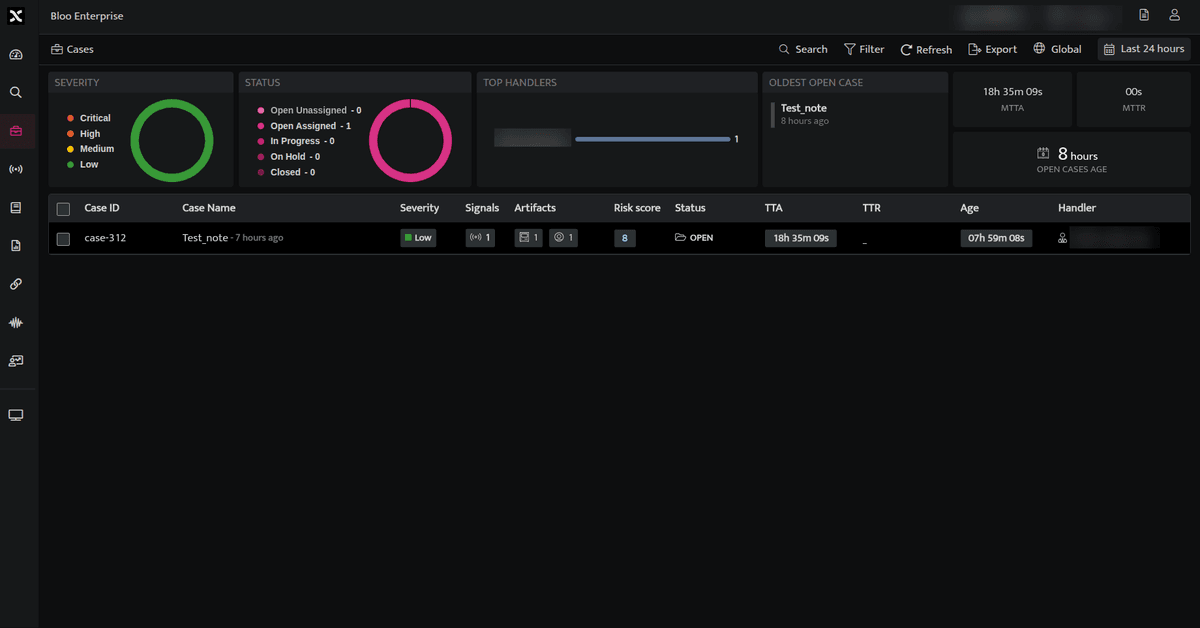
- You may filter the case list based on a specific time frame by using the date time picker and various case attributes by clicking on the filter icon.
- Click the Export icon on the Cases page to export the case list.
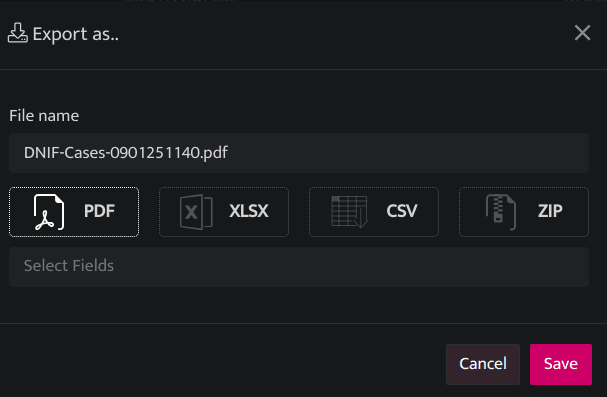
| Fields | Description |
|---|---|
| File Name | Displays the name of the file |
| Export data in PDF format | |
| XLSX | Export data in Excel format |
| CSV | Export data in CSV format |
| ZIP | Export data in a ZIP file |
| Select Fields | Select the fields that need to be exported |
| Save | Click Save to confirm your export choice. |
- The case list will be downloaded in the selected format, including the case details, applied filters (if any), and the MTTA and MTTR values.
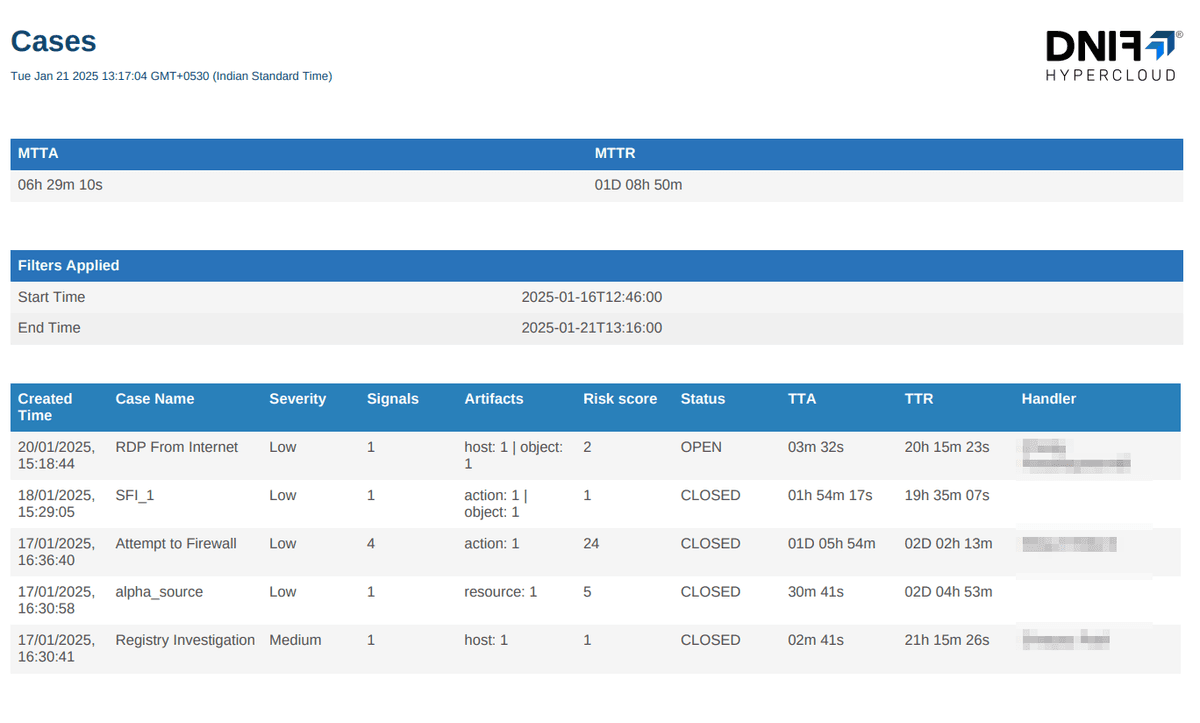
Steps to export Case Data for selected cases
- Select the case for which you want to export data, including case notes.
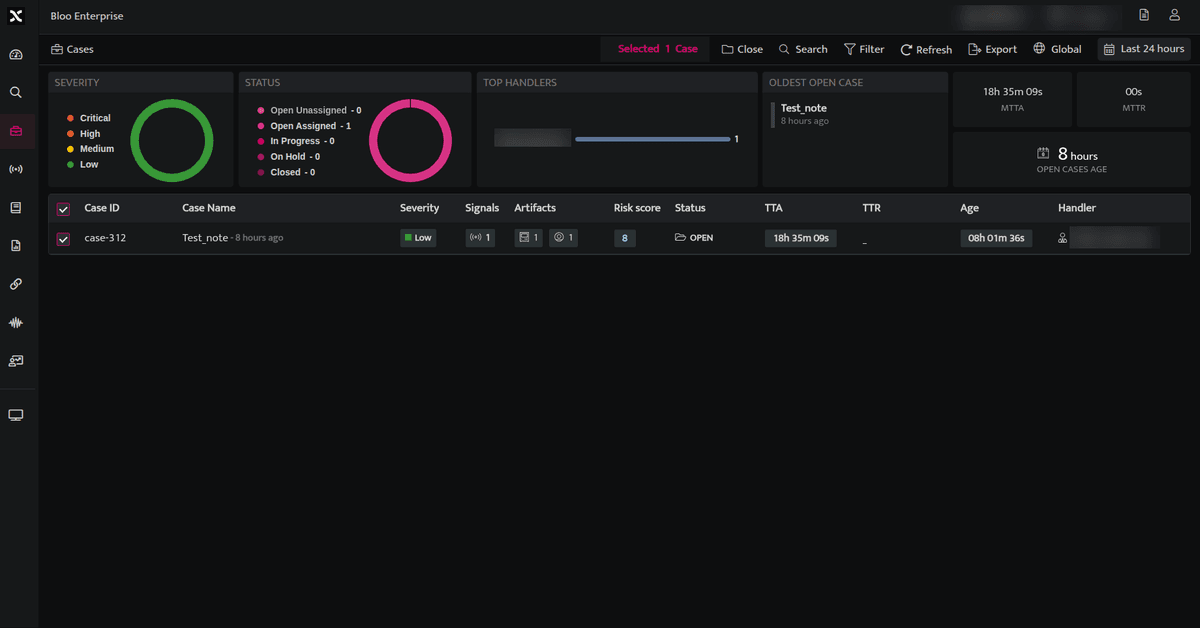
- Click the Export icon on the Cases page to export the case list. Note: The exported cases will be saved as a CSV file, including all case details and notes. Case notes can only be exported in CSV format.
Related
Was this page helpful?