
Connectors
GCP Pub/Sub Connector
Connectors in Bloo
Updated 2026-08-17
Overview
Google Cloud Platform (GCP) is the basis for creating, enabling, and using all Google Cloud services including managing APIs, enabling billing, adding and removing collaborators, and managing permissions for Google Cloud resources.
Prerequisites
- A Google account.
- A Cloud Console project.
Step 1 — Create a Project
Go to the Manage resources page in the Cloud Console.
On the Select organization drop-down list at the top of the page, select the organization in which you want to create a project. If you are a free trial user, skip this step, as this list does not appear.
Click Create Project.
In the New Project window that appears, enter a project name and select a billing account as applicable. A project name can contain only letters, numbers, single quotes, hyphens, spaces, or exclamation points, and must be between 4 and 30 characters.
Enter the parent organization or folder in the Location box. That resource will be the hierarchical parent of the new project.
When you're finished entering new project details, click Create.
Step 2 — Create a Topic
Go to the Pub/Sub topics page in the Cloud Console.
Click Create topic. In the Topic ID field, provide a unique topic name, for example, MyTopic.
Click Save.
Step 3 — Add a Subscription
- Display the menu for the topic you just created and click Create subscription.

Type a name for the subscription, such as MySub.
Leave the delivery type as Pull.
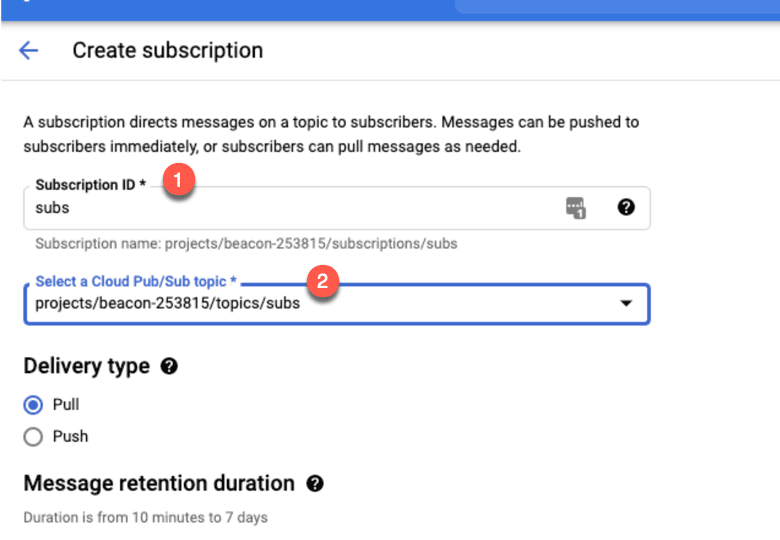
- Click Create.
Step 4 — Publish a Message to the Topic
Go to the Topic details page for the topic you just created.
Click the Messages tab near the bottom of the page, then click Publish Message.
Enter a message in the Message field.
Click Publish.
Step 5 — Create a Service Account Key
In the Cloud Console, go to the Service Accounts page.
Select a project.
Click the email address of the service account that you want to create a key for.
Click the Keys tab.
Click the Add key drop-down menu, then select Create new key.
Select JSON as the Key type and click Create. Clicking Create downloads a service account key file.
⚠ After you download the key file, you cannot download it again.
Step 6 — Pull a Message from the Subscription
In the Cloud Console, go to the Pub/Sub subscriptions page.
Click the subscription ID.
In the Subscription details page, click View messages.
Click Pull.
Step 7 — Configure the GCP Pub/Sub Connector in Bloo
All connector configuration is done from the Datasource page in Bloo.
| Field | Description |
|---|---|
| Connector Name | Enter a name for the connector. |
| Project Id | Enter the project name. |
| Subscription Id | Enter the Subscription ID of the topic you created. |
| Credentials File | Enter the details from the credentials.json file, downloaded while creating the project. |
| Number of Processes | Total number of processes that can be run at a time. |
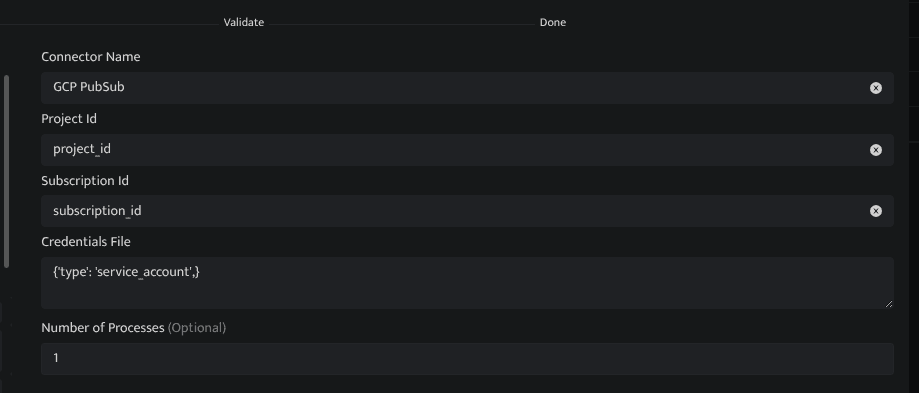
Click Save after entering all the required details.
Bloo will validate the configuration automatically.
Navigate to Collection Status and confirm the connector is listed with a status of Active. This signifies the connector is configured successfully and data is ready to ingest.
✓ When the connector appears in Collection Status with status Active, it is configured successfully and data is ready to ingest.
Related Links
Bloo — Collection Status | Bloo — Connector Validation | GCP Pub/Sub — Quickstart | GCP — Create service account keys
Related
Was this page helpful?