
Connectors
Trend Micro Vision One Connector
Connectors in Bloo
Updated 2026-08-17
Overview
Trend Micro Vision One is an extended detection and response (XDR) platform that provides a broader perspective of threats across endpoints, email, servers, cloud workloads, and networks. Bloo integrates with Trend Micro Vision One to collect, normalize, and monitor security logs in real time.
Prerequisites
- Trend Micro Vision One account with Admin privileges
- Authentication Token
- Region
Generate an Authentication Token
Depending on your Trend Micro Vision One console version, use whichever path is available to you:
Note If you see Administration → API Keys in your console — follow Path A below. If you see Settings → User Accounts in your console — follow Path B below.
Path A — Administration → API Keys (Current)
Log in to your Trend Micro Vision One console.
Go to Administration → API Keys.
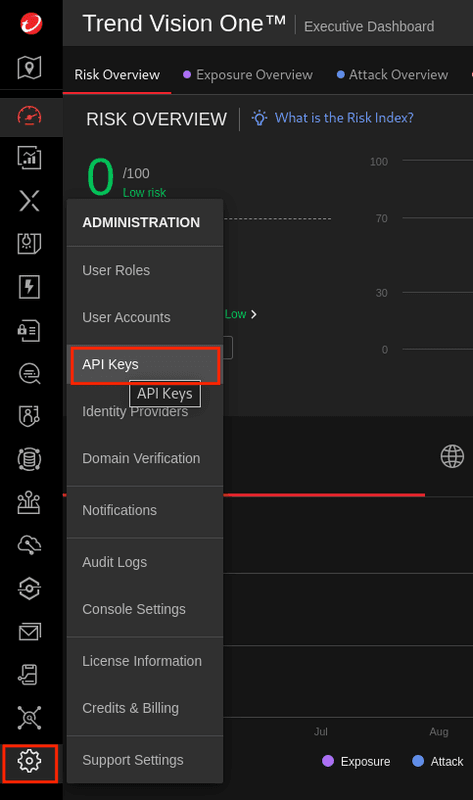
Click Add API Key.
Specify the settings for the new API key:
- Name: A meaningful name to help identify this key.
- Role: The user role assigned to the key.
- Expiration time: By default tokens expire one year after creation.
- Click Add. Copy and store the authentication token in a secure location.
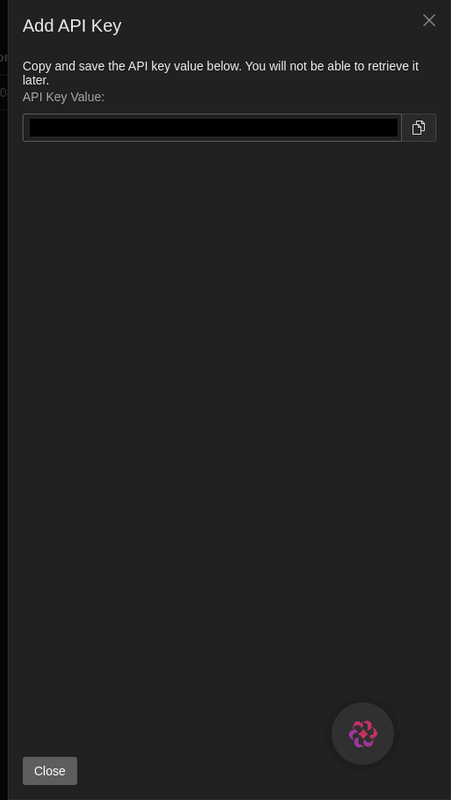
Warning Copy the token immediately — you cannot see it again after you close this window. By default, tokens expire one year after creation. If your token expires, the connector will stop working and you will need to generate a new token and update the configuration in Bloo.
Path B — Settings → User Accounts (Legacy)
Log in to your Trend Micro Vision One console.
Click the Settings icon on the left navigation bar and click User Accounts.
Find your account on the User Accounts page and click on the account name. A popup window will appear.
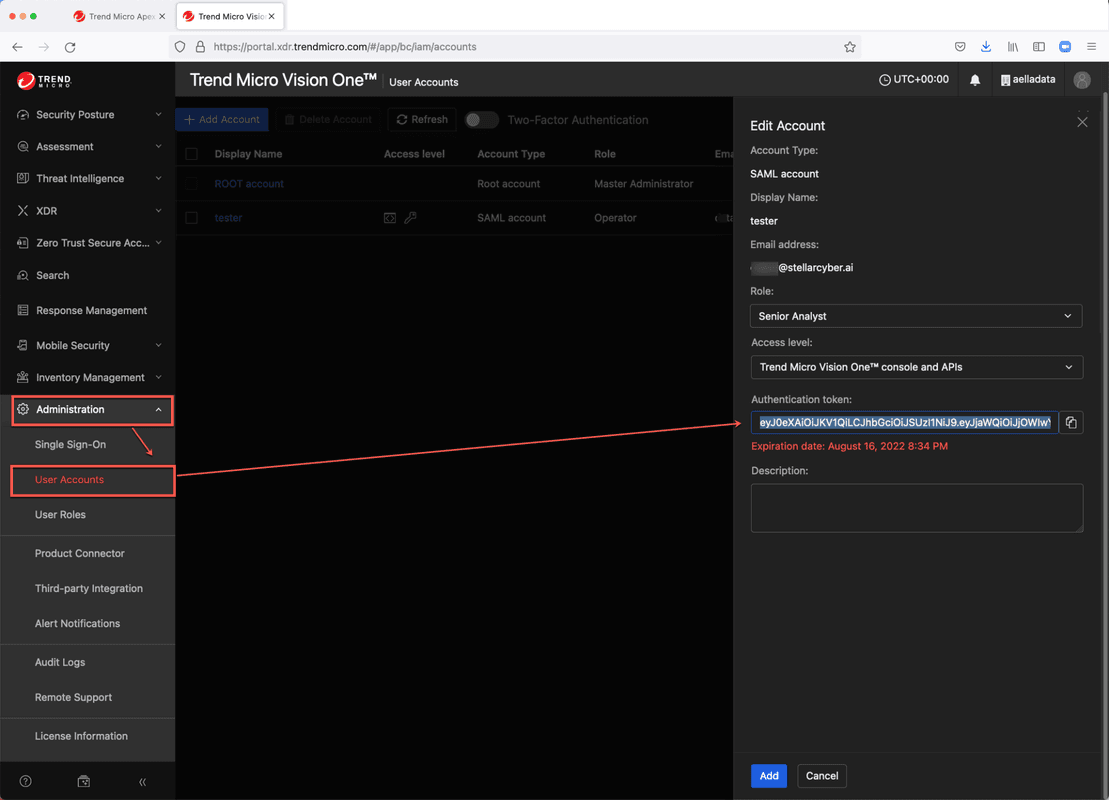
Make the required changes in the popup window and click Save.
Generate a new authentication token. Copy and store it in a secure location.
Warning By default, tokens expire one year after creation. If your token expires, the connector will stop working and you will need to generate a new token and update the configuration in Bloo.
Configure the Trend Micro Vision One Connector in Bloo
All connector configuration is done from the Datasource page in Bloo.
| Field Name | Description |
|---|---|
| Connector Name | Enter a name for the connector. |
| Trend Token | Enter the authentication token generated above. |
| Base Url | Enter the base url obtained from customer. |
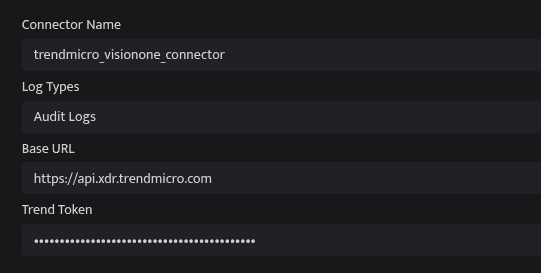
Click Save after entering all the required details.
Bloo will validate the configuration automatically.
Navigate to Collection Status and confirm the connector is listed with a status of Active. This signifies the connector is configured successfully and data is ready to ingest.
Confirmed When the connector appears in Collection Status with status Active, it is configured successfully and data is ready to ingest.
Related Links
Bloo — Collection Status | Bloo — Connector Validation | Trend Micro Vision One — API Keys | Trend Micro Vision One Console | Bloo — Troubleshooting Connector Validations
Related
Was this page helpful?