
Connectors
GCP Connector
Connectors in Bloo
Updated 2026-08-17
Overview
GCP (Google Cloud Platform) integrates with Bloo using the GCP Connector. The connector pulls GCP activity logs from Google Cloud.
Prerequisites
- Create a Service Account (if not already created). Reference: Create a service account
- Create a key to access the GCP APIs. Reference: Create and delete service account keys
- Enable data access logs if not activated. Reference: Configure Data Access audit logs
Warning When creating the service account key, select JSON as the key type. After you download the credentials.json file, you cannot download it again. Store it securely — you will need it when configuring the connector in Bloo.
Configure the GCP Connector in Bloo
All connector configuration is done from the Datasource page in Bloo.
| Field | Description |
|---|---|
| Connector Name | Enter a name for the connector. |
| Credentials File | Enter the details from the credentials.json file, which is downloaded while configuring the reports API. |
| Project Id | Enter the Project ID for which the logs will be fetched. |
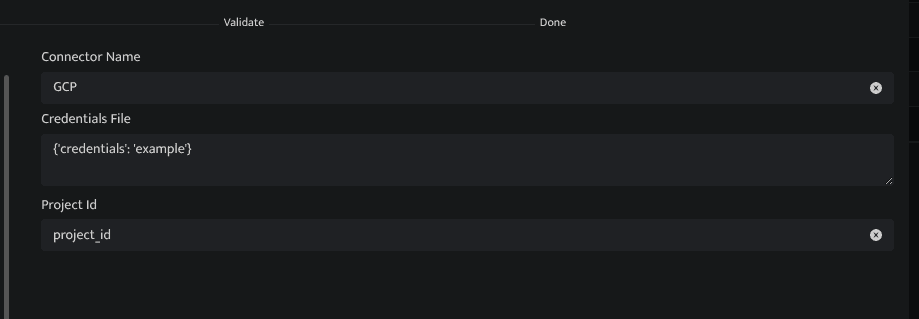
Click Save after entering all the required details.
Bloo will validate the configuration automatically.
Navigate to Collection Status and confirm the connector is listed with a status of Active. This signifies the connector is configured successfully and data is ready to ingest.
Confirmed When the connector appears in Collection Status with status Active, it is configured successfully and data is ready to ingest.
Related Links
Bloo — Collection Status | Bloo — Connector Validation | GCP — Create a service account | GCP — Create service account keys | GCP — Configure Data Access audit logs | Bloo — GCP Troubleshooting
Related
Was this page helpful?