
How-to guides
Add Parameters to Workbook
Workbook parameters can be referred to as the input to conditions that are used to filter query results or to provide input queries.
Updated 2026-08-14
Workbook parameters can be referred to as the input to conditions that are used to filter query results or to provide input queries. This section helps you to add parameters to a Workbook.
How to add parameters to a workbook?
- Hover on the Workbooks icon on the left navigation bar, it will display the folder wise view of existing workbooks in the tenant (previously known as cluster).
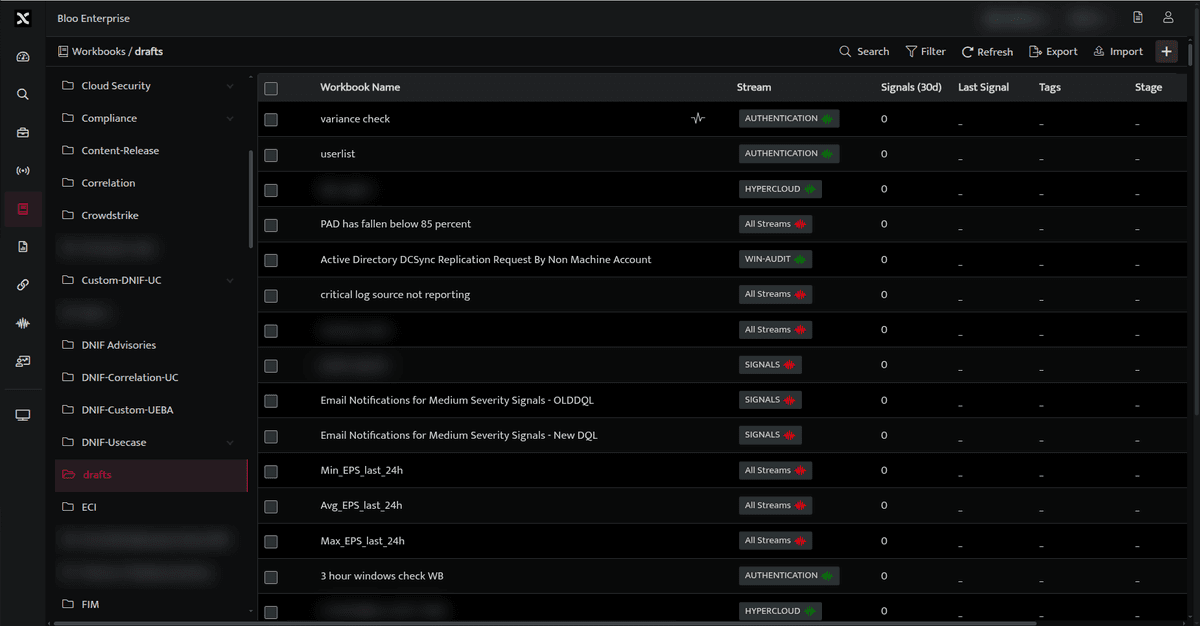
- Click the plus icon at the top right corner of the Workbooks list page to create a new workbook, the following screen is displayed.
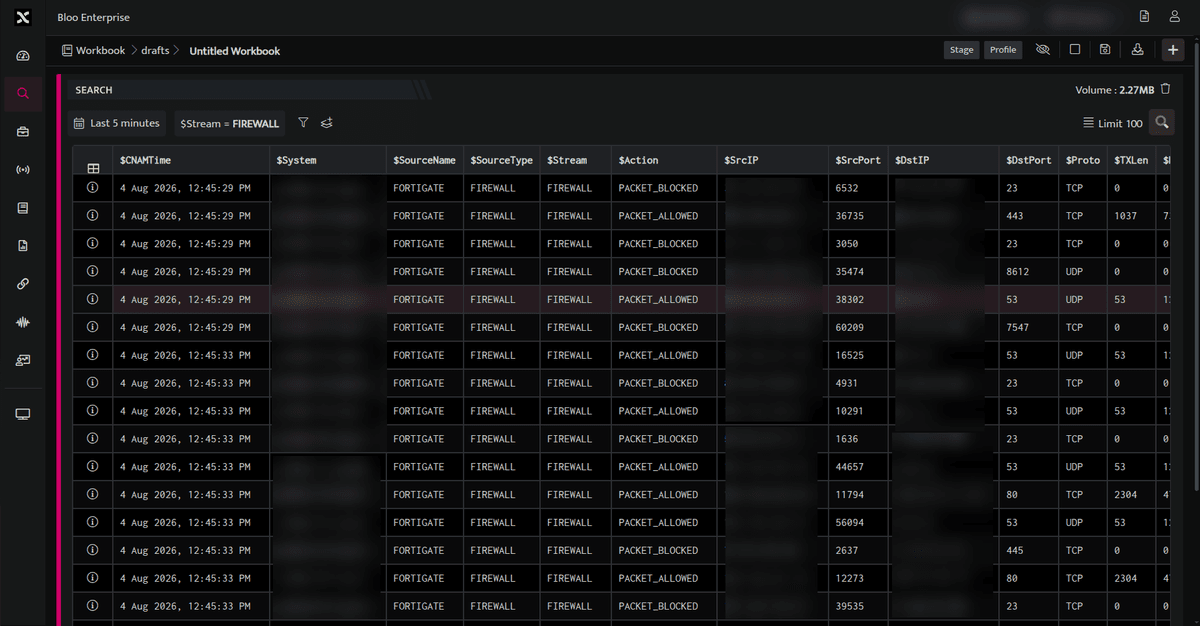
- Enter a query and execute the same, the results will be displayed.
- Parameters will be applied to the query result columns.
- Multiple parameters can be added to a single workbook
- Click Parameters icon on the top right corner of the screen to add parameters to a Workbook.

Add parameters bar is added; click this to define parameters for the Workbook.
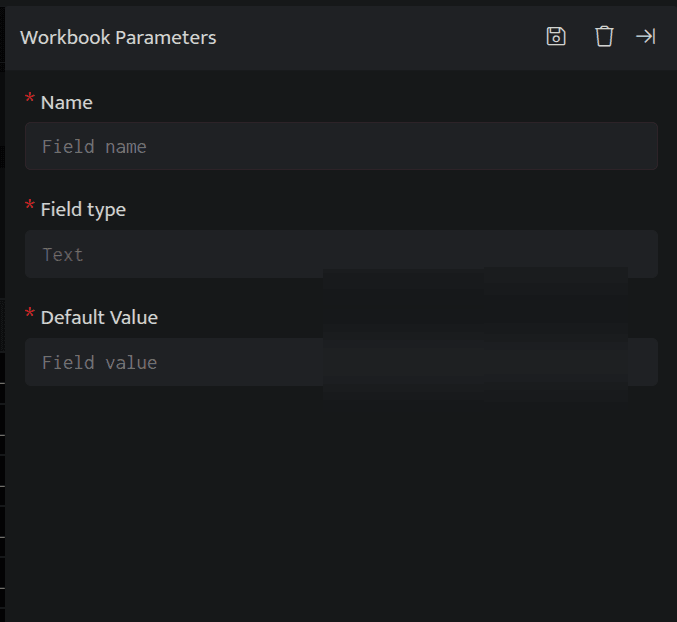
| Field Name | Description |
|---|---|
| Name | Enter a parameter name for the Workbook. Workbook field value to be parameterised |
| Field Type | Indicates the field type. By default, the field type displayed is Text |
| Default Value | Enter the parameterized value |
Click the Save icon to save the details, the parameter value added will be displayed above the query section of the workbook.

Now, you can apply this paramater anywhere in query in the following format AND $columnname=
Example
_fetch * from event where $Stream=FIREWALL AND $EvtLen= AND $Duration=1d limit 100
The above output will fetch and display only the details as per the value set in the EventLength parameter.
During Signal investigations, you can directly send a parameter value on demand and invoke the workbook.
Related
Was this page helpful?