
Connectors
AWS S3 Connector
Connectors in Bloo
Updated 2026-08-17
AWS S3 integrates with Bloo using the pull method via the Amazon S3 API. Once configured, Bloo reads log files directly from your S3 bucket, normalizing and monitoring them in real time.
Before You Begin — Prerequisites
You will need the following before configuring the connector in Bloo. Your S3 bucket must already exist and contain the log files you want Bloo to ingest.
| Requirement | Where to Get It | Notes |
|---|---|---|
| AWS Account | Sign in at console.aws.amazon.com | Must have IAM admin access to create users and attach policies |
| S3 Bucket | AWS Console → S3 → your bucket name | The bucket must already exist and contain log files |
| Bucket Name | AWS Console → S3 → your bucket name | The exact name of your S3 bucket |
| Access Key ID | Generated from IAM → Users → Security credentials (Step 1 below) | Created for an IAM user with AmazonS3ReadOnlyAccess policy |
| Secret Access Key | Generated alongside Access Key ID | Shown only once — copy and store securely |
| AWS Region | The region where your S3 bucket is located | Example: us-east-1 |
| Prefix (optional) | The folder path inside your S3 bucket where log files are stored | Example: logs/cloudtrail/ — leave blank to read from the root of the bucket |
Note For reference, see the AWS documentation on Amazon S3 (https://docs.aws.amazon.com/AmazonS3/latest/userguide/Welcome.html) and Creating an IAM user (https://docs.aws.amazon.com/IAM/latest/UserGuide/id_users_create.html).
Step 1 — Create an IAM User in AWS
Bloo needs an IAM user with read-only access to your S3 bucket. Follow these steps to create one and generate its credentials.
Sign in to the AWS Management Console at
In the search bar, type IAM and select the IAM service.
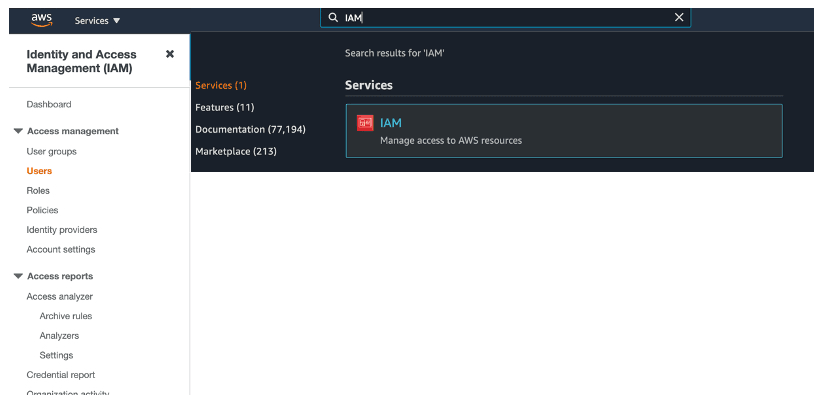
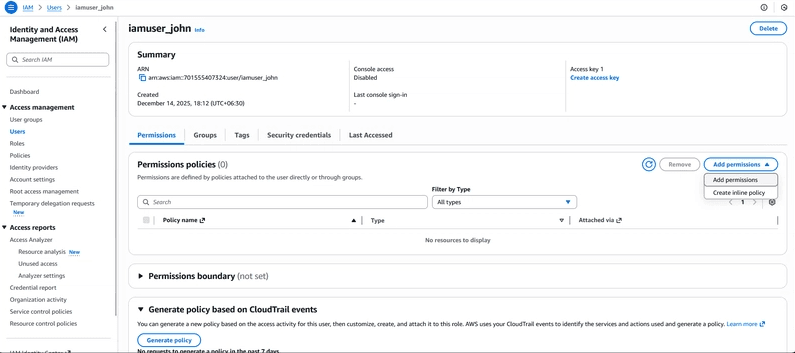
- In the left sidebar, click Users then click Add users.

Enter a username (for example, s3-bloo-user). On the same screen, look for the Access type section and check the box next to Access key - Programmatic access — this tells AWS to generate credentials for Bloo. Then click Next: Permissions.
On the Set permissions page, select Attach policies directly. In the search box, type AmazonS3ReadOnlyAccess and check the box next to it. This policy gives Bloo read-only access to your S3 bucket. Click Next: Tags — you can skip tags — then click Next: Review, then click Create user.
- You will now see a confirmation screen showing your Access Key ID and Secret Access Key. Click Show next to the Secret Access Key to reveal it and copy it, or click Download .csv file to save both values to your computer. You will need both to configure Bloo.
Warning The Secret Access Key is shown only once. Download the .csv file now or copy it immediately — you cannot retrieve it again after leaving this screen.
Step 2 — Configure the Connector in Bloo
With the credentials from Step 1 and your bucket details, set up the connector on the Datasource page in Bloo.
In Bloo, navigate to the Datasource page and click Add Datasource.
Search for and select AWS S3.
Fill in the configuration fields as described below.
| Field | Description | Example |
|---|---|---|
| Connector Name | A unique display name for this connector instance in Bloo. | AWSS3-Prod |
| Bucket Name | Enter the exact name of your S3 bucket. Do not include s3:// — just the name itself. | my-log-bucket |
| Access Key ID | Enter the Access Key ID generated in Step 1. | Paste from Step 1 |
| Secret Access Key | Enter the Secret Access Key generated in Step 1. | Paste from Step 1 |
| Region | Enter the AWS region where your S3 bucket is located. | us-east-1 |
| Prefix | Optional. Enter the folder path inside the bucket where logs are stored. Leave blank to read from the root of the bucket. | logs/cloudtrail/ |
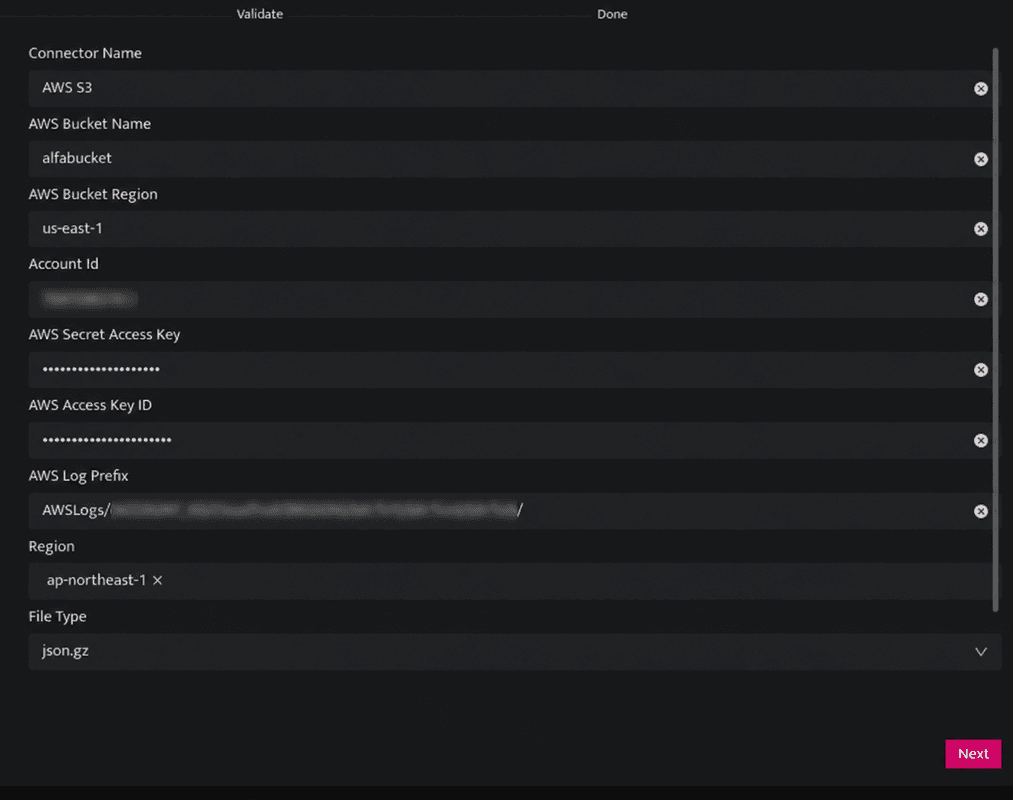
- Click Save. The connector proceeds directly to validation.
Confirmed Go to Collection Status (https://dnif.it/kb/operations/collection-status/) in Bloo and verify the AWS S3 connector shows status Active.
Related
Was this page helpful?