
Connectors
Indusface Connector
Connectors in Bloo
Updated 2026-08-17
Overview
Indusface Connector retrieves various types of attack details on all enlisted websites in the AppTrana portal.
Prerequisites
- API ID
- Secret Key
How to Create API ID and Secret Key
Log in to your Indusface AppTrana portal.
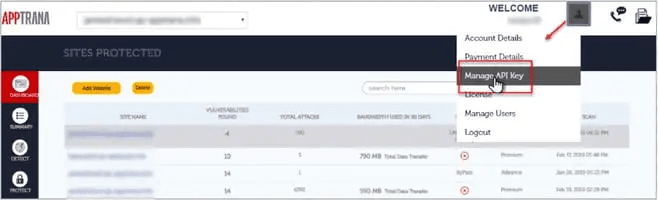
Click the User Profile drop-down and click the Manage API Key option.
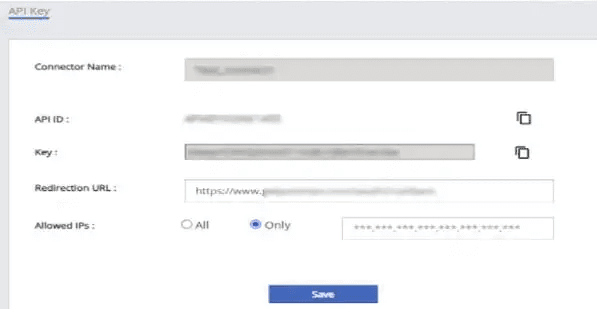
Enter a connector name of your choice and note the auto-generated API ID and Secret Key. Also, enter the Adapter/Pico IP in the Allowed IPs section for whitelisting purposes.
Note The users with SIEM service enabled on Indusface will have an API Key. If you cannot find it, contact Indusface Support. Once they enable it, Re-login to view the Manage API option.
Click the Save button.
Configure the Indusface Connector in Bloo
All connector configuration is done from the Datasource page in Bloo.
| Field | Description |
|---|---|
| Connector Name | Enter a name for the connector. |
| API ID | Enter Indusface API ID. |
| Secret Key | Enter Indusface Secret Key. |
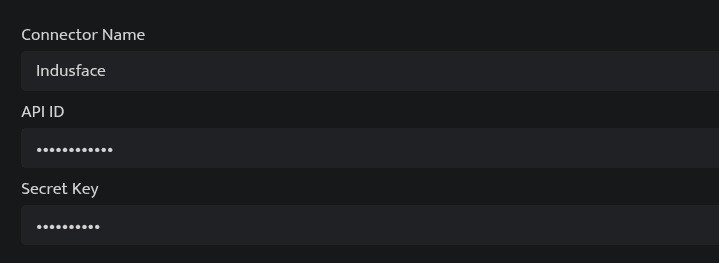
Click Save after entering all the required details.
Bloo will validate the configuration automatically.
Navigate to Collection Status and confirm the connector is listed with a status of Active. This signifies the connector is configured successfully and data is ready to ingest.
Confirmed When the connector appears in Collection Status with status Active, it is configured successfully and data is ready to ingest.
Related Links
Bloo — Collection Status | Bloo — Connector Validation | Bloo — Troubleshooting Connector Validations | Indusface AppTrana Documentation
Related
Was this page helpful?