
Connectors
Atlassian Connector
Connectors in Bloo
Updated 2026-08-17
Atlassian integrates with Bloo using the pull method via the Atlassian Admin API. Once configured, Bloo collects, normalizes, and monitors Atlassian organization audit logs to help identify user activity and security events across your Atlassian products.
Before You Begin — Prerequisites
You'll need the following from your Atlassian account before configuring the connector in Bloo.
| Requirement | Where to Get It | Notes |
|---|---|---|
| Atlassian Account | Sign in at admin.atlassian.com | Must be an Organization Admin — Site Admin access is not sufficient |
| Organization ID | Generated when you create an API key under Settings → API keys | Shown only once — copy and store it securely |
| API Key | Generated under Settings → API keys → Create API key | Shown only once — copy and store it securely |
ℹ For reference, see the Atlassian Admin API documentation at admin.atlassian.com and the Atlassian Admin APIs guide.
Step 1 — Generate an API Key in Atlassian
Follow these steps inside your Atlassian Administration account to generate the credentials Bloo needs.
Sign in to Atlassian Administration at
Select your organization from the list if you have more than one.
In the left sidebar, go to Settings and click API keys.
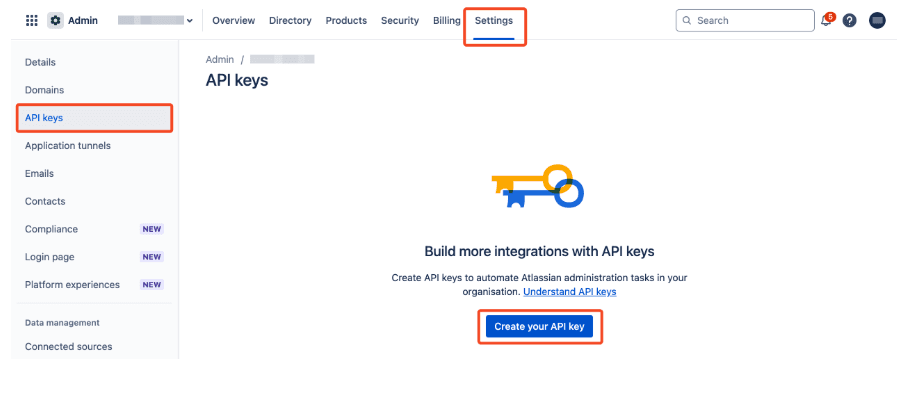
- Click Create API key in the top right corner.
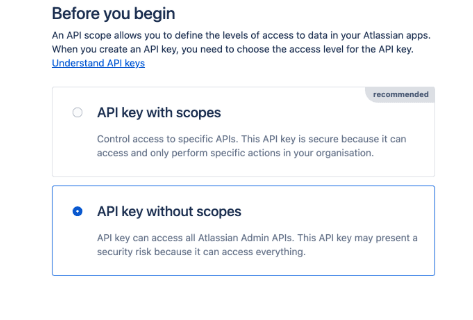
- Enter a name for the key and set an expiry date. The key can expire between 1 and 365 days. Click Next, review your settings, then click Create API key.
- Copy both the Organization ID and the API Key shown on the confirmation screen. These are the credentials you will enter into Bloo.
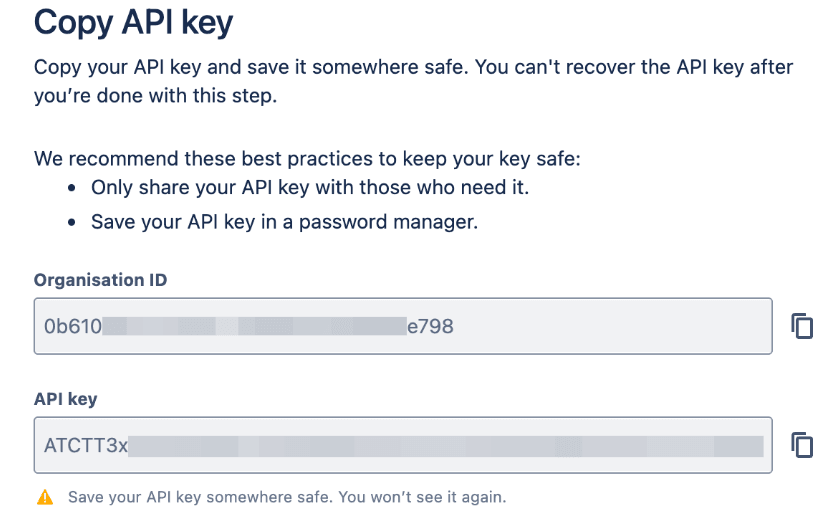
⚠ Important: The Organization ID and API Key are shown only once. Copy both now and store them securely — you cannot retrieve them again after clicking Done.
- Click Done to close the confirmation screen.
Step 2 — Configure the Connector in Bloo
With the credentials from Step 1, set up the connector on the Datasource page in Bloo.
In Bloo, navigate to the Datasource page and click Add Datasource.
Search for and select Atlassian.
Fill in the configuration fields as described below.
| Field | Description | Example |
|---|---|---|
| Connector Name | A unique display name for this connector instance in Bloo. | Atlassian-Prod |
| Organization ID | Enter the Organization ID from Step 1. | Paste from Step 1 |
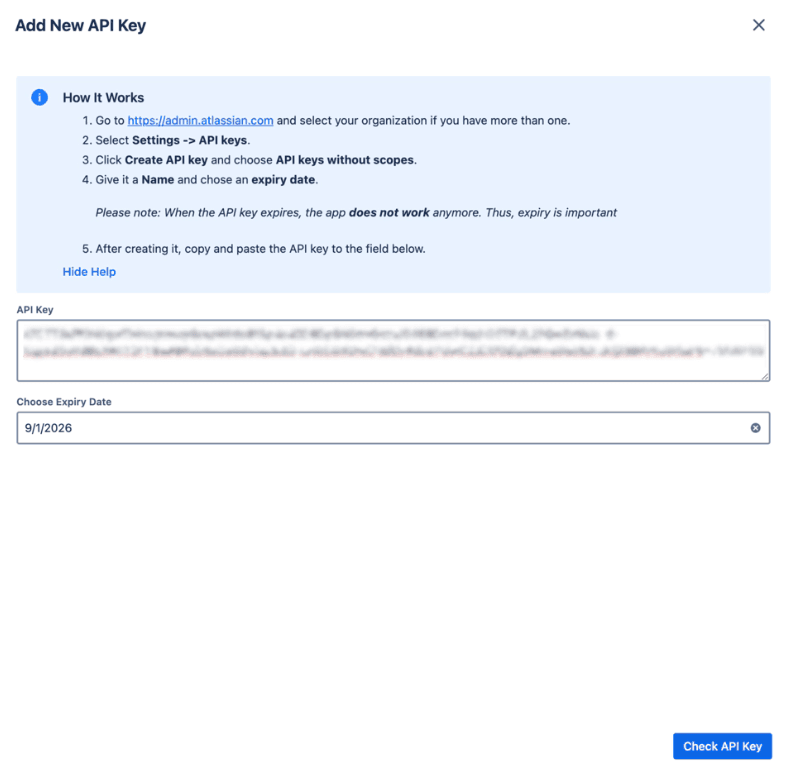
| API Key | Enter the API Key generated in Step 1. | Paste from Step 1 |
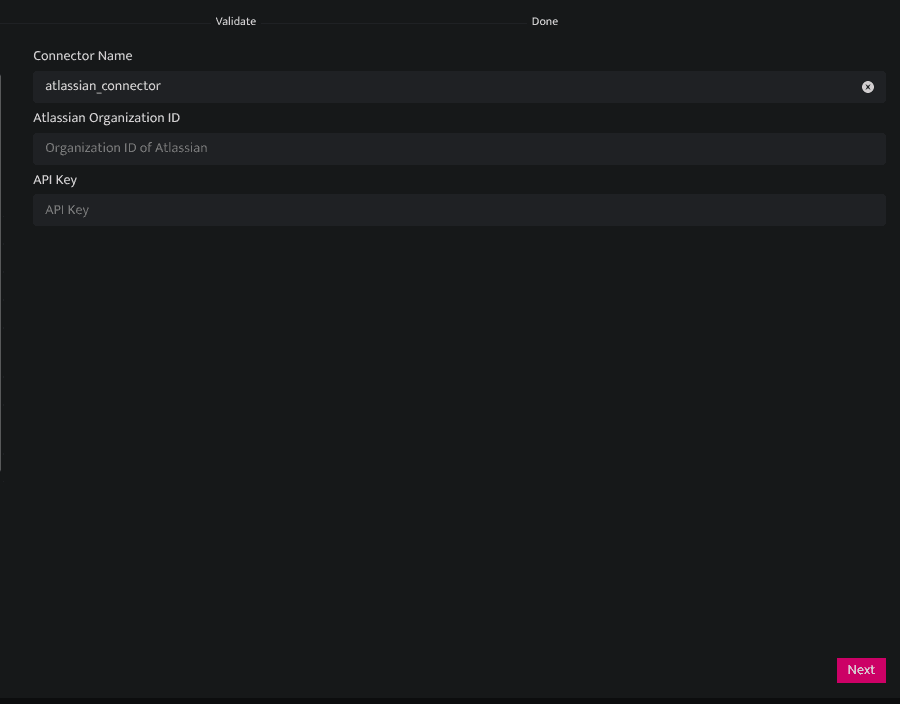
- Click Save. The connector proceeds directly to validation.
✓ Go to Collection Status in Bloo and verify the Atlassian connector shows status Active.
Related
Was this page helpful?