
Connectors
Mimecast Connector
Connectors in Bloo
Updated 2026-08-17
Overview
The Mimecast Connector supports collecting SIEM, DLP, Audit, and Hold Message List data from the Mimecast API. Bloo can collect, normalize, and monitor Mimecast logs to help you identify suspicious activity within your workspace in real time.
Prerequisites
- Client ID
- Client Secret
Steps to Derive Prerequisites
Note: The user account associated with your Mimecast credentials needs to have basic administrator access.
Application Registration and API Credential Management:
- For Email Security Cloud Gateway customers: Follow this document — Email Security Cloud Gateway
- For Email Security Cloud Integrated customers: Follow this document — Email Security Cloud Integrated
Warning Copy your Client ID and Client Secret to a safe location immediately. The Client Secret will not be shown again after you close the setup screen. If it is lost, you will need to regenerate your credentials.
To get the following log sources from Mimecast, allow the respective permission:
- SIEM Logs — In order to use this endpoint the logged in user must be a Mimecast Administrator with at least the Security Events and Data Retrieval | Threat and Security Events (SIEM) | Read permission. Allow Logging by following this document: SIEM Guidelines
- DLP Logs — In order to successfully use this endpoint the role assigned to the app must have at least the following level of application permissions granted: Monitoring | Data Leak Prevention | Read.
- Audit Events — In order to successfully use this endpoint the role assigned to the app must have at least the following level of application permissions granted: Account | Logs | Read.
- Hold Message List — In order to successfully use this endpoint the role assigned to the app must have at least the following level of application permissions granted: Account | Dashboard | Read.
Configure the Mimecast Connector in Bloo
All connector configuration is done from the Datasource page in Bloo.
| Field | Description |
|---|---|
| Connector Name | Enter a name for the connector. |
| Log Types | Enter Mimecast Log Types. |
| Client ID | Enter the Mimecast API Client ID. |
| Client Secret | Enter the Mimecast API Client Secret. |
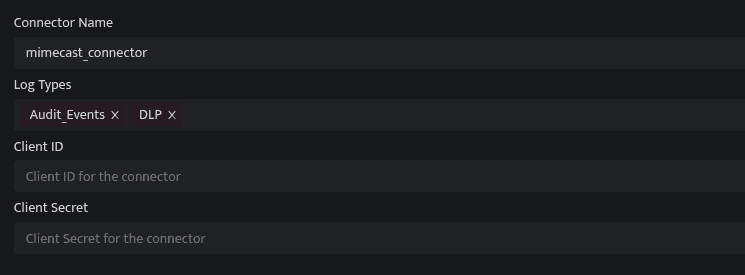
- Click Save after entering all the required details.
- Bloo will validate the configuration automatically.
- Navigate to Collection Status and confirm the connector is listed with a status of Active. This signifies the connector is configured successfully and data is ready to ingest.
Confirmed When the connector appears in Collection Status with status Active, it is configured successfully and data is ready to ingest.
Related Links
Bloo — Collection Status | Bloo — Connector Validation | Mimecast API Overview | Mimecast — Cloud Gateway API Setup | Mimecast — Cloud Integrated API Setup | Bloo — Troubleshooting Connector Validations
Related
Was this page helpful?