
Connectors
Azure Event Hub Connector
Connectors in Bloo
Updated 2026-08-17
Azure Event Hub integrates with Bloo using the pull method. Azure Event Hub is a Microsoft service that collects and streams large volumes of log and event data. Bloo connects to your Event Hub using two connection strings — one for the Event Hub itself and one for an Azure Storage Account, which Event Hub uses to keep track of where it left off while reading.
Before You Begin — Prerequisites
You will need the following before configuring the connector in Bloo. Your Azure Event Hub must already be set up and receiving events.
| Requirement | Where to Get It | Notes |
|---|---|---|
| Azure Account | Sign in at portal.azure.com | Must have access to create resource groups, storage accounts, and Event Hubs |
| Event Hubs Namespace | Azure portal → Event Hubs | A namespace is a container that holds one or more Event Hubs. It must already exist. |
| Azure Connection String | Copied from Event Hub → Shared access policies (Step 2 below) | This is the credential Bloo uses to connect to your Event Hub. |
| Azure Storage Connection String | Copied from Storage account → Access keys (Step 3 below) | The storage account is used to track read progress. This is a separate connection string from the Event Hub one. |
ℹ For reference, see the Azure documentation on Get an Event Hubs connection string and Manage storage account access keys.
Step 1 — Create a Resource Group
A Resource Group is a container in Azure that holds all your related resources together. Create one to house both your storage account and your Event Hub.
Sign in to the Azure portal at
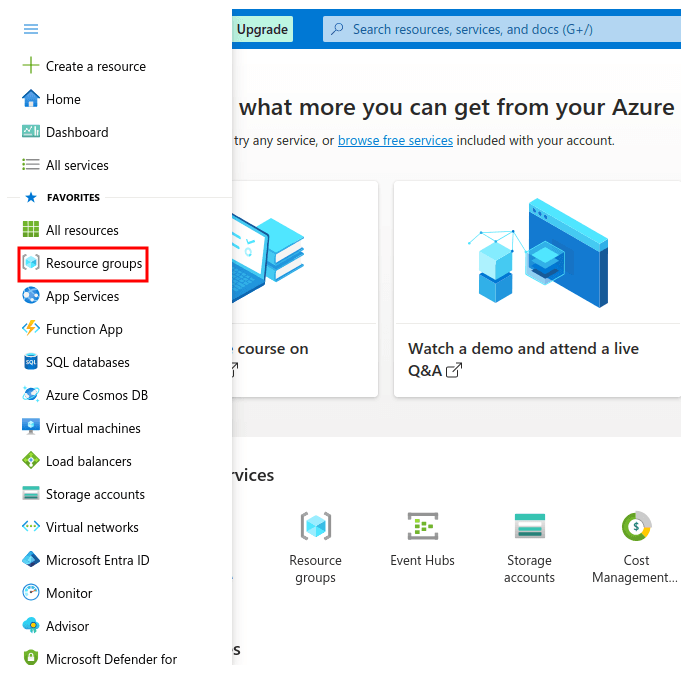
In the left navigation, select Resource groups then click +Create.
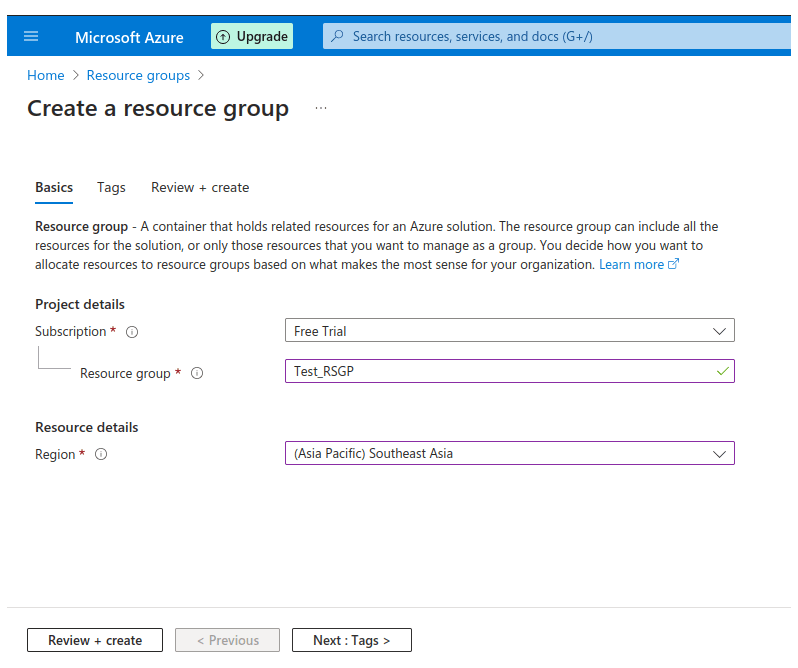
- Select your Subscription. Enter a unique name for the resource group and select a Region. Click Review + Create, then click Create.
Step 2 — Get the Azure Connection String from Event Hub
The Azure Connection String is the credential Bloo uses to read events from your Event Hub. Follow these steps to copy it from the Azure portal.
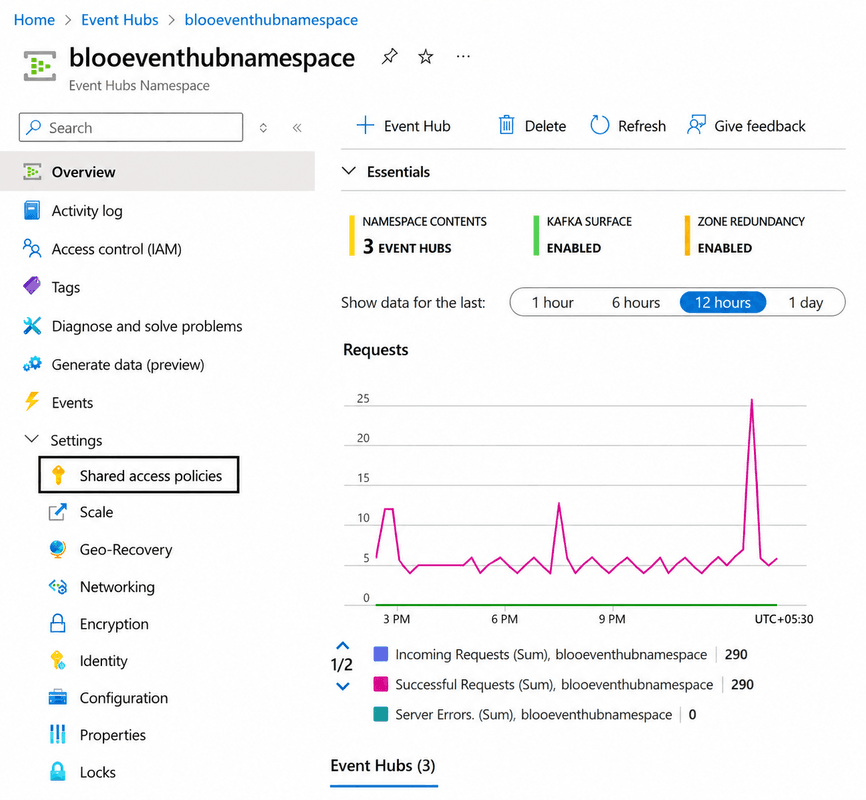
In the search bar at the top, type Event Hubs and select the Event Hubs service. From the list, click on your Event Hubs namespace.
In the left menu of your namespace, click Shared access policies. Think of these as keys that control who can access your Event Hub and what they can do — send events, listen to events, or manage the hub.
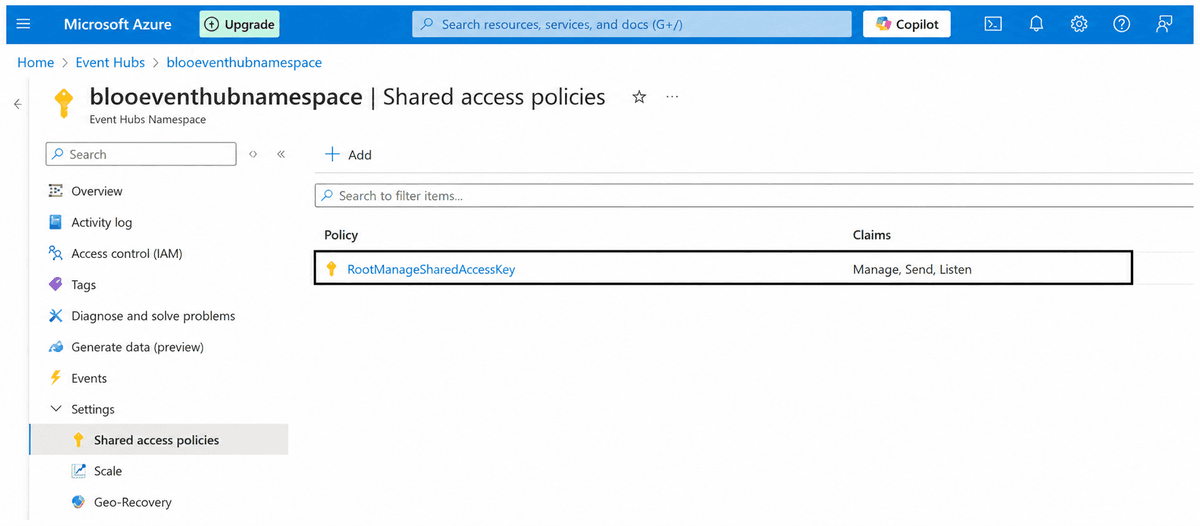
- Click on a policy from the list. The default one is called RootManageSharedAccessPolicy — you can use this, or create a new policy with only Listen permission if you prefer to limit access. For Bloo to work, the policy must have at least Listen permission.
- Click the copy icon next to the Connection string-primary key field. This is your Azure Connection String. Store it securely — you will paste it into Bloo later.
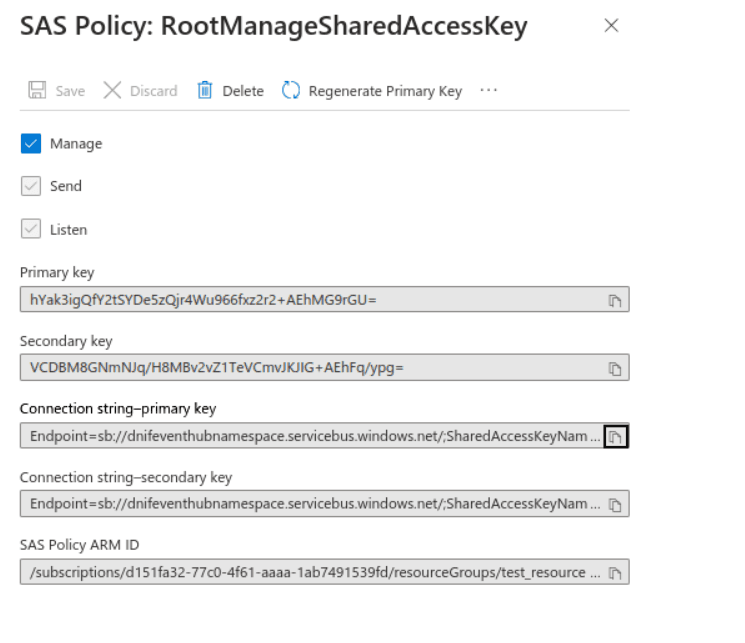
⚠ Important: Both connection strings contain secret access keys. Store them securely and do not share them.
Step 3 — Create a Container in the Storage Account
Create a container inside your storage account. Azure Event Hub uses this container to store checkpoint data while reading events.
Navigate to your storage account in the Azure portal. In the left menu, scroll to the Blob service section and select Containers.
Click +Container. Enter a name for the container. The name must be lowercase, start with a letter or number, and can only contain letters, numbers, and the dash (-) character. Click Create.
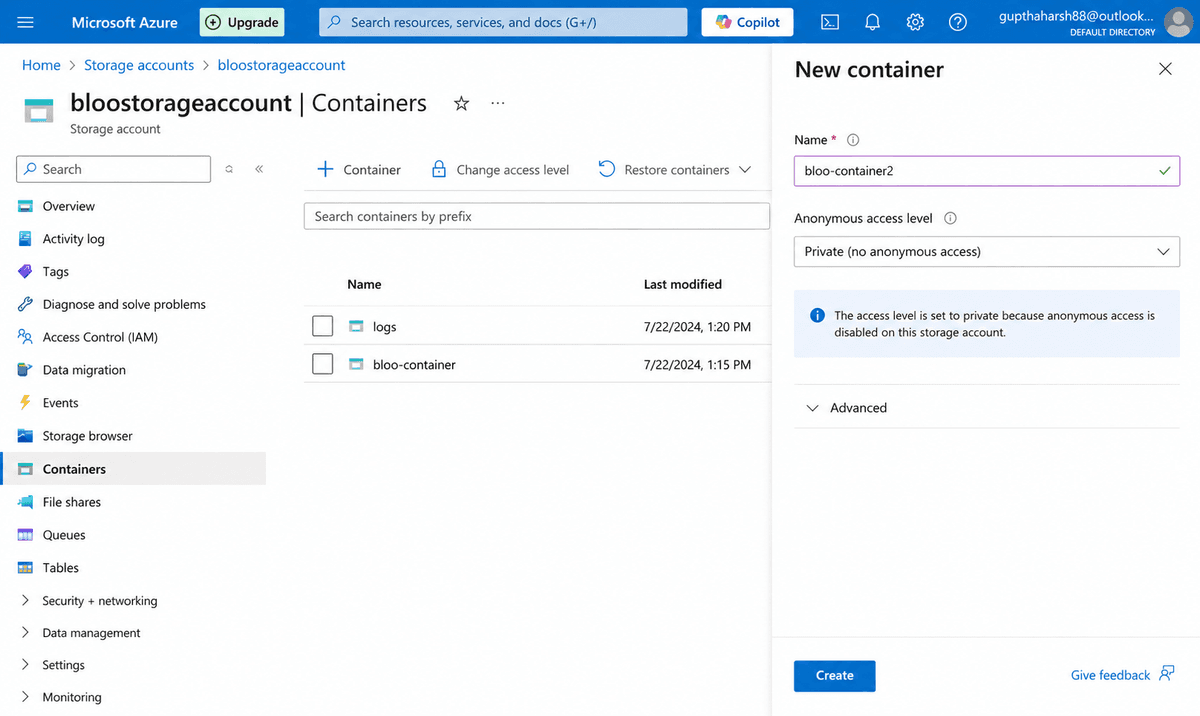
ℹ Storage accounts and Event Hubs should have owner access roles assigned.
Step 4 — Get the Azure Storage Connection String
Now copy the connection string from your storage account. Bloo uses this to access the container it uses for checkpoint data.
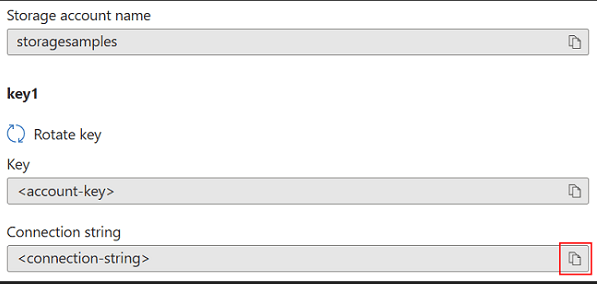
In your storage account, in the left menu, under Security + Networking, click Access keys. Azure generates two keys — key1 and key2. Either one works.
Under key1, click the copy icon next to the Connection string field. This is your Azure Storage Connection String. Store it securely.
Step 5 — Configure the Connector in Bloo
With both connection strings ready, set up the connector on the Datasource page in Bloo.
ℹ The connector reads data from the $Default consumer group of the Event Hub.
In Bloo, navigate to the Datasource page and click Add Datasource.
Search for and select Azure Event Hub.
Fill in the configuration fields as described below.
| Field | Description | Example |
|---|---|---|
| Connector Name | A unique display name for this connector instance in Bloo. | AzureEventHub-Prod |
| Azure Connection String | Paste the Event Hub Connection String copied in Step 2. It starts with Endpoint=sb://... | Paste from Step 2 |
| Azure Storage Connection String | Paste the Storage Account Connection String copied in Step 4. It starts with DefaultEndpointsProtocol=https... | Paste from Step 4 |
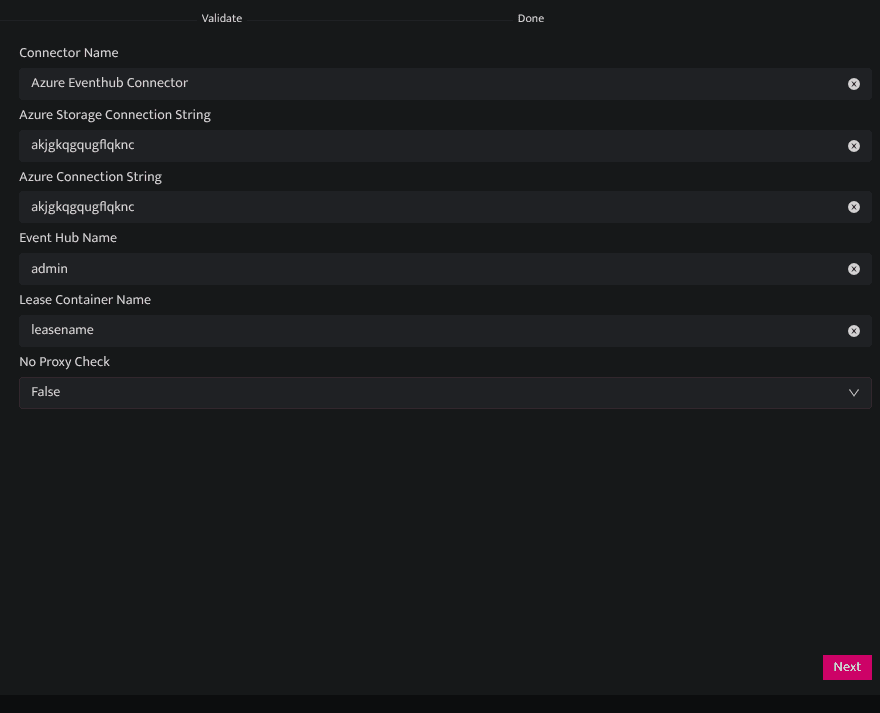
- Click Save. The connector proceeds directly to validation.
✓ Go to Collection Status in Bloo and verify the Azure Event Hub connector shows status Active.
Related: How to Configure Connectors Collection Status Azure Event Hub Connector
Related
Was this page helpful?