
Connectors
Google Workspace Connector
Connectors in Bloo
Updated 2026-08-17
Overview
Google Workspace integrates with Bloo using the Google Workspace Connector. The connector uses the pull method to fetch logs from the Google Workspace Report API.
Prerequisites
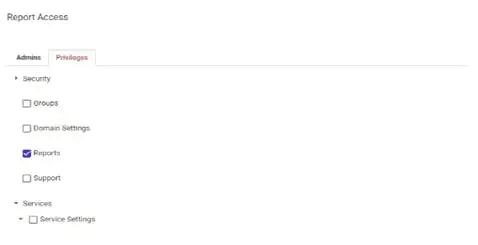
The user account only needs to have a role with Reports privilege to collect logs.
Step 1 — Create a Service Account
- Go to your Google Workspace domain's Google Cloud Platform (GCP) Console and sign in.
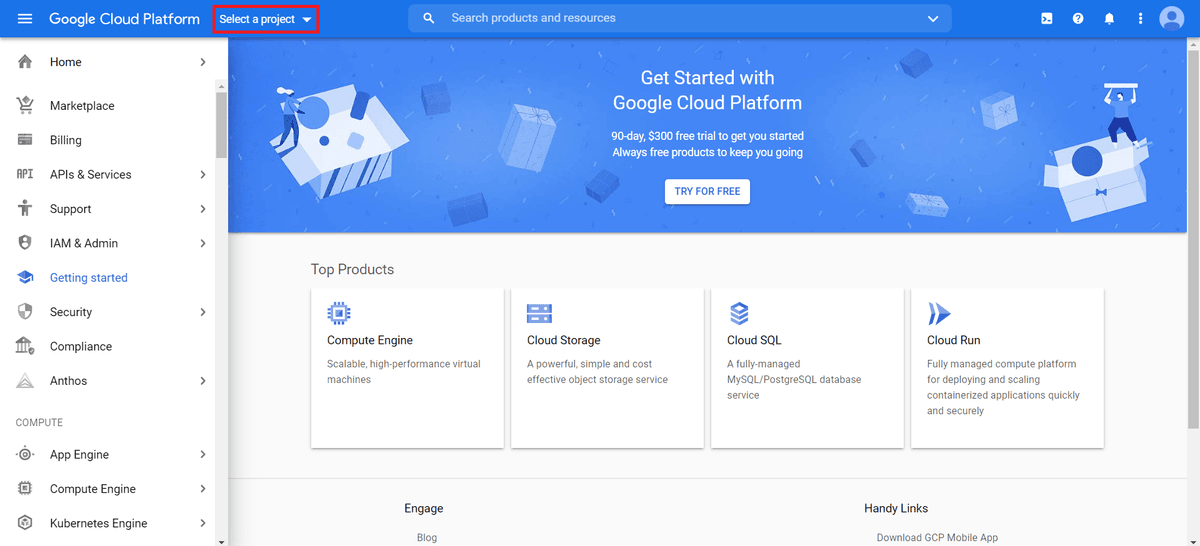
- Select a Project. If you haven't used the Console before:
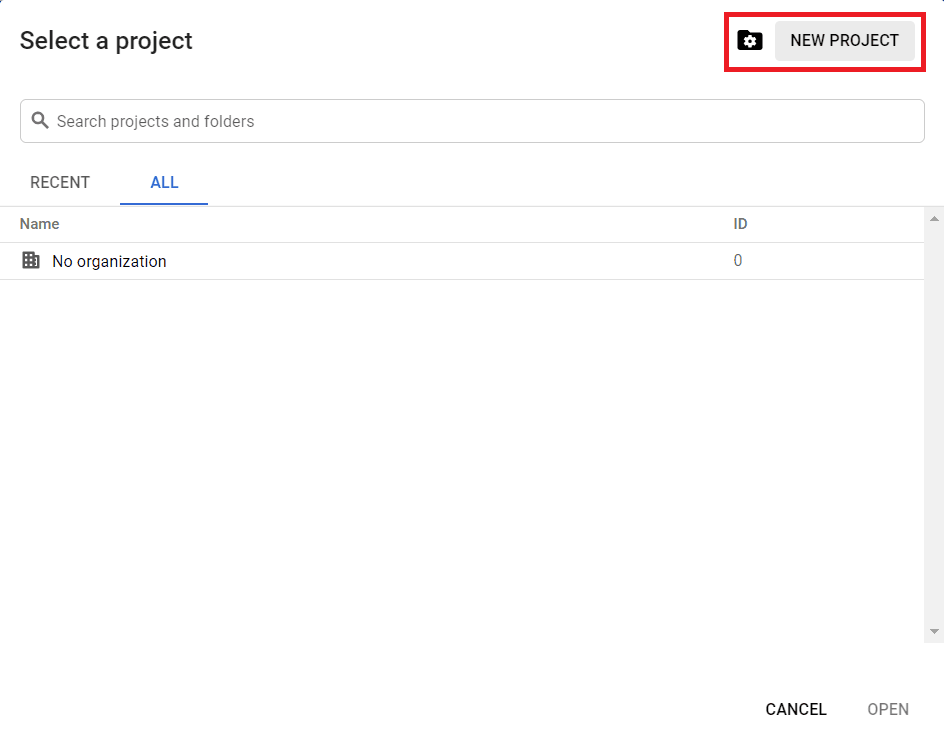
- Agree to the Terms of Service and click Create Project.
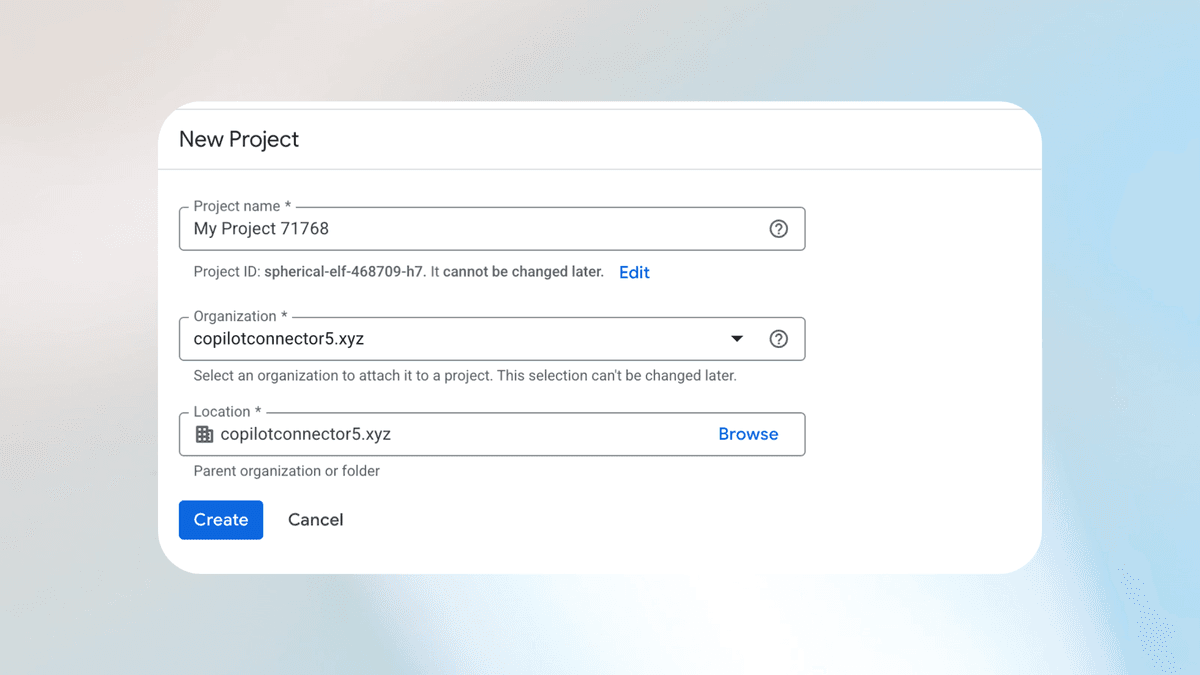
- Enter a project name and click Create.
- Once the project is created, ensure the Project is selected.
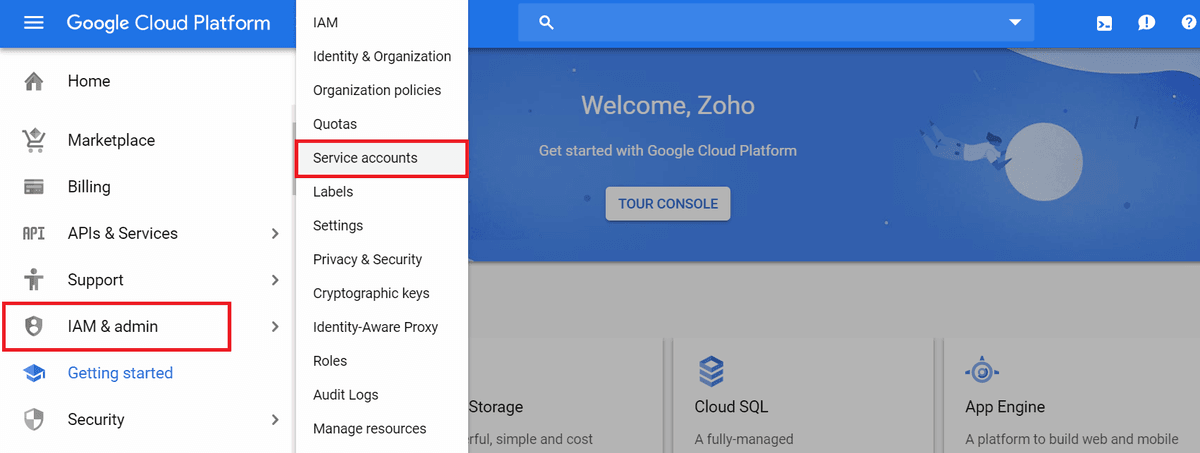
Click Menu on the top-left corner of the GCP Console.
Click IAM & Admin → Service accounts.
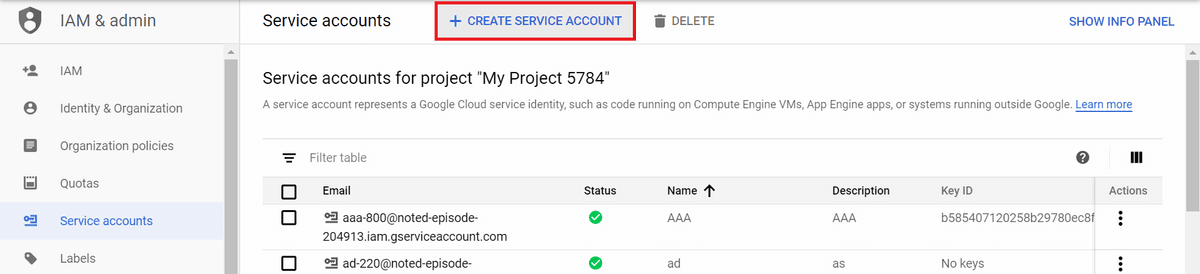
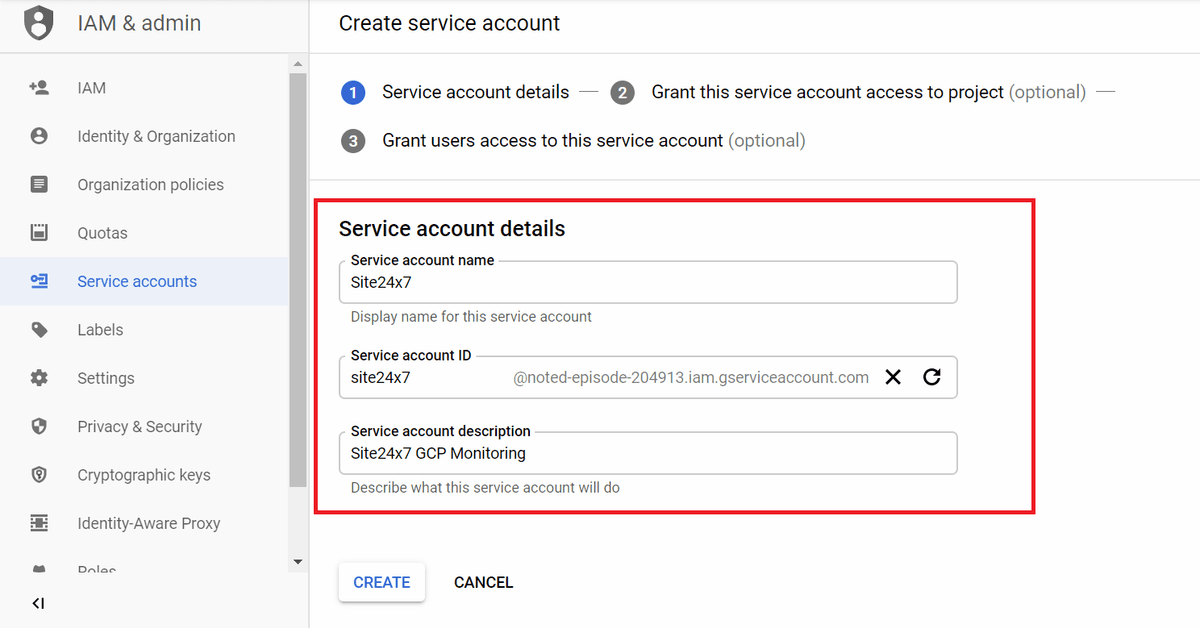
Click +CREATE SERVICE ACCOUNT and enter the Service Account Name and Service Account Description details, then click CREATE.
Step 2 — Grant Service Account Access to Project
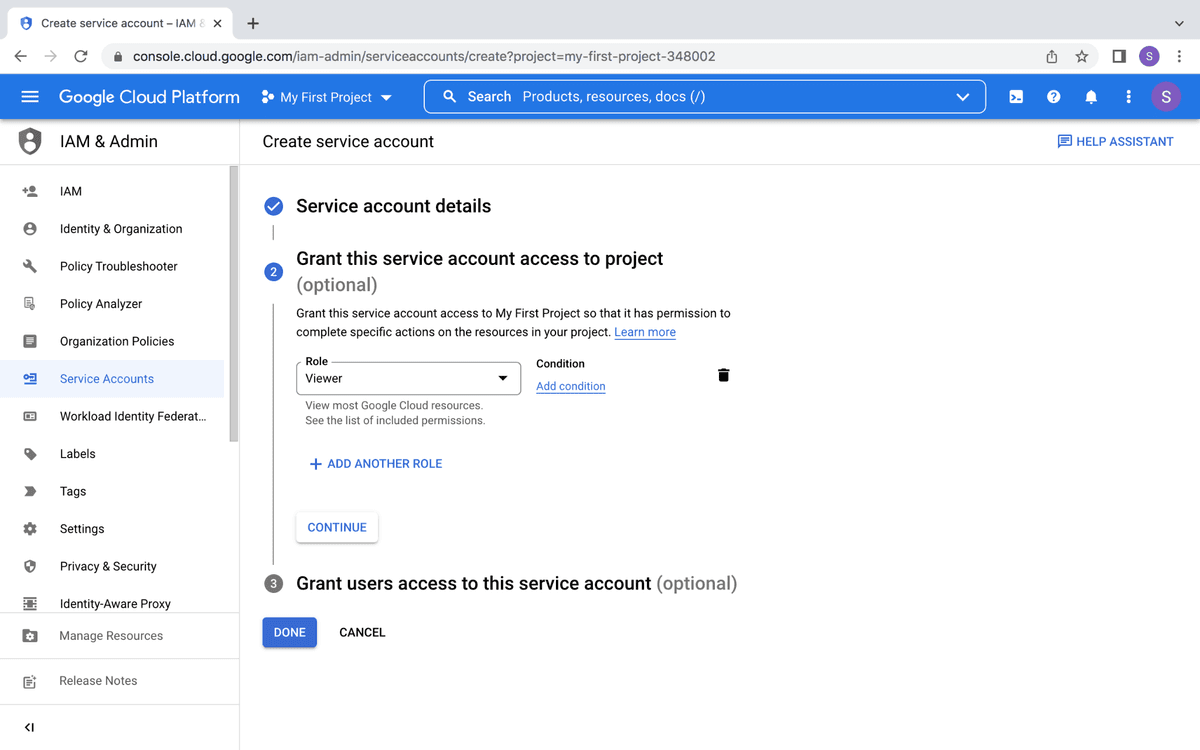
Click the Select a Role dropdown.
Select the option Project and click the Viewer role.
Click CONTINUE and proceed.
Click Done.
Step 3 — Create a Key for the Service Account
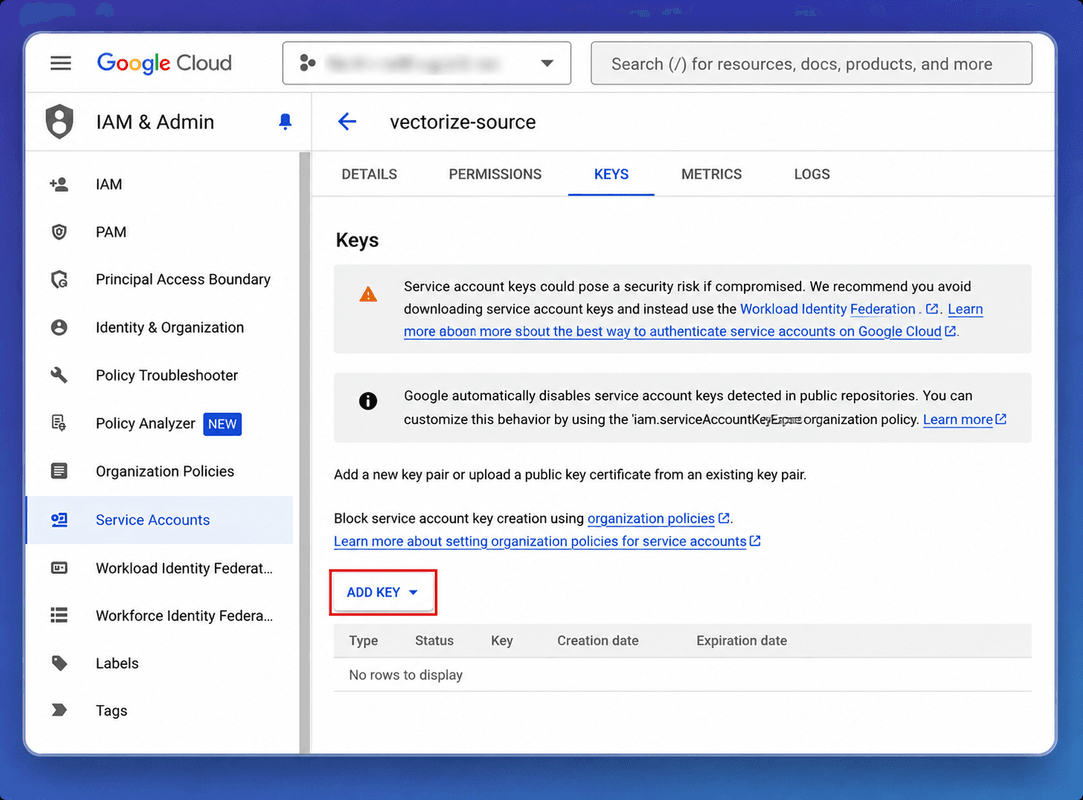
- Under Actions, click the ellipsis (⋮) corresponding to the required service account and select Manage Keys.
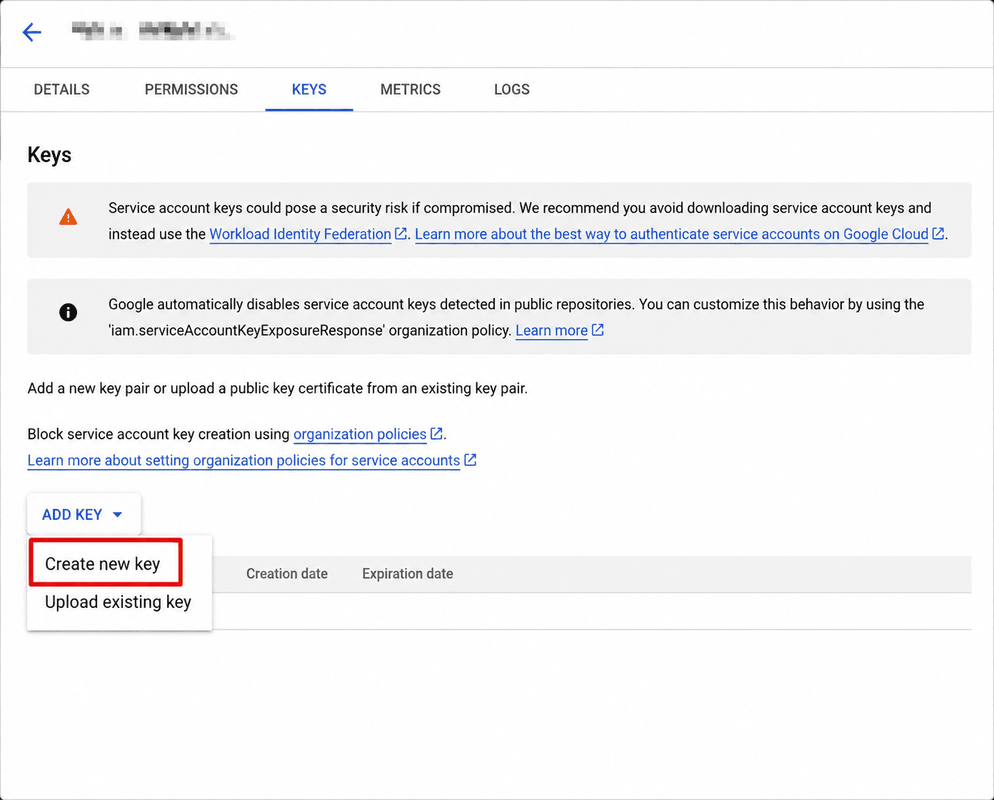
Click the Add Key dropdown and select Create new key.
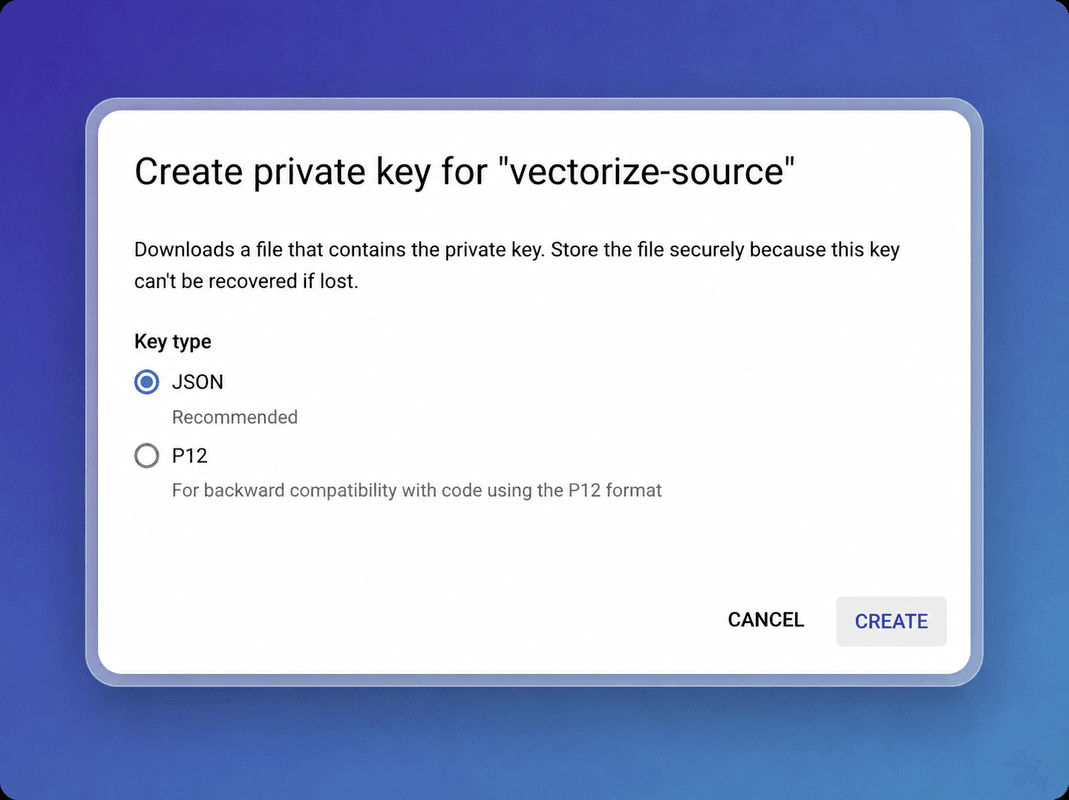
Ensure the key type is selected as JSON and click Create.
A message pops up displaying Private Key saved to your computer. Ensure you save the private key downloaded.
Click Close — the private key is downloaded.
Warning Ensure you save the private key file downloaded to your computer. You will need it when configuring the connector in Bloo.
Step 4 — Enable APIs for the Service Account
In the top-left corner of the Admin console, click Menu → APIs & Services → Library.
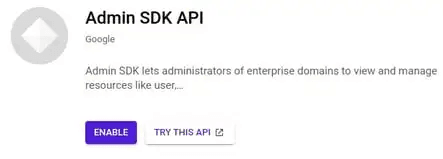
Search for Admin SDK API and click ENABLE.
Step 5 — Enable API Permissions within Google Workspace
Sign in as the Administrator of the Google Workspace domain (Super Admin).
From your Google Workspace domain's Admin console, go to Main menu → Security → Access and data control → API Controls.
In the Domain Wide Delegation pane, select Manage Domain Wide Delegation.
Click Add New. In the Client ID field, enter the service account's Client ID. You can find your service account's client ID in the JSON file downloaded earlier.
In the OAuth scopes field, enter the following scope:
https://www.googleapis.com/auth/admin.reports.audit.readonly
- Click Authorize.
Configure the Google Workspace Connector in Bloo
All connector configuration is done from the Datasource page in Bloo.
| Field | Description |
|---|---|
| Connector Name | Enter a name for the connector. |
| Log Types | Select the log types provided by Google such as admin, login, calendar, chat, meet, etc. |
| Domain Admin User ID | Super administrator account's User ID. |
| Credentials File | Enter the details from the credentials.json file, which is downloaded while configuring the reports API. |
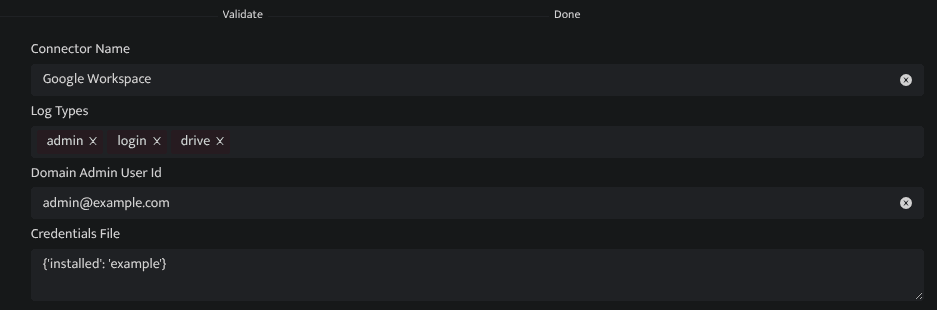
Click Save after entering all the required details.
Bloo will validate the configuration automatically.
Navigate to Collection Status and confirm the connector is listed with a status of Active. This signifies the connector is configured successfully and data is ready to ingest.
Confirmed When the connector appears in Collection Status with status Active, it is configured successfully and data is ready to ingest.
Related Links
Bloo — Collection Status | Bloo — Connector Validation | Google Workspace — Admin SDK Reports API | GSuite Troubleshooting
Related
Was this page helpful?