
Connectors
Trend Micro
Automation Guide for Bloo
Updated 2026-08-17
1. Overview
Trend Micro is a cloud-client content security infrastructure that delivers global threat intelligence to protect from online threats, such as data stealing malware, phishing attacks, and other web, email, and mobile threats. It helps to deliver continuously updated protection to stop phishing, ransomware, Business Email Compromise (BEC) scams, spam and other advanced email threats before they reach your network. It provides advanced protection for Microsoft Exchange Server, Microsoft Office 365, Google Gmail, and other cloud or on-premises email solutions.
| Note: Product NameTrendMicro XDR is now called Trend Micro Vision One (rebranded as TrendAI Vision One in 2025). The Bloo integration and API endpoint used in this guide remain compatible. This guide uses the original name TrendMicro XDR as referenced in Bloo's integration configuration. |
2. Examples
Listed below are examples to configure a Webhook connection for the following use cases:
- TrendMicro XDR: Block IP
- TrendMicro XDR: Block URL
- TrendMicro XDR: Block Domain
- TrendMicro XDR: Block Email
- TrendMicro XDR: Block FileHash
| ⚠ Important: API VersionThis guide uses the Trend Micro XDR API v2.0 endpoint (https://api.xdr.trendmicro.com/v2.0/xdr/response/block).Trend Micro has released API v3.0, which is now the current version. Per Trend Micro's official deprecation policy, v2.0 will remain online for at most 12 months after its retirement announcement before being permanently removed.If you encounter API errors with the v2.0 endpoint, check the official Trend Micro API changelog at automation.trendmicro.com/xdr/changelog to confirm the current status and whether migration to v3.0 is required.Source: TrendAI Vision One™ Public API Deprecation Policy — success.trendmicro.com |
2.1. Block IP
- In the Configuration Box, enter the Configuration Name to uniquely identify this configuration.
- Identify the content of headers and payload that you need to provide in the Configuration Box. Refer to the TrendMicro XDR Block API Reference.
- Ensure you enable the integration, once it is configured and validated.
Below is an example of how you can leverage this integration to block an IP using TrendMicro.
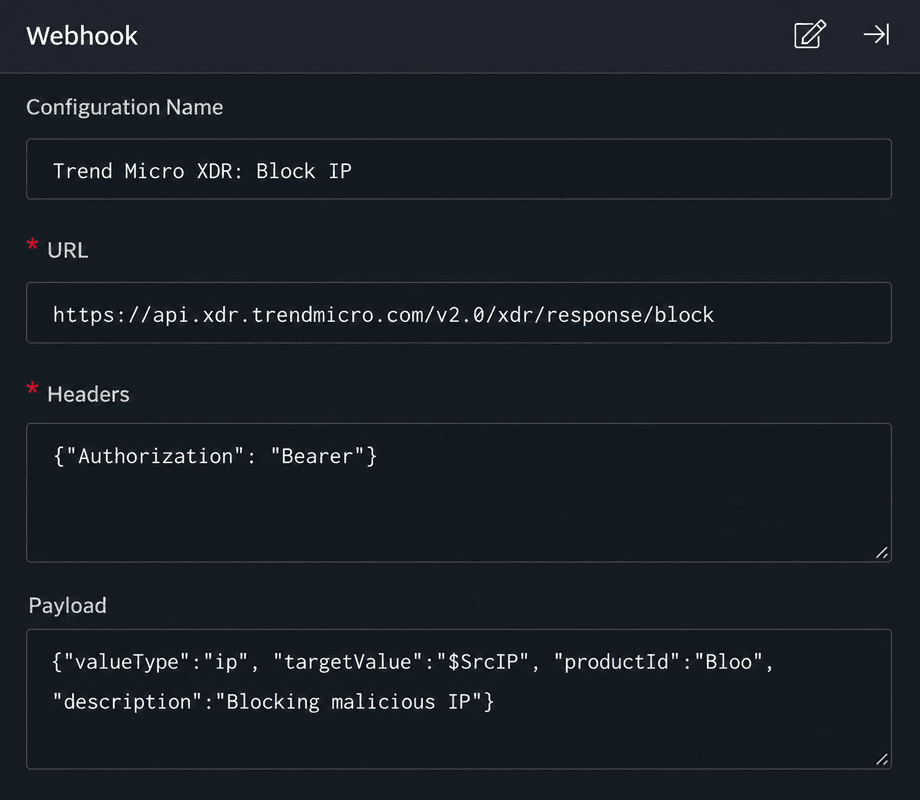
URL
| https://api.xdr.trendmicro.com/v2.0/xdr/response/block |
Header
{"Authorization": "Bearer [token]", "Content-Type": "application/json;charset=utf-8"}Payload
{ "valueType": "ip", "targetValue": "SrcIP", "productId": "DNIF", "description": "Blocking malicious IP"}TrendMicro: Block IP, blocks the resource (IP) on your TrendMicro account based on the values given in the payload.
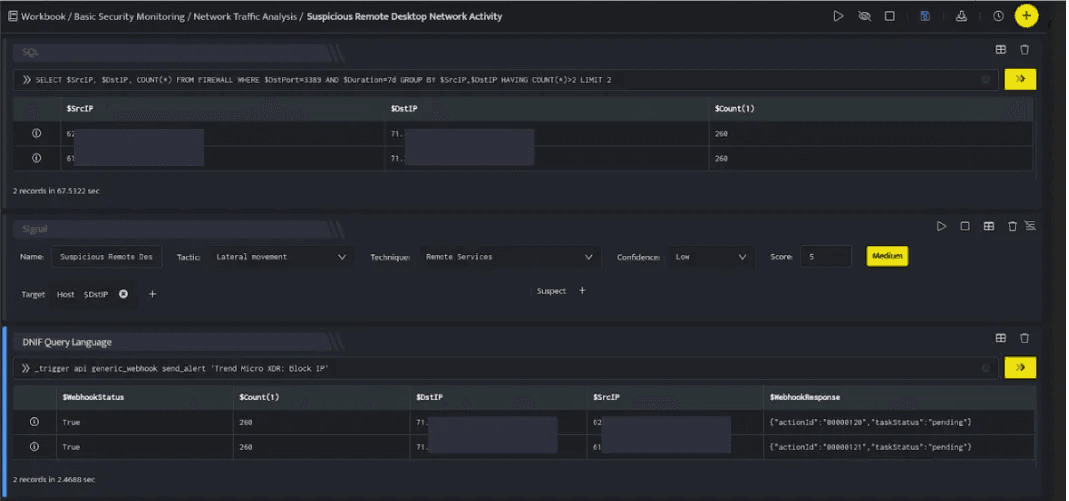
In the above figure, a workbook named Suspicious Remote Desktop Network Activity is executed which contains the following blocks:
- SQL Block: Displays two suspicious Destination IPs on execution of the workbook.
- Signal Block: This will raise a signal on detecting the suspicious IPs.
- DQL Block with _trigger query: Using Webhook integration for TrendMicro: Block IP, the IP is blocked on your TrendMicro account based on the values given in the payload.
- result: The IP is blocked and the action result is confirmed.
2.2. Block URL
- In the Configuration Box, enter the Configuration Name to uniquely identify this configuration.
- Identify the content of headers and payload that you need to provide in the Configuration Box. Refer to the TrendMicro XDR Block API Reference.
- Ensure you enable the integration, once it is configured and validated.
Below is an example of how you can leverage this integration to block a URL using TrendMicro.
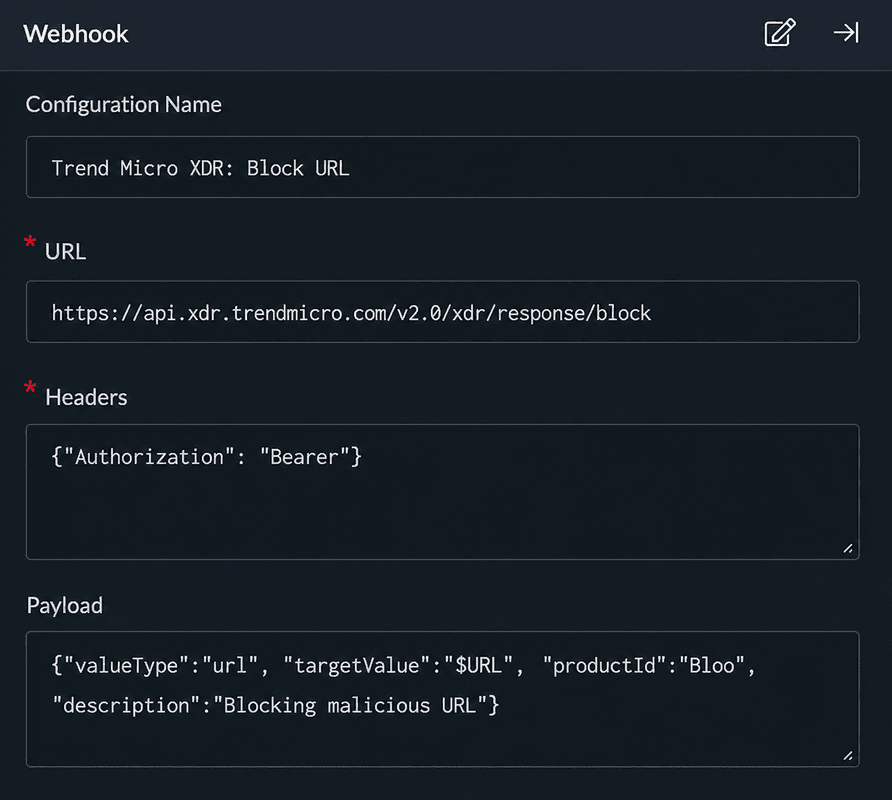
URL
| https://api.xdr.trendmicro.com/v2.0/xdr/response/block |
Header
{"Authorization": "Bearer [token]", "Content-Type": "application/json;charset=utf-8"}Payload
{ "valueType": "url", "targetValue": "URL", "productId": "DNIF", "description": "Blocking malicious URL"}TrendMicro: Block URL, blocks the resource (URL) on your TrendMicro account based on the values given in the payload.
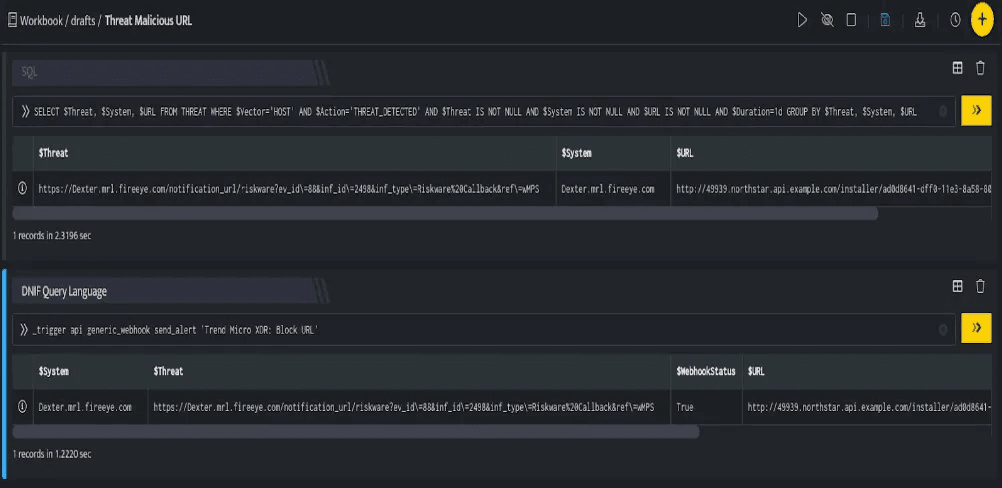
In the above figure, a workbook named Threat Malicious URL is executed which contains the following blocks:
- SQL Block: Displays a malicious URL which is considered as a threat.
- DQL Block with _trigger query: Using Webhook integration for TrendMicro: Block URL, the URL is blocked on your TrendMicro account based on the values given in the payload.
- result: The URL is blocked and the action result is confirmed.
2.3. Block Domain
- In the Configuration Box, enter the Configuration Name to uniquely identify this configuration.
- Identify the content of headers and payload that you need to provide in the Configuration Box. Refer to the TrendMicro XDR Block API Reference.
- Ensure you enable the integration, once it is configured and validated.
Below is an example of how you can leverage this integration to block a Domain using TrendMicro.
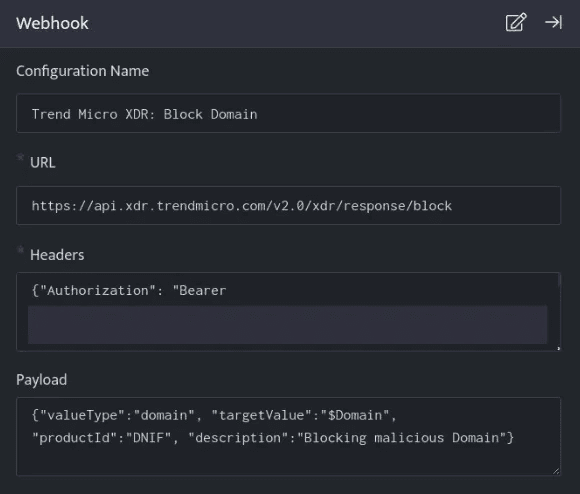
URL
| https://api.xdr.trendmicro.com/v2.0/xdr/response/block |
Header
{"Authorization": "Bearer [token]", "Content-Type": "application/json;charset=utf-8"}Payload
{ "valueType": "domain", "targetValue": "Domain", "productId": "DNIF", "description": "Blocking malicious Domain"}TrendMicro: Block Domain, blocks the resource (Domain) on your TrendMicro account based on the values given in the payload.
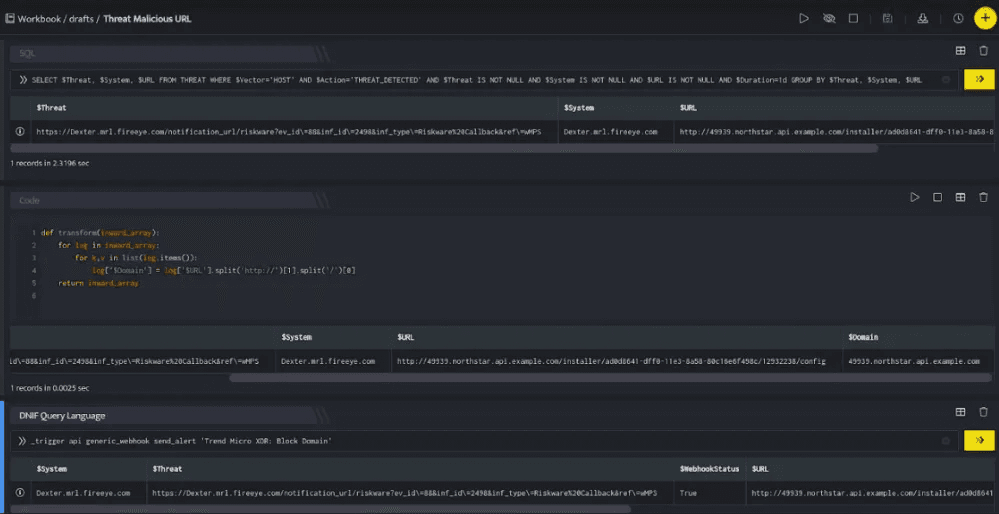
In the above figure, a workbook named Threat Malicious URL is executed which contains the following blocks:
- SQL Block: Displays one malicious URL which is considered as a threat.
- Code Block: This will extract the domain from that URL and save it in column Domain.
- DQL Block with _trigger query: Using Webhook integration for TrendMicro: Block Domain, the domain is blocked on your TrendMicro account based on the values given in the payload.
- result: The domain is blocked and the action result is confirmed.
2.4. Block Email
- In the Configuration Box, enter the Configuration Name to uniquely identify this configuration.
- Identify the content of headers and payload that you need to provide in the Configuration Box. Refer to the TrendMicro XDR Block API Reference.
- Ensure you enable the integration, once it is configured and validated.
Below is an example of how you can leverage this integration to block a Email using TrendMicro.
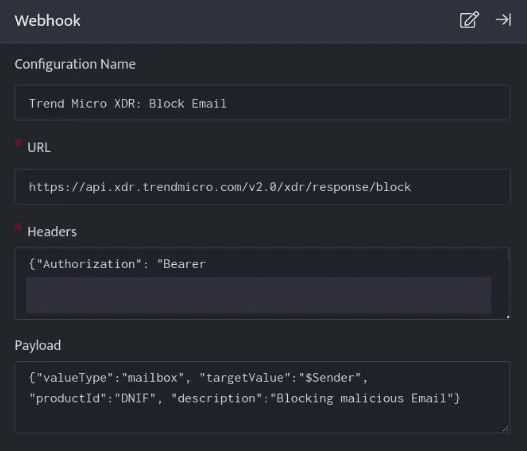
URL
| https://api.xdr.trendmicro.com/v2.0/xdr/response/block |
Header
{"Authorization": "Bearer [token]", "Content-Type": "application/json;charset=utf-8"}Payload
{ "valueType": "mailbox", "targetValue": "Sender", "productId": "DNIF", "description": "Blocking malicious Email"}TrendMicro: Block Email, blocks the resource (Email) on your TrendMicro account based on the values given in the payload.
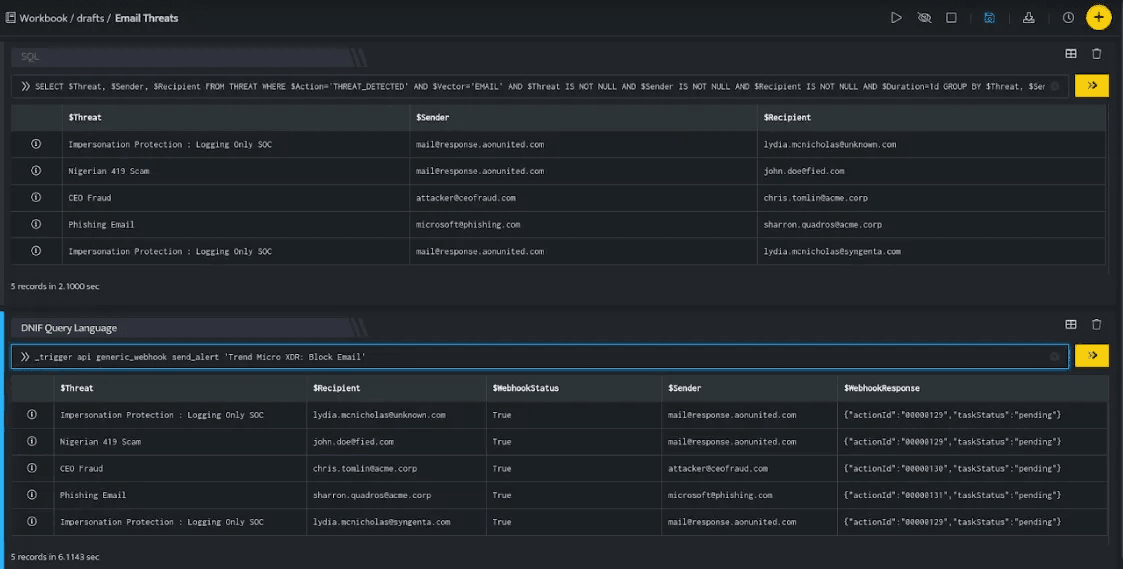 In the above figure, a workbook named Email Threats is executed which contains the following blocks:
- SQL Block: Displays five emails that are considered as threats.
- DQL Block with _trigger query: Using Webhook integration for TrendMicro: Block Email, all the emails are blocked on your TrendMicro account based on the values given in the payload.
- result: The emails are blocked and the action result is confirmed.
2.5. Block FileHash
- In the Configuration Box, enter the Configuration Name to uniquely identify this configuration.
- Identify the content of headers and payload that you need to provide in the Configuration Box. Refer to the TrendMicro XDR Block API Reference.
- Ensure you enable the integration, once it is configured and validated.
Below is an example of how you can leverage this integration to block a FileHash (SHA1) using TrendMicro.
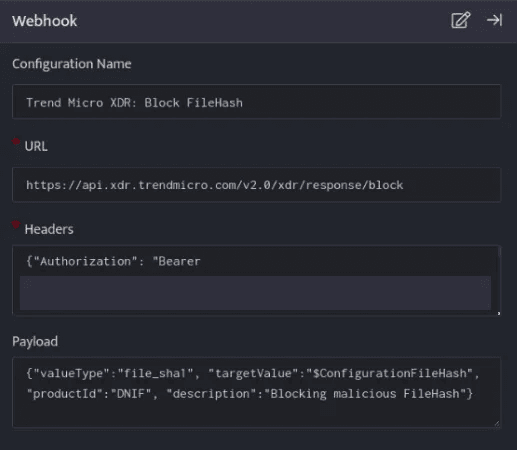
URL
| https://api.xdr.trendmicro.com/v2.0/xdr/response/block |
Header
{"Authorization": "Bearer [token]", "Content-Type": "application/json;charset=utf-8"}Payload
{ "valueType": "file_sha1", "targetValue": "ConfigurationFileHash", "productId": "DNIF", "description": "Blocking malicious File Hash"}TrendMicro: Block FileHash, blocks the resource (FileHash (SHA1)) on your TrendMicro account based on the values given in the payload.
In the above figure, a workbook named Hash value WB is executed which contains the following blocks:
- Search Block: Displays a File Hash value which is considered a threat.
- DQL Block with _trigger query: Using Webhook integration for TrendMicro: Block FileHash, the File Hash is blocked on your TrendMicro account based on the values given in the payload.
- result: The File Hash is blocked and the action result is confirmed.
3. Related Links
Related
Was this page helpful?