
Connectors
OneLogin Connector
Connectors in Bloo
Updated 2026-08-17
Overview
OneLogin Connector pulls audit events in order to gather, analyze, and display your events generated by OneLogin Account.
Prerequisites
- OneLogin Domain
- API Credentials (Client ID and Client Secret)
Create API Credentials
- Log in to your OneLogin account, move to the administration section on the top navigation bar.
- Go to the Developers tab and click on API Credentials.
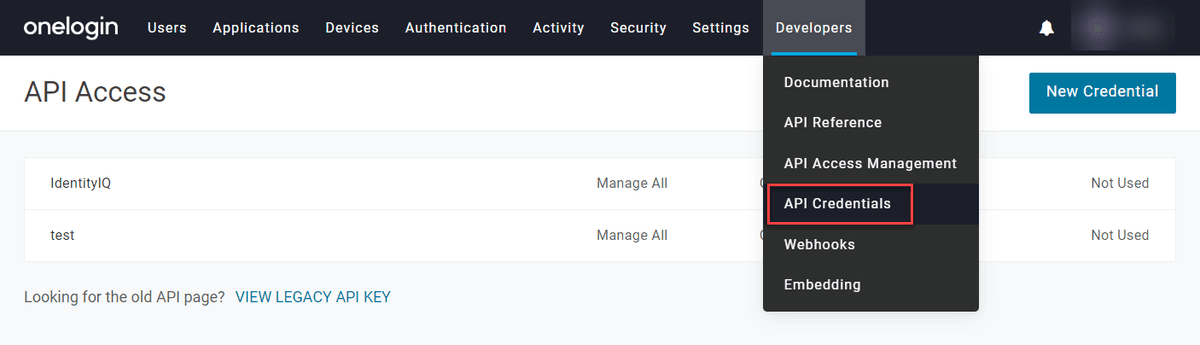
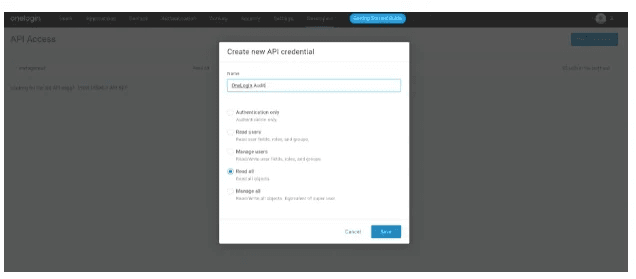
- Click on New Credentials and give it a name of your choice with Read All permissions and click Save.
- Take note of your Client ID and Client Secret.
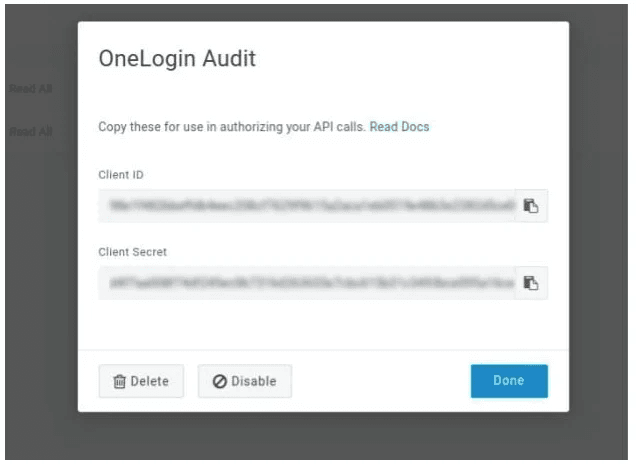
Warning Copy and store your Client ID and Client Secret immediately — the Client Secret will not be shown again after you leave this screen. API credentials are linked to the user account that created them. If that user account is deleted, the credentials will stop working. Use a dedicated service account to avoid service interruptions.
Configure the OneLogin Connector in Bloo
All connector configuration is done from the Datasource page in Bloo.
| Field | Description |
|---|---|
| Connector Name | Enter a name for the connector. |
| OneLogin Domain | Enter your OneLogin organization domain. |
| Client ID | Enter Client ID. |
| Client Secret | Enter Client Secret. |
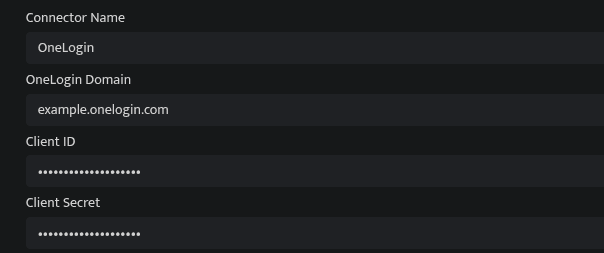
- Click Save after entering all the required details.
- Bloo will validate the configuration automatically.
- Navigate to Collection Status and confirm the connector is listed with a status of Active. This signifies the connector is configured successfully and data is ready to ingest.
Confirmed When the connector appears in Collection Status with status Active, it is configured successfully and data is ready to ingest.
Related Links
Bloo — Collection Status | Bloo — Connector Validation | OneLogin — API Credentials | Bloo — Troubleshooting Connector Validations
Related
Was this page helpful?