
Connectors
Slack Connector
Connectors in Bloo
Updated 2026-08-17
Overview
For many organizations, Slack is one of the most essential messaging apps used for important and sensitive communications. Bloo can collect, normalize, and monitor Slack audit logs to help you identify suspicious activity within your Slack workspace in real time.
Prerequisites
- Slack API Token
Warning The Slack Audit Logs API is only available to Slack workspaces on an Enterprise Grid plan. The app must be installed by the Owner of the Enterprise organization. Free, Pro, and Business+ plans do not have access to audit logs.
Steps to Derive Prerequisites
Step 1 — Create Slack App with Permissions
Navigate to the Slack Apps page.
Click Create New App.
Select From scratch if asked how you would like to configure your Slack app.
Provide an App Name for your Slack App and select the Workspace you want to monitor and install the Slack App in.
Click Create App.
You are now presented with the basic information about your Slack app. Click Permissions in the Add features and functionality section.
Scroll down to the Scopes section and add multiple User Token Scopes (admin, auditlogs:read) depending on your Slack account type.
Step 2 — Install the Slack App on the Enterprise Grid for Audit API Logs
Note Make sure you have followed Step 1 before continuing. A Slack Enterprise Grid account is required.
On the app settings page, click OAuth & Permissions.
Scroll down to Redirect URLs. Add a new redirect URL as
https://localhostand click Save URLs.Go to Manage Distribution → Share Your App with Other Workspaces.
Open the Remove Hard Coded Information section on the same page and check the I've reviewed and removed any hard-coded information checkbox. Click the Activate Public Distribution button.
Copy the shareable link and ensure the permissions are correct from the prior table.
Open a new tab in your browser, paste the URL and press Enter.
Select the dropdown menu in the upper right corner and choose the correct organization.
Click Allow.
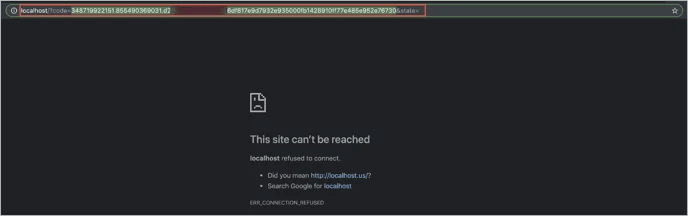
Ignore the error message and copy the Code in the URL field, as shown in the following example and save it for further use.
- Get the client ID and client secret from the Basic Information of your Slack app and save them for further use. Replace the
<CODE>,<CLIENT_ID>and<CLIENT_SECRET>variables in the following URL:
https://slack.com/api/oauth.v2.access?code=<CODE>&client_id=<CLIENT_ID>&client_secret=<CLIENT_SECRET>Open a new browser tab and paste the URL from the previous step into the URL field, then press Enter.
From the response, save the token value from the field
access_tokenas it will be used for the Bloo Data Source.
{
"ok": true,
"access_token": "<YOUR_ACCESS_TOKEN>",
"scope": "admin,identify,channels:history,groups:history,im:history,channels:read,team:read,users:read,users:read.email,auditlogs:read",
"user_id": "WA7PQK3U5",
"team_id": "EFSFVS",
"enterprise_id": "EASFEF",
"team_name": "Test Slack App"
}Configure the Slack Connector in Bloo
All connector configuration is done from the Datasource page in Bloo.
| Field Name | Description |
|---|---|
| Connector Name | Enter a name for the connector. |
| API Key | Enter the Slack API Token. |
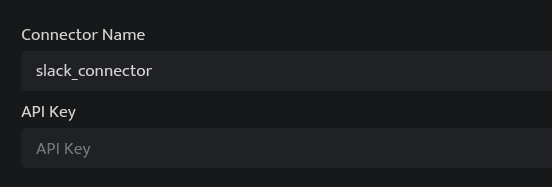
Click Save after entering all the required details.
Bloo will validate the configuration automatically.
Navigate to Collection Status and confirm the connector is listed with a status of Active. This signifies the connector is configured successfully and data is ready to ingest.
Confirmed When the connector appears in Collection Status with status Active, it is configured successfully and data is ready to ingest.
Related Links
Bloo — Collection Status | Bloo — Connector Validation | Slack — Audit Logs API | Slack Apps | Bloo — Troubleshooting Connector Validations
Related
Was this page helpful?