
Connectors
Microsoft Graph Security API Connector
Connectors in Bloo
Updated 2026-08-17
Overview
The Microsoft Graph Security API (Graph API) Connector provides a secure endpoint to receive alerts from the Microsoft Graph Security API endpoint. Bloo can collect, normalize, and monitor alerts logs to help you identify suspicious activity within your workspace in real time.
Prerequisites
- Client ID
- Client Secret
- Tenant ID
Steps to Derive Prerequisites
Note Azure Active Directory has been rebranded to Microsoft Entra ID. If you see Microsoft Entra ID in the portal, it is the same service. The steps below remain the same.
Log into the Azure Active Directory Portal.
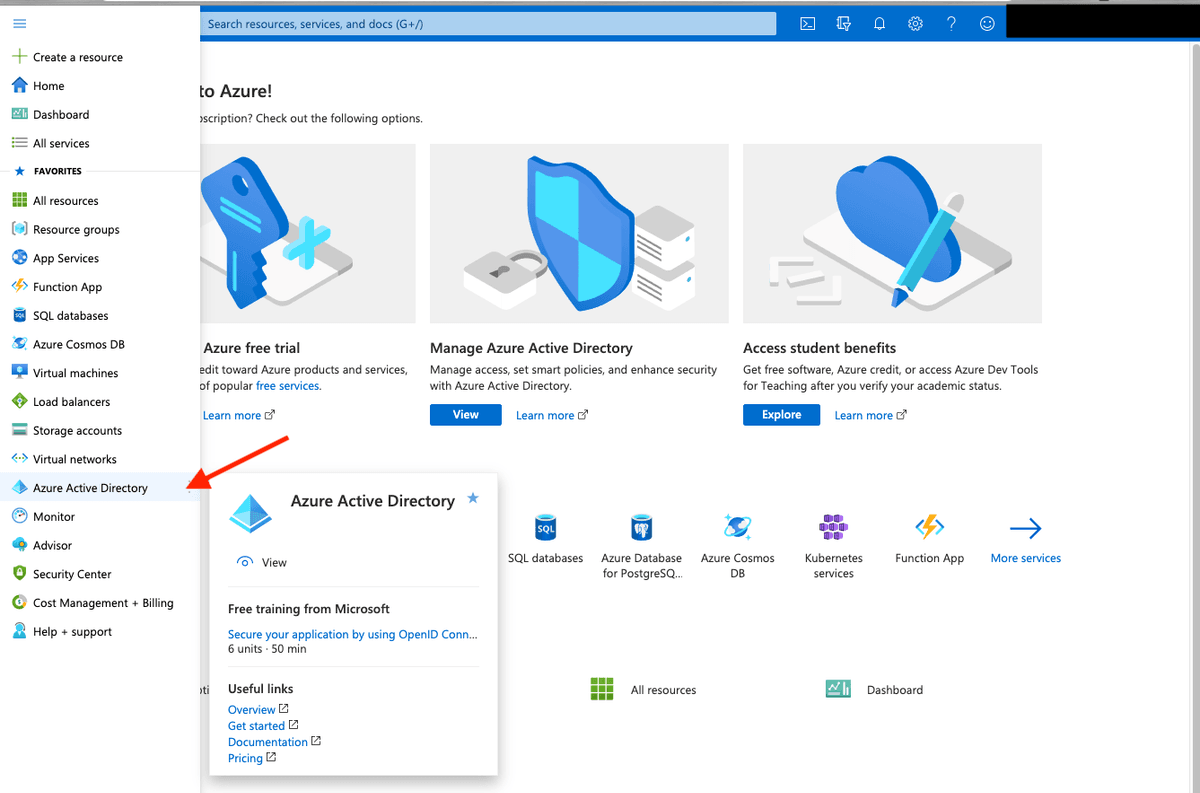
Select Azure Active Directory in the left menu.
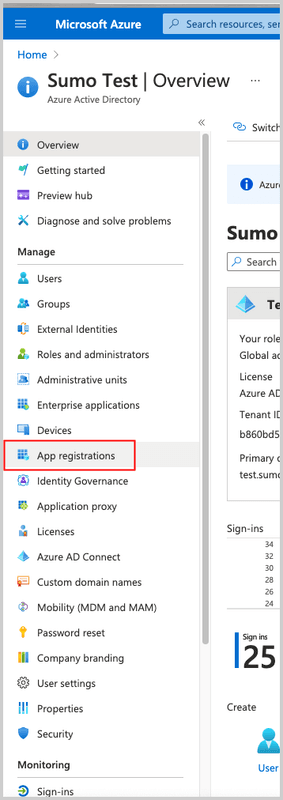
Select App Registrations.
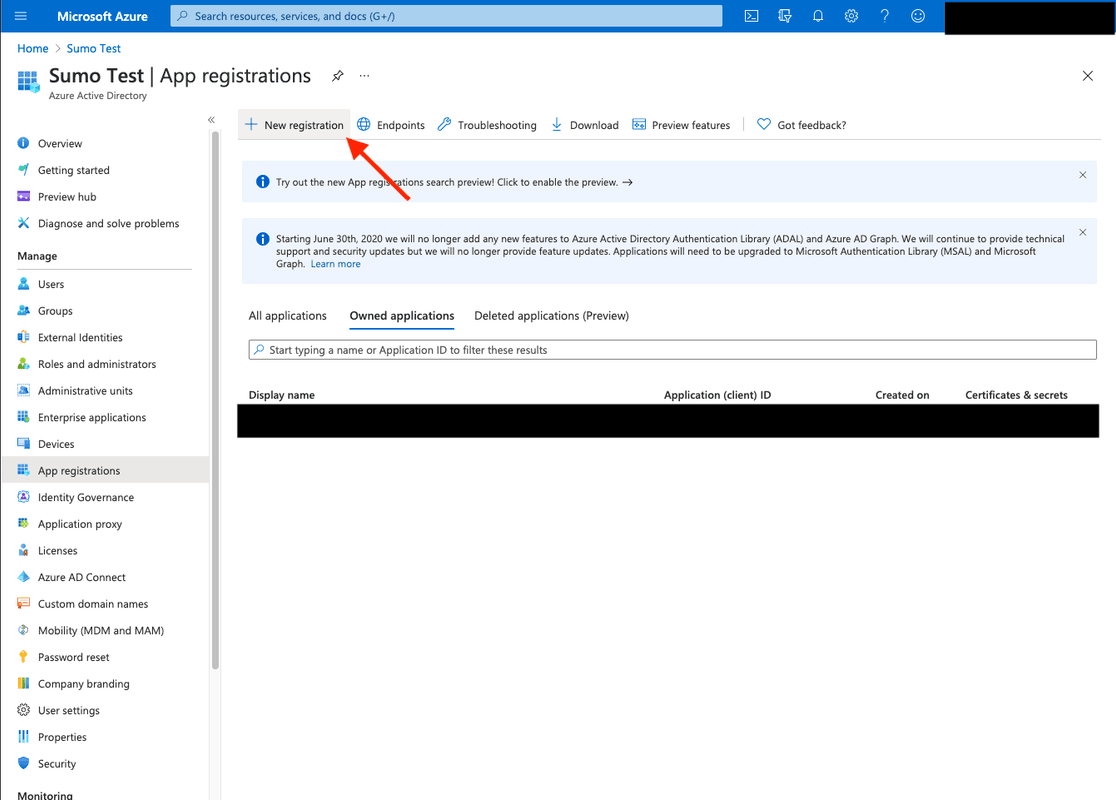
Select New Registration. Go through the registration process, providing a name for the application. Selecting Accounts in this organizational directory only is sufficient.
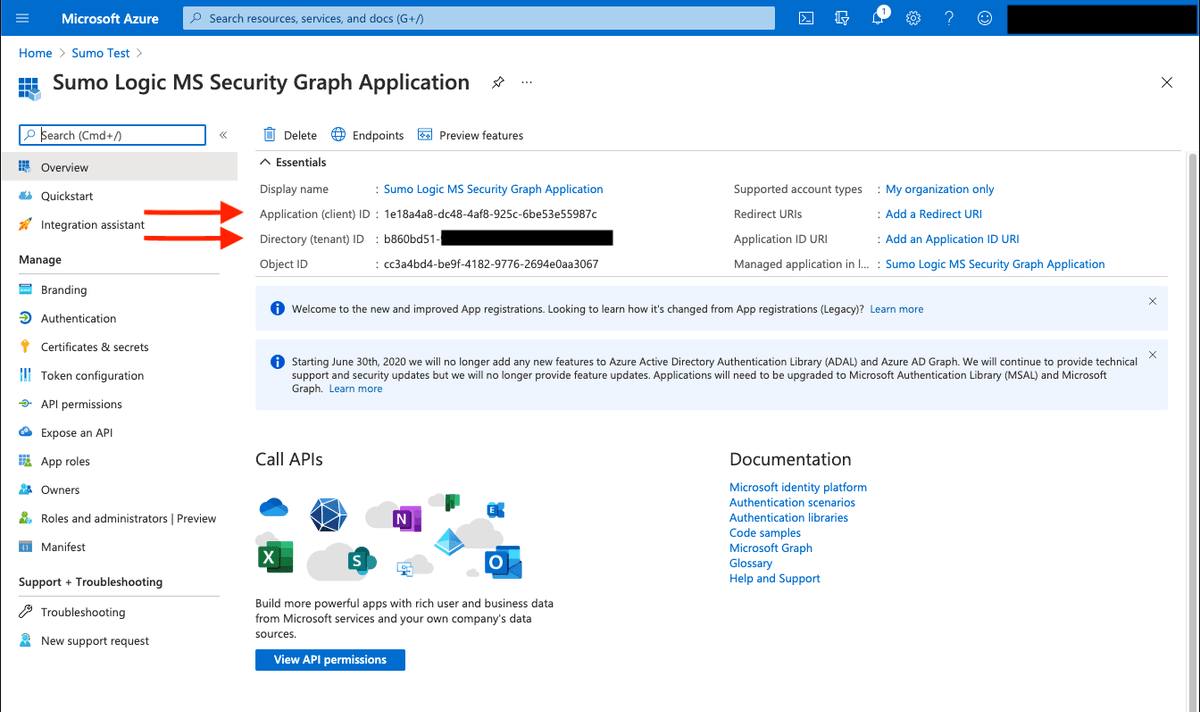
After the application is registered, ensure you copy the Application (client) ID and Directory (tenant) ID displayed on the Overview page. These are needed when configuring the connector.
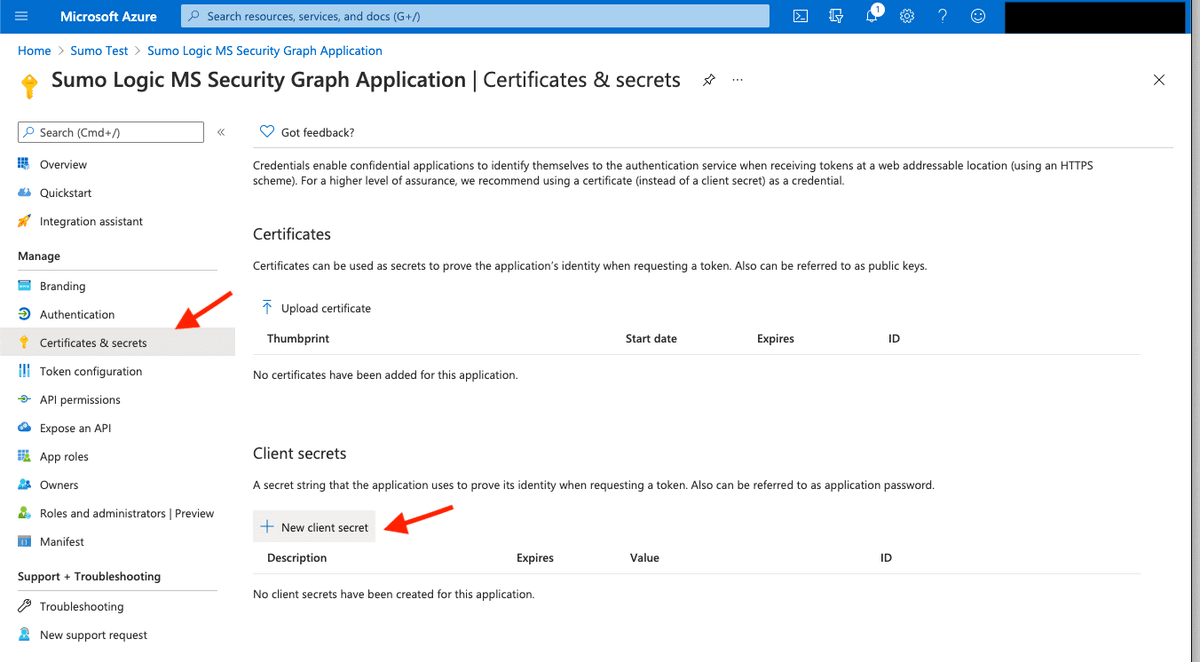
Within the application configuration page, select Certificates & Secrets. Under Client secrets, click New client secret. In the Add a client secret pane, enter a Description and select an Expires duration, then click Add. Reference: Application Client Secret Key.
Copy the Client Secret value — you will need it when configuring the connector.
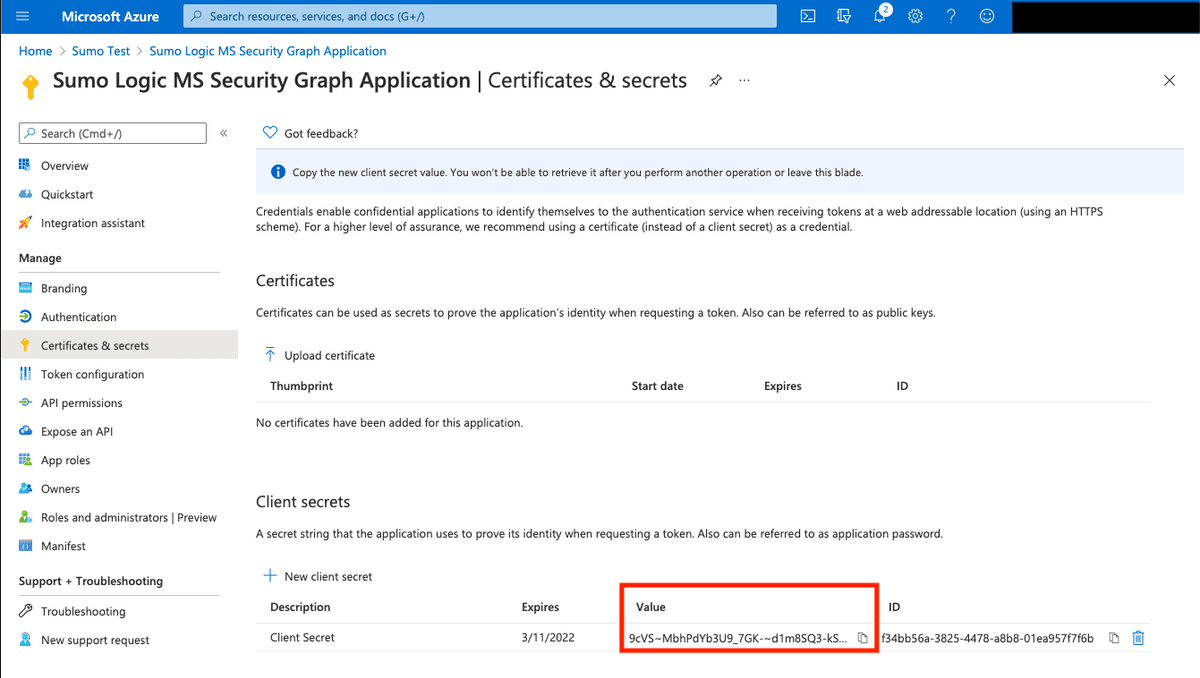
Warning Client secrets have an expiry date (6 months, 12 months, 24 months, or custom). When your secret expires, the connector will stop working. Generate a new secret and update the connector configuration in Bloo before it expires.
Request the appropriate permissions for the application. Click on API Permissions, then Add a permission and select Microsoft Graph. Find and select the following permissions:
SecurityAlert.Read.AllSecurityAlert.ReadWrite.AllSecurityIncident.Read.AllSecurityIncident.ReadWrite.AllDirectory.Read.AllAuditLog.Read.AllSecurityEvents.Read.All
See this list to view all available security permissions.
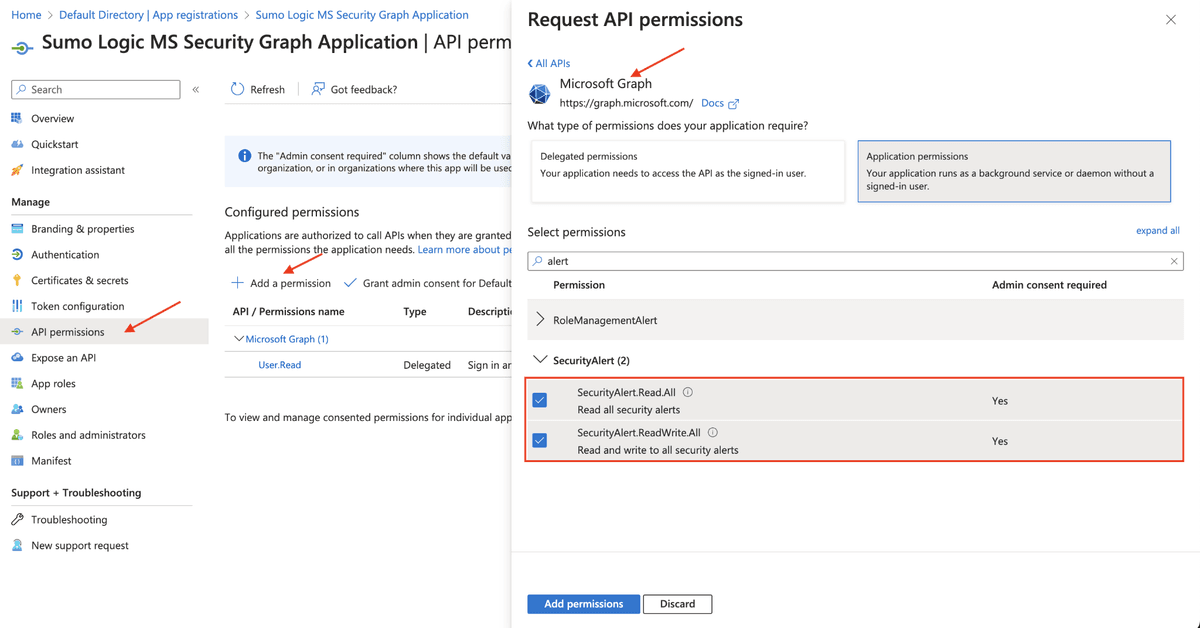
Note An Administrator must approve (grant) these permissions before the connector will function.
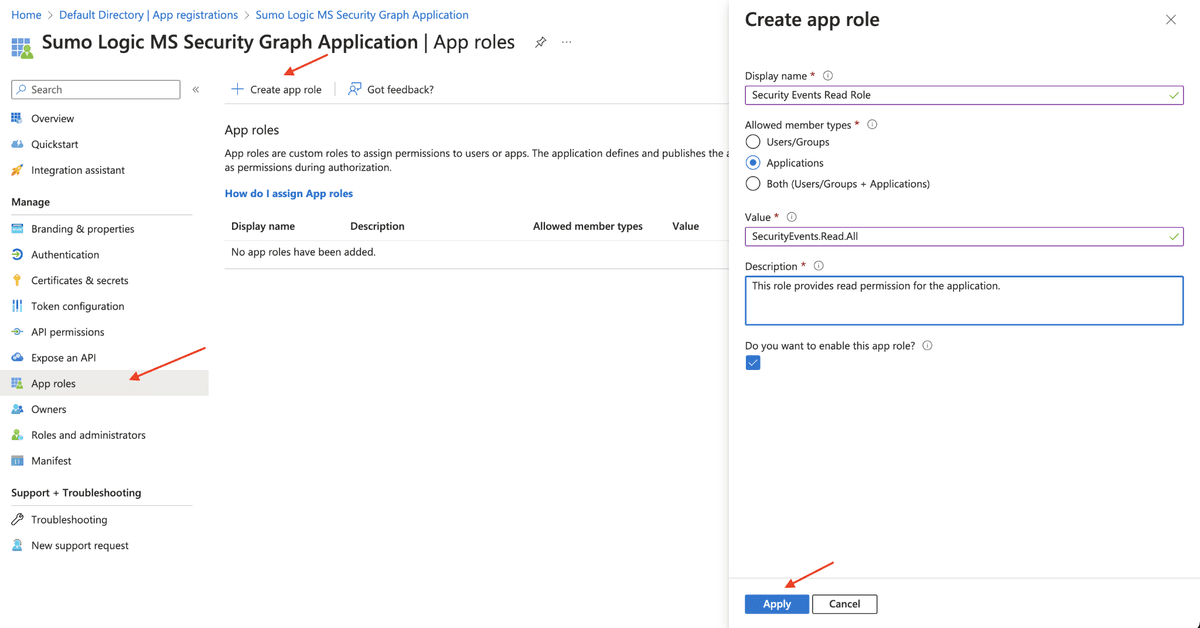
Follow the steps below to enable the Application permission role:
- In the Manage menu, select App roles. Click the Create app role tab.
- Display name: Enter the display name for the role.
- Allowed member types: Select Applications as the allowed member type.
- Value: Enter
SecurityAlert.Read.Allas the value. - Description: Enter a brief description.
- Select the checkbox to enable the app role.
- Click Apply.
Configure the Microsoft Graph Security API Connector in Bloo
All connector configuration is done from the Datasource page in Bloo.
| Field | Description |
|---|---|
| Connector Name | Enter a name for the connector. |
| Alerts Type | Select Graph API Security alerts Type. |
| Client ID | Enter the Client ID. |
| Client Secret | Enter the Client Secret. |
| Tenant ID | Enter the Tenant ID. |
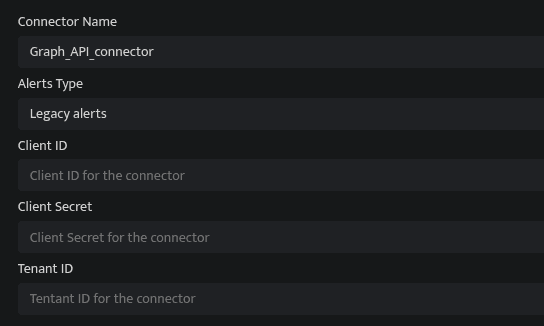
Click Save after entering all the required details.
Bloo will validate the configuration automatically.
Navigate to Collection Status and confirm the connector is listed with a status of Active. This signifies the connector is configured successfully and data is ready to ingest.
Confirmed When the connector appears in Collection Status with status Active, it is configured successfully and data is ready to ingest.
Related Links
Bloo — Collection Status | Bloo — Connector Validation | Microsoft Graph Security API — Alerts | Microsoft Graph Security API — List Alerts v2 | Microsoft — Register an app | Microsoft — Security permissions | Bloo — Troubleshooting Connector Validations
Related
Was this page helpful?