
Connectors
Active Directory
Active directory
Updated 2026-08-16
Automation Guide for Bloo
1. Overview
Active Directory (AD) is a directory service that Microsoft developed for Windows domain networks. It is included in most Windows Server operating systems as a set of processes and services.
This guide explains how to configure the Active Directory automation in Bloo and how to use each of its built-in functions to look up user details, manage group memberships, enable or disable user accounts, and retrieve user data.
2. Prerequisites
Before setting up the Active Directory automation, complete the initial automation configuration in Bloo. Follow the steps in the link below:
3. Configuration
Once the initial setup is done, follow the steps below to configure the Active Directory automation in Bloo.
1. Go to the Automations section in the Bloo console.
2. Click the Edit icon to open the configuration form.
3. Fill in the fields as described in the table below, then click Save.
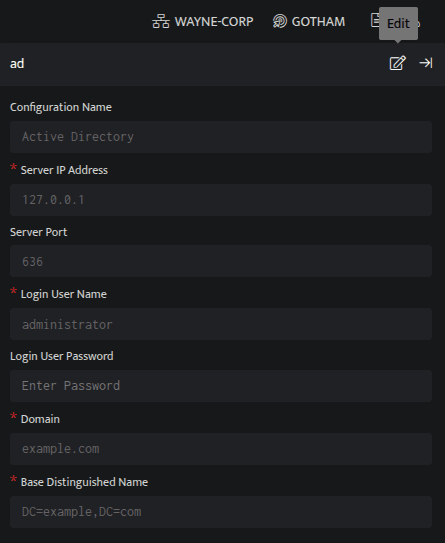
Configure Active Directory in Bloo
| Field | Description |
|---|---|
| Configuration Name | Enter a name for this configuration. This is how it will appear in Bloo. |
| Server IP Address | Enter the IP address of your Active Directory server. |
| Server Port | Enter the port number of your Active Directory server. |
| Login User Name | Enter the username of an account that has administrative rights on the Active Directory server. |
| Login User Password | Enter the password for the username provided above. |
| Domain | Enter the domain of the Active Directory. |
| Base Distinguished Name | Enter the base distinguished name (Base DN). This tells Bloo where to start searching in your Active Directory structure — for example: DC=company,DC=com |
| **Warning: Windows Server 2025 (New Deployments Only)**If your Active Directory domain controller is running a fresh installation of Windows Server 2025, plain username and password connections on port 389 will be rejected by default.To connect successfully, use port 636 (LDAPS — secure LDAP). This requires a valid TLS/SSL certificate to be installed on the domain controller.Note: This only applies to new Windows Server 2025 installations. Servers upgraded from an earlier Windows Server version are not affected. |
4. Active Directory Plugin Functions
Once the Active Directory automation is configured in Bloo, you can use the following built-in functions in your workbooks. Each function connects to Active Directory and performs a specific action on a user or group.
4.1 Get User Details
This function retrieves detailed information about a user from Active Directory.
Function name: get_userinfo
Input
The input is a user whose details you want to look up. The example below fetches users from a custom event store called UserLookupAD.
_retrieve query UserLookupADThe _retrieve command fetches the User field for each event stored in the UserLookupAD event store. The output looks like this:
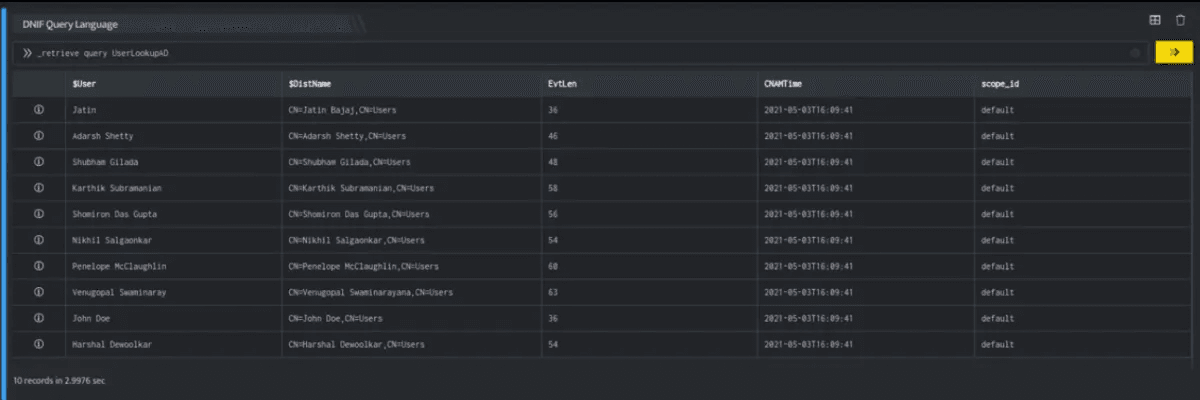
Output
Once you have the input, use the command below to retrieve the user details from Active Directory:
_lookup ad get_userinfo 'Active Directory' $User, $DistNameThis command calls the get_userinfo function of the Active Directory plugin. It passes the $User and $DistName values as inputs and returns a report with detailed information about each user. The output looks like this:
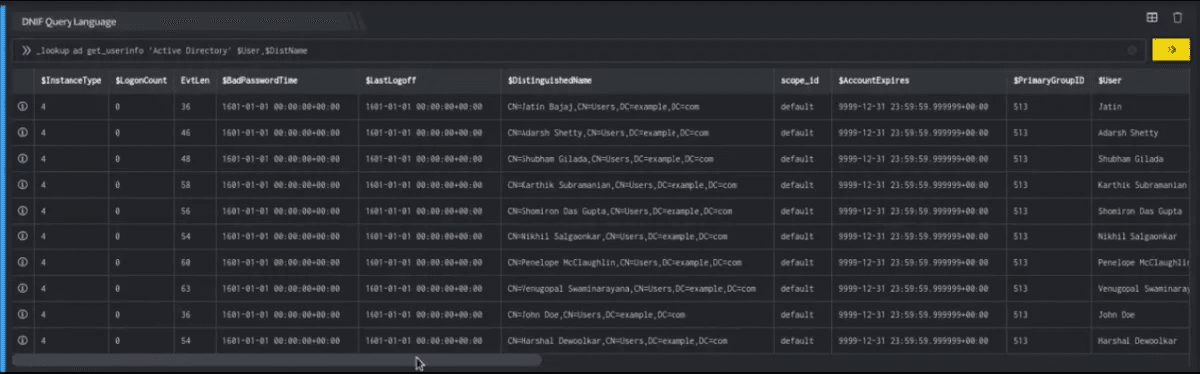
The report contains details about the user such as their Employee ID, Department, and Location. The full list of fields returned is shown in the table below:
| Field | Type | Description |
|---|---|---|
| User | text | Source user for lookup |
| AccountExpires | text | Account registration expiry date |
| BadPasswordTime | date | The last time an attempt was made to log on to this account using an incorrect password |
| BadPwdCount | number | The number of times the user tried to log on with an incorrect password |
| CN | text | Common name for the user |
| CountryCode | number | Country code of the queried user |
| DisplayName | text | Display name of the Active Directory user |
| DistinguishedName | text | Distinguished name of the user |
| GivenName | text | Given name of the user |
| InstanceType | text | User instance type |
| LastLogoff | text | The last time the user logged off |
| LastLogon | text | The last time the user logged on |
| LastLogonTimestamp | date | The last time the user logged on to the domain |
| LogonCount | number | The number of times the account has successfully logged on |
| Name | text | Name of the user |
| PrimaryGroupID | text | Primary group ID of the user |
| PwdLastSet | text | The date and time the account password was last changed |
| UserPrincipalName | text | User principal name |
| DNSHostName | text | DNS host name |
| LocalPolicyFlags | text | Flags that determine where a machine gets its policy |
| OperatingSystem | text | The operating system name |
| OperatingSystemVersion | text | The version of the operating system |
| ServicePrincipalName | text | Service principal name |
| Department | text | The department name of the user |
| Manager | text | The manager name of the user |
| MemberOf | text | The group name to which the user belongs |
| UserWorkstations | text | The machines from which the user is allowed to log on, listed by DNS or NetBIOS name |
4.2 Add User to Group
This function adds a user to a pre-defined group in Active Directory.
Function name: add_to_group
Input
The input is the user you want to add to a group. The example below fetches users from a custom event store called UserInfoAD.
_retrieve query UserInfoADThe _retrieve command fetches the $User field for each event in the UserInfoAD event store. The output looks like this:
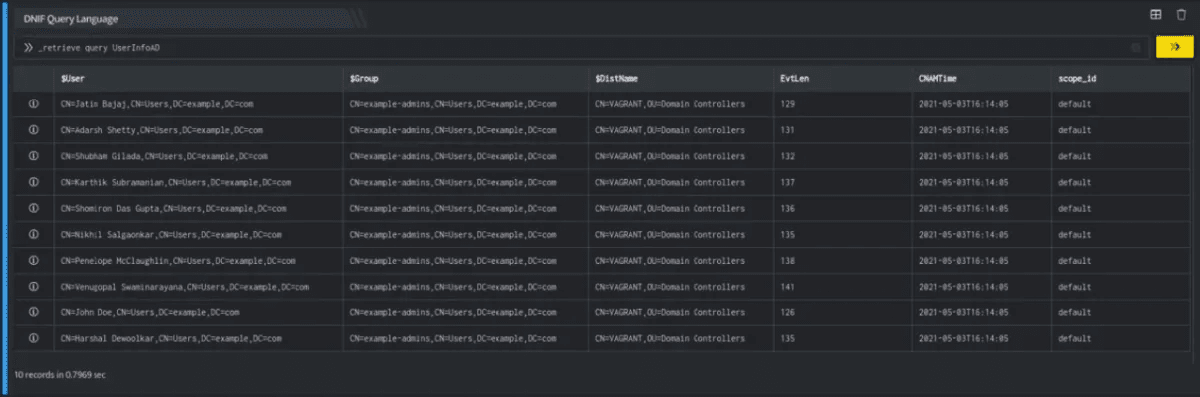
Output
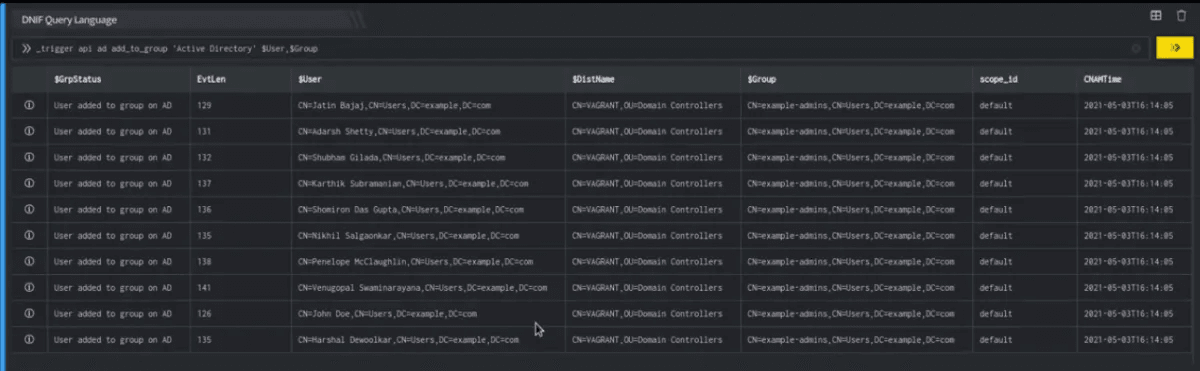
Use the command below to add the user to a group in Active Directory:
_trigger api ad add_to_group 'Active Directory' $User, $GroupThis command calls the add_to_group function. It passes the $User and $Group values as inputs. The output shows the user that was added, the group they were added to, and the status of the action. The output looks like this:
4.3 Remove User from Group
This function removes a user from a pre-defined group in Active Directory.
Function name: remove_from_group
Input
The input is the user you want to remove from a group. The example below fetches $Users from the UserInfoAD event store.
_retrieve query UserInfoADThe output looks like this:
Output
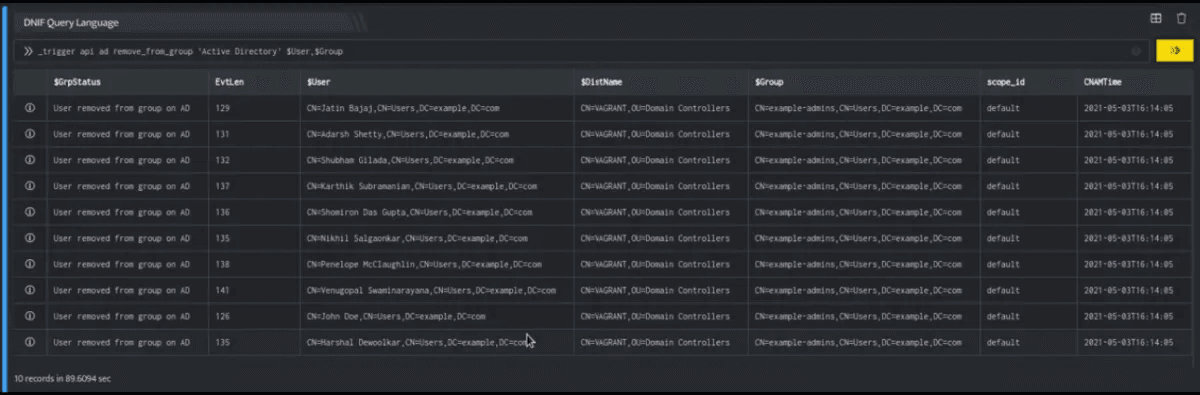
Use the command below to remove the user from a group in Active Directory:
_trigger api ad remove_from_group 'Active Directory' $User, $GroupThis command calls the remove_from_group function. It passes the $User and $Group values as inputs. The output shows the user that was removed, the group they were removed from, and the status of the action. The output looks like this:
4.4 Enable User
This function enables a user account in Active Directory.
Function name: enable_user
Input
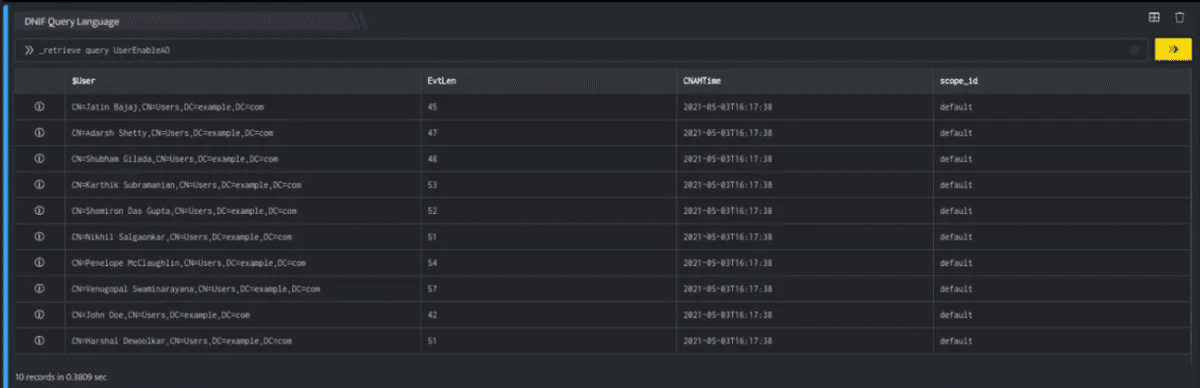
The input is the user you want to enable. The example below fetches users from a custom event store called UserEnableAD.
_retrieve query UserEnableADThe _retrieve command fetches the $User field for each event in the UserEnableAD event store. The output looks like this:
Output
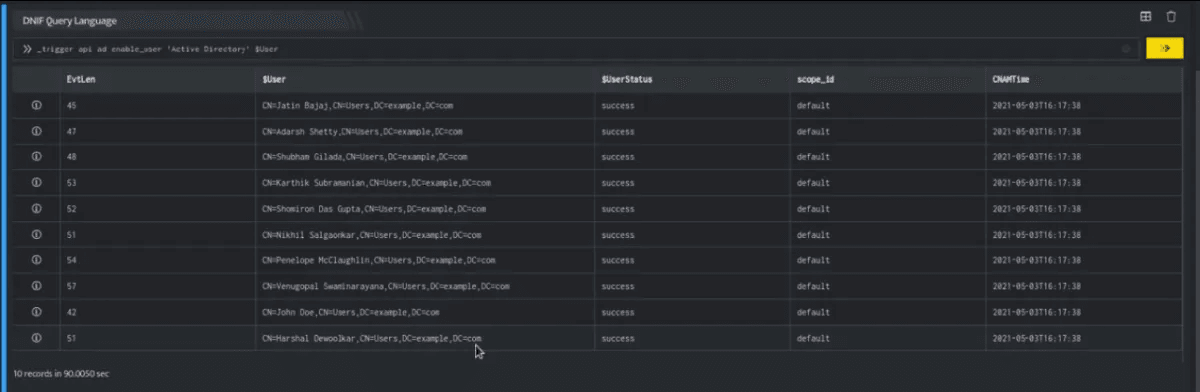
Use the command below to enable the user in Active Directory:
_trigger api ad enable_user 'Active Directory' $UserThis command calls the enable_user function. It passes $User as the input. The output shows the user that was enabled and the status of the action. The output looks like this:
4.5 Disable User
This function disables a user account in Active Directory.
Function name: disable_user
Input
The input is the user you want to disable. The example below fetches $Users from the UserEnableAD event store.
_retrieve query UserEnableADThe output looks like this:
Output
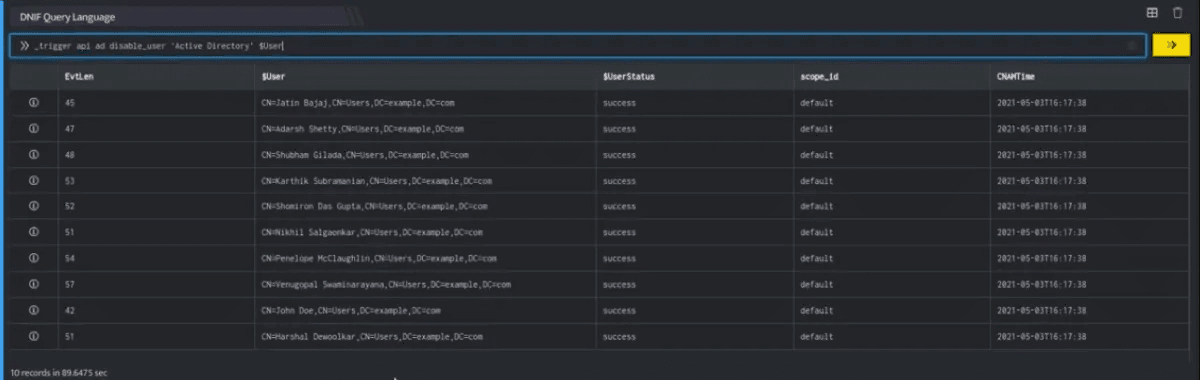
Use the command below to disable the user in Active Directory:
_trigger api ad disable_user 'Active Directory' $UserThis command calls the disable_user function. It passes $User as the input. The output shows the user that was disabled and the status of the action. The output looks like this:
4.6 Retrieve User Intel Data
This function retrieves user intelligence data stored in Active Directory. Active Directory is a pre-configured integration in Bloo that stores its data as a dataset in an event store. This is a scheduled event store that can be used to fetch user intel data.
Function name: import_user_intel
Input
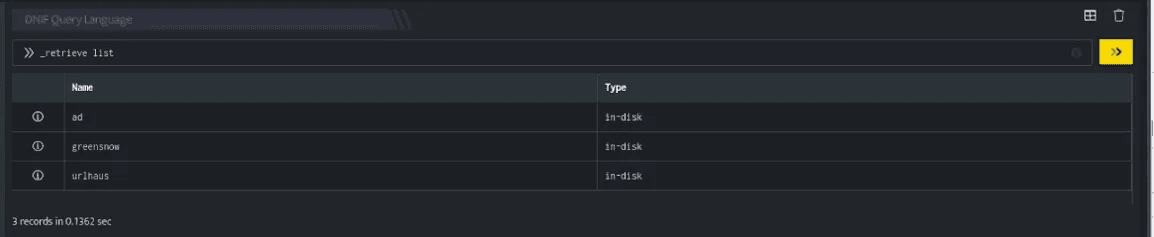
Use the command below to retrieve a list of all existing event stores:
_retrieve listThe output shows all available event stores. The output looks like this:
Output
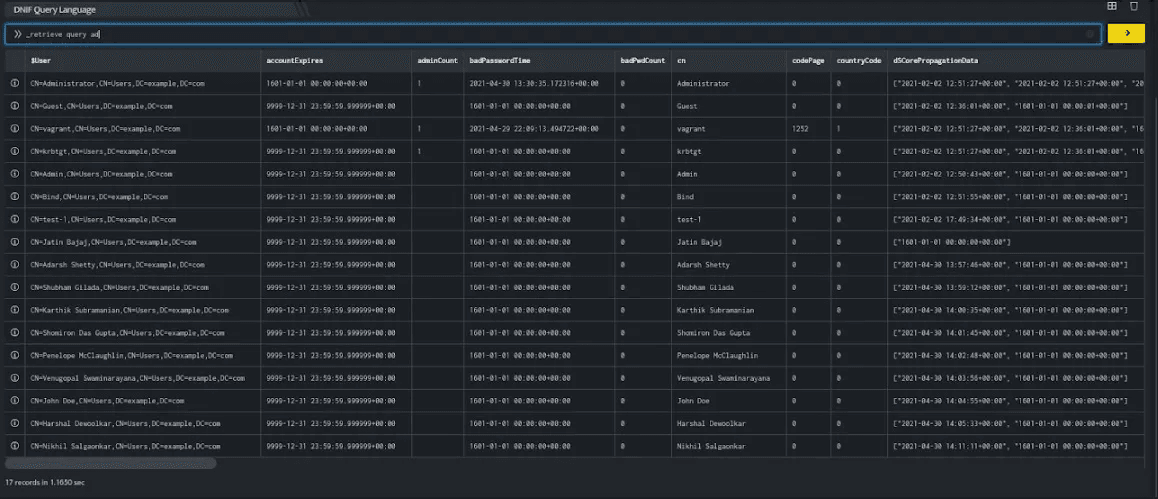
Use the command below to fetch the user intel data from the Active Directory event store:
_retrieve query adThis command calls the import_user_intel function of the Active Directory plugin to fetch user intel data. The output looks like this:
5. Related Links
Related
Was this page helpful?