
How-to guides
Create a Dashboard
A Dashboard is an element of a graphical user interface (GUI) that displays information of different widgets to a single place or provides a specific way for a user to interact with Bloo.
Updated 2026-08-16
A Dashboard is an element of a graphical user interface (GUI) that displays information of different widgets to a single place or provides a specific way for a user to interact with Bloo. It allows users to build a customized view that is relevant to them, data is added and displayed on the dashboard through the widgets.
How to add Widgets to Dashboard?
- Click the Dashboards icon on the left navigation bar; it will display the list of existing Dashboard visualisations.
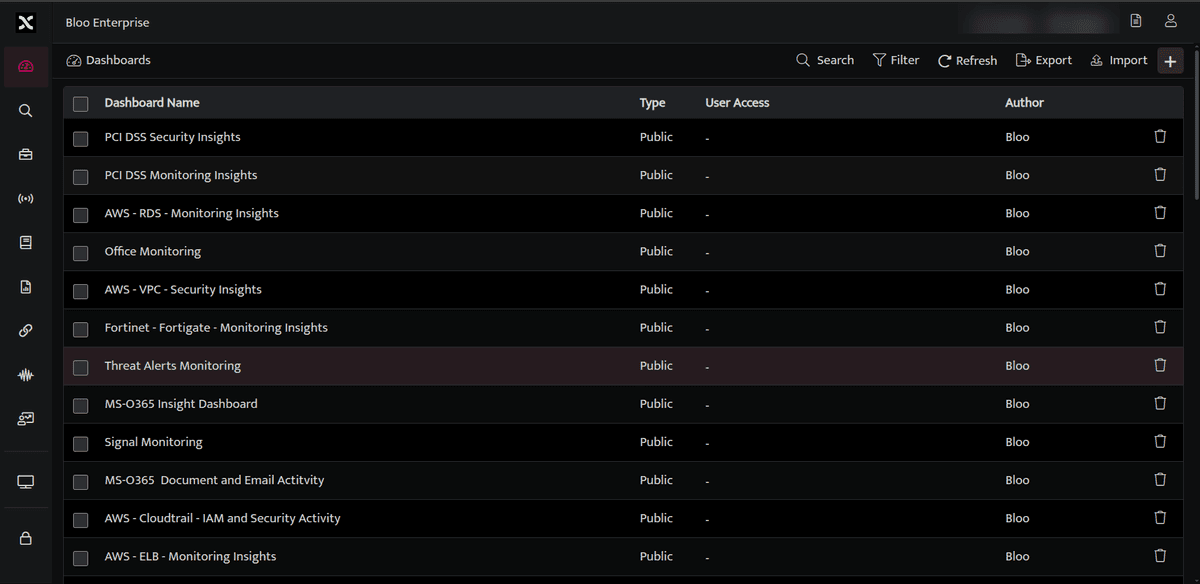
Dashboard List
The Dashboard List screen displays the following fields:
| Field Name | Description |
|---|---|
| Dashboard Name | Displays the list of saved dashboards. Click the dashboard name to view the specific dashboard. |
| Type | Displays the access type of the dashboard (e.g., Public, Private). |
| User Access | Displays the user access permissions for the dashboard. |
| Author | Displays the name of the user who created this dashboard visualization. |
 |
Used to delete the specific dashboard visualisation. |
Dashboard allows you to add and arrange multiple widgets to analyze up-to-date information so they can make smarter, data-driven decisions. Dashboards help you to Improve data discovery and helps to identify the true impact of data.
- Go to Dashboard, Click plus sign. The lists of all saved workbooks are displayed.
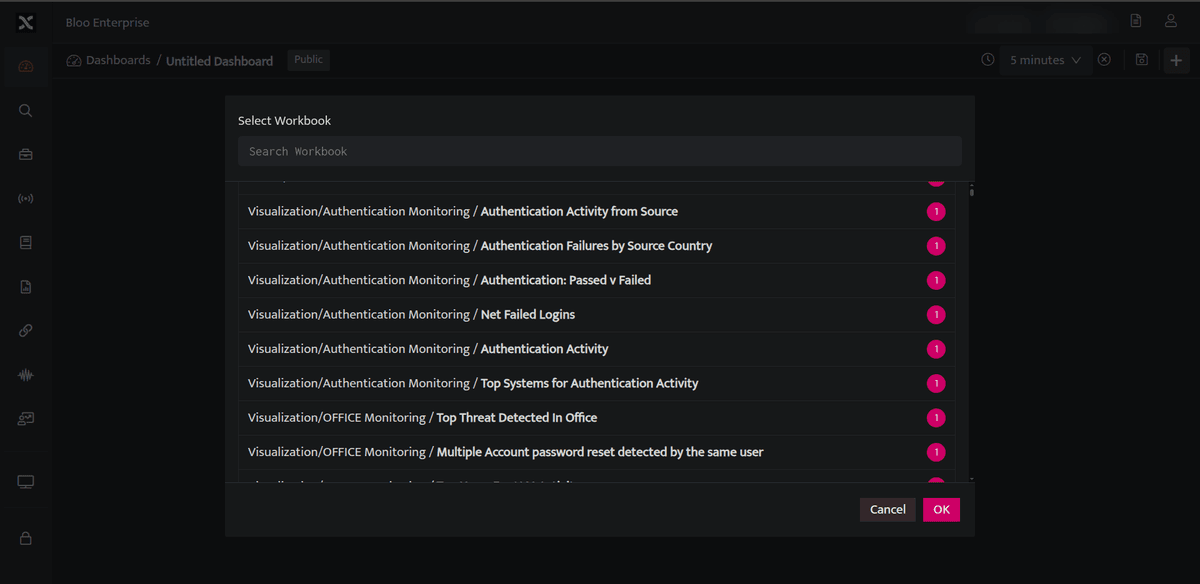
- The blue circle next to the Workbook name indicates the count of Visualization Graphs available in the Workbook.
- The bullet list icon
 next to the workbook indicates that there are no visualisation blocks added to the workbook. For these workbooks, you can directly render the query result as a dashboard widget.
 - Select the workbooks to be rendered as a dashboard widget.
- Displayed below is a dashboard view after rendering multiple workbooks.
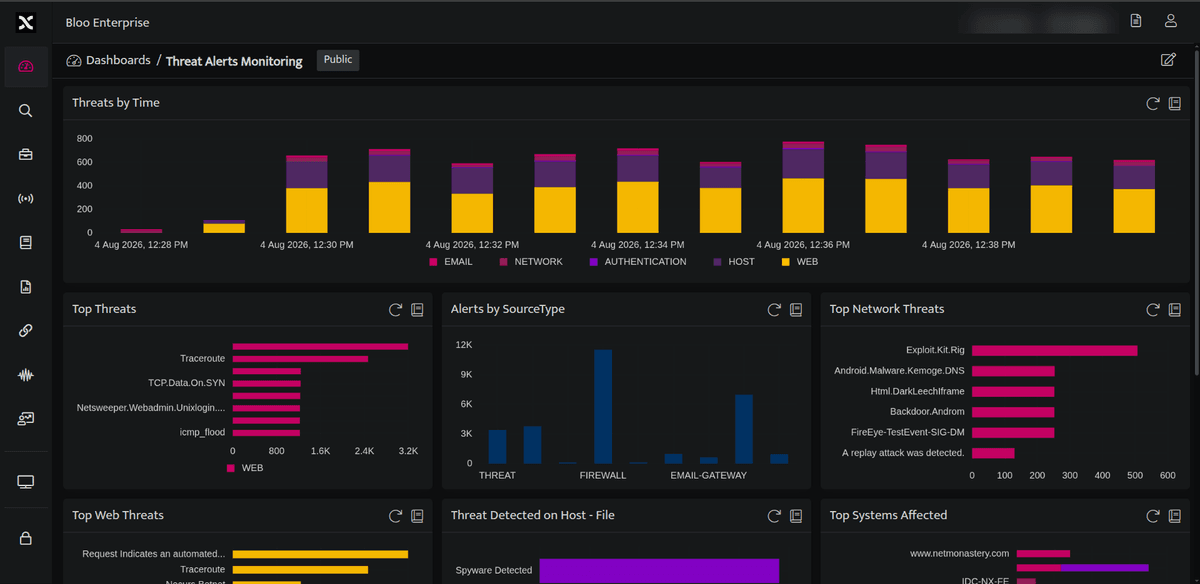
The following icons are displayed on every individual widget on the dashboard.
| Icons | Description |
|---|---|
 |
Use this icon to open a particular workbook |
 |
Use this icon to refresh the widget |
 |
Use this icon to remove the widget from the dashboard. This icon will be displayed only in edit mode. |
Related
Was this page helpful?