
Connectors
Trend Micro Audit Logs Connector
Connectors in Bloo
Updated 2026-08-17
Overview
Trend Micro Audit connector uses the pull method to fetch audit logs using Trend Micro Service Platform Public API.
Prerequisites
- Trend Micro Vision One account with Admin privileges
- API Url (e.g.
https://api.xdr.trendmicro.com)
Note To find your API Url, check the domain you use to log in to Vision One. For example, if you log in at portal.eu.xdr.trendmicro.com, your API Url is
https://api.eu.xdr.trendmicro.com. If you log in without a region prefix (e.g. portal.xdr.trendmicro.com), usehttps://api.xdr.trendmicro.com.
Generate an Authentication Token
Sign in to your Trend Micro Vision One account.
Once logged in, go to the Settings icon on the left navigation bar and click User Accounts.
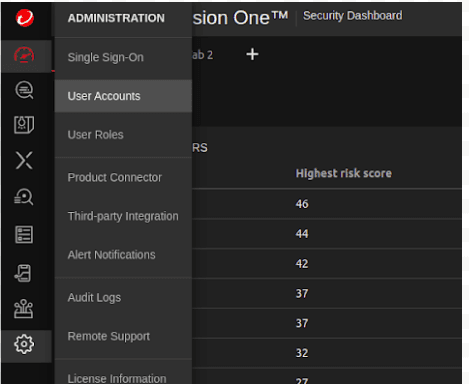
Once you find your account listed on the User Accounts page, click on the account name. A popup window will be displayed.
On this window make the following changes and click Save.
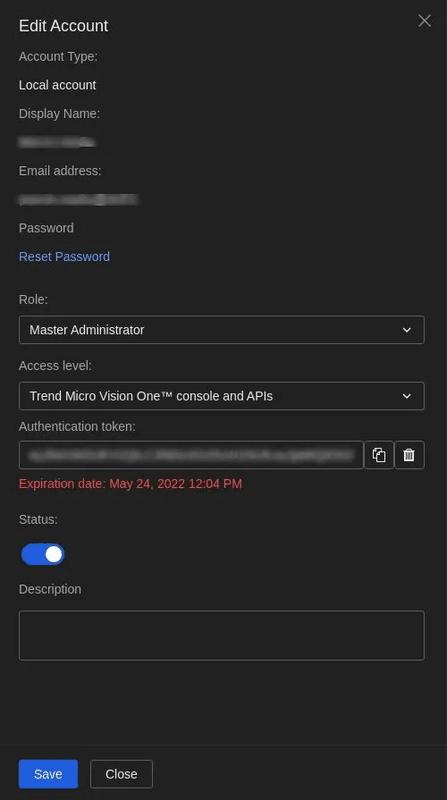
- Generate a new authentication token.
Warning Copy and store the authentication token immediately — once you save and close Account Details, the token is no longer available to view or copy. By default, authentication tokens expire one year after creation. If your token expires, the connector will stop working and you will need to generate a new token and update the connector configuration in Bloo.
Configure the Trend Micro Audit Logs Connector in Bloo
All connector configuration is done from the Datasource page in Bloo.
| Field Name | Description |
|---|---|
| Connector Name | Enter a name for the connector. |
| API Url | Enter the Trend Micro API URL (e.g. https://api.xdr.trendmicro.com). |
| Bearer Token | Enter the Trend Micro authentication token generated above. |
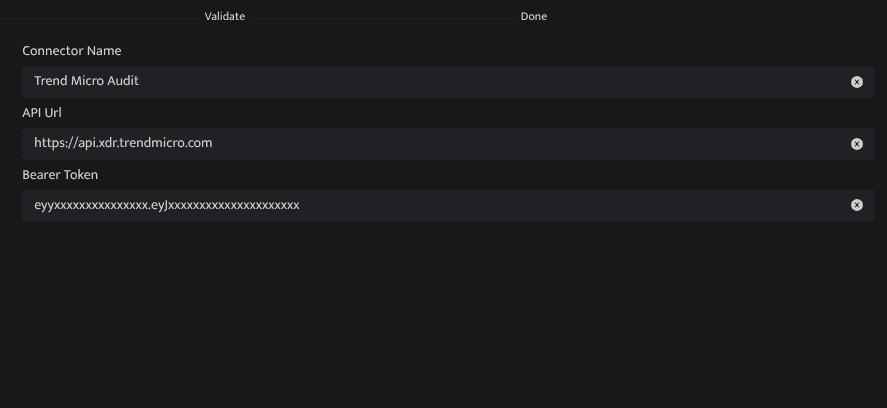
Click Save after entering all the required details.
Bloo will validate the configuration automatically.
Navigate to Collection Status and confirm the connector is listed with a status of Active. This signifies the connector is configured successfully and data is ready to ingest.
Confirmed When the connector appears in Collection Status with status Active, it is configured successfully and data is ready to ingest.
Related Links
Bloo — Collection Status | Bloo — Connector Validation | Trend Micro Vision One — Login | Bloo — Troubleshooting Connector Validations
Related
Was this page helpful?