
Connectors
Microsoft Sentinel Connector
Connectors in Bloo
Updated 2026-08-17
Note Portal transition note: Microsoft Sentinel is moving from the Azure portal to the Microsoft Defender portal. Starting July 2026, users are automatically redirected to the Defender portal. The Azure portal experience for Sentinel will be fully retired on March 31, 2027. The App Registration, API Permissions, and Client Secret steps in this guide are still performed in the Azure portal and are not affected by this change. Only the Sentinel workspace navigation is moving to the Defender portal.
Overview
The Microsoft Sentinel Connector enables integration of incidents from Microsoft Sentinel into Bloo by securely pulling data through the Microsoft Sentinel RESTful API. This ensures effective monitoring and correlation of Sentinel incidents in Bloo.
Prerequisites
To configure the Microsoft Sentinel Connector, ensure you have the following:
- A Microsoft account with access to the Azure portal
- Tenant ID
- Client ID
- Client Secret
- Subscription ID
- Log Analytics workspace details (Workspace Name and Resource Group Name)
Step 1 — Register an Application in Microsoft Entra ID
- Log in to the Azure portal using your Microsoft account.
- Navigate to Microsoft Entra ID > App Registrations and select New Registration.
- Complete the registration form:
- Provide a name for the application.
- Select the Supported Account Types applicable to your organisation.
- Optionally configure a Redirect URI, then click Register.
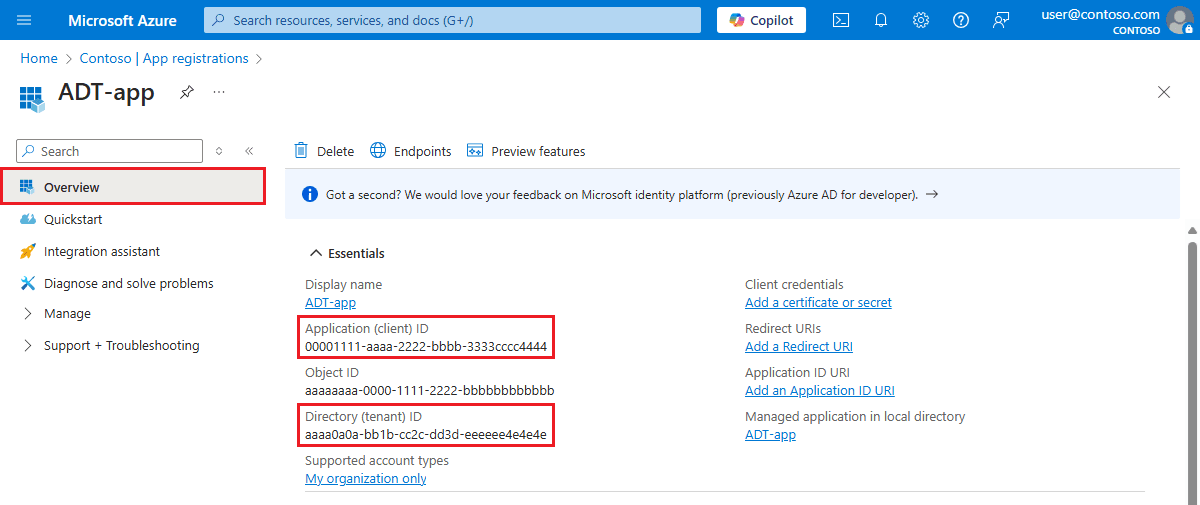
- After registration, note the Application (Client) ID and the Directory (Tenant) ID from the Overview page. Store both values securely — you will need them when configuring the connector in Bloo.
Step 2 — Configure API Permissions
Your registered application needs permission to call the Microsoft Sentinel REST API. This is done by assigning the user_impersonation permission from Azure Service Management.
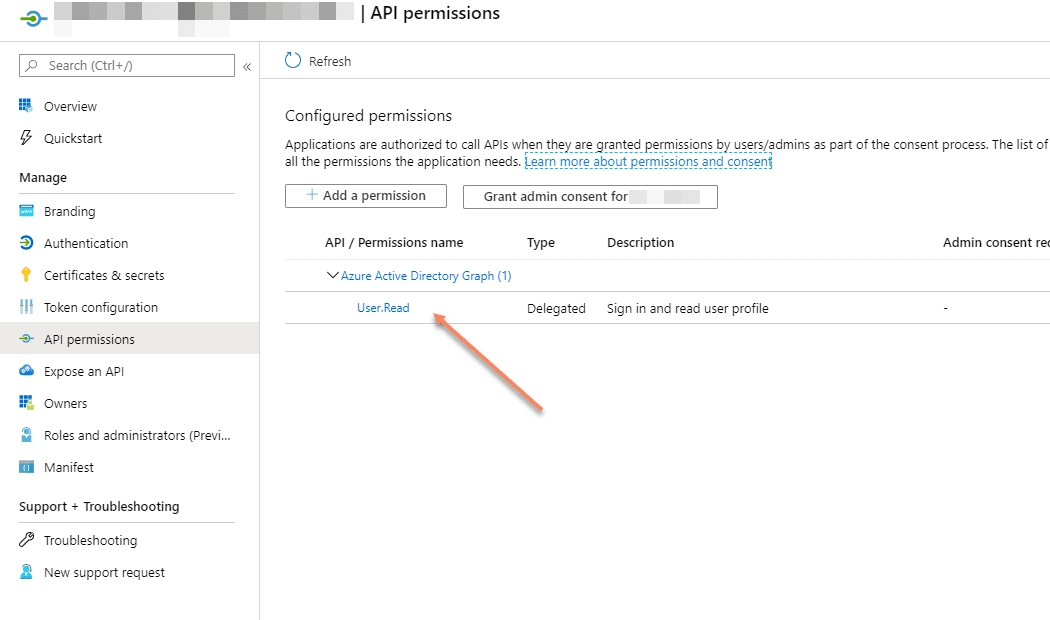
- In your registered application, navigate to API Permissions in the left menu.
- Click Add a permission.
- In the panel that opens, click APIs my organization uses, then search for and select Azure Service Management.
- Select Delegated Permissions, check user_impersonation, and click Add permissions.
- Click Grant Admin Consent to approve the permissions, then confirm the prompt. Each permission should show a green checkmark.
Note Admin Consent must be granted by a Global Administrator. Without it, the connector will not be able to access Microsoft Sentinel data even if the permission is added correctly.
Step 3 — Generate a Client Secret
- In your registered application, navigate to Certificates & Secrets in the left menu.
- Click New Client Secret, provide a description, and set an expiration duration.
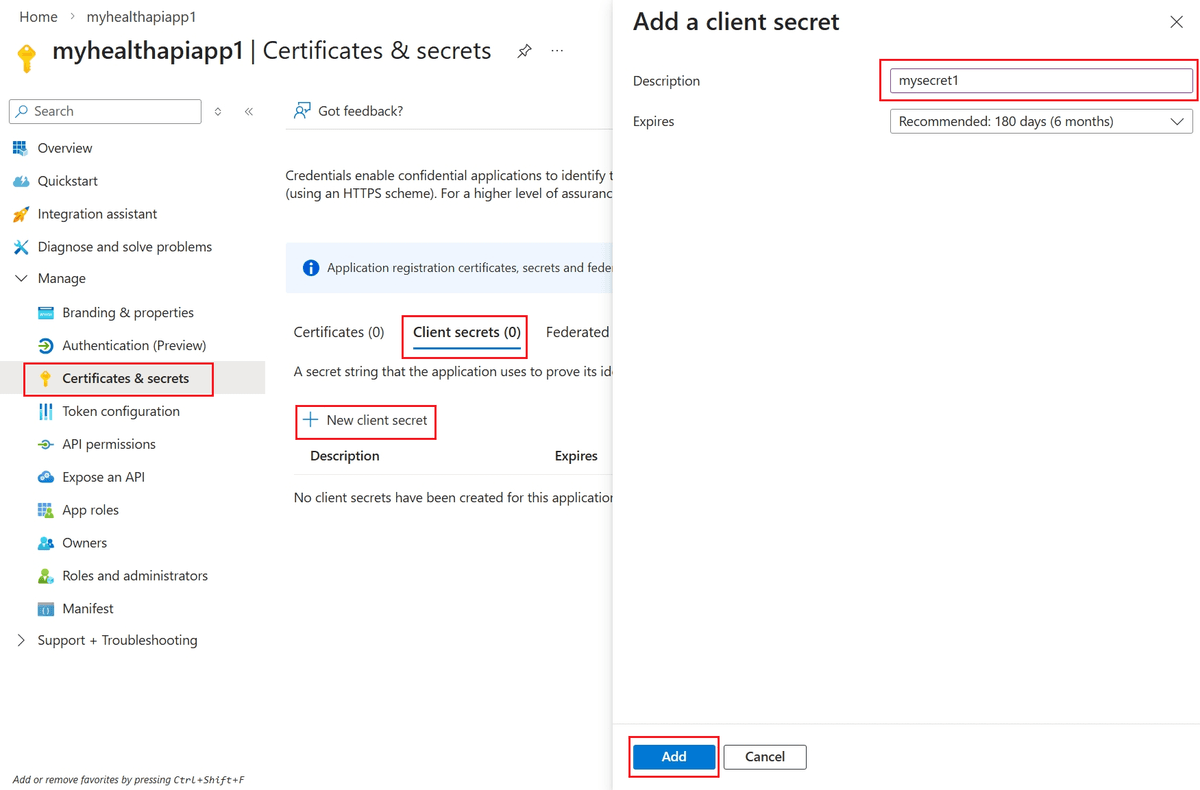
- Click Add. The secret value will be displayed once.
- Copy the secret value immediately and store it in a secure location. You will need it when configuring the connector in Bloo.
Warning Save the secret value displayed as it will not be retrievable later. If you navigate away without copying it, you will need to create a new secret.
Step 4 — Retrieve Workspace and Subscription Details
The Bloo connector requires your Workspace Name, Resource Group Name, and Subscription ID. All three are available from the Azure portal.
- In the Azure portal, search for and open Log Analytics workspaces.
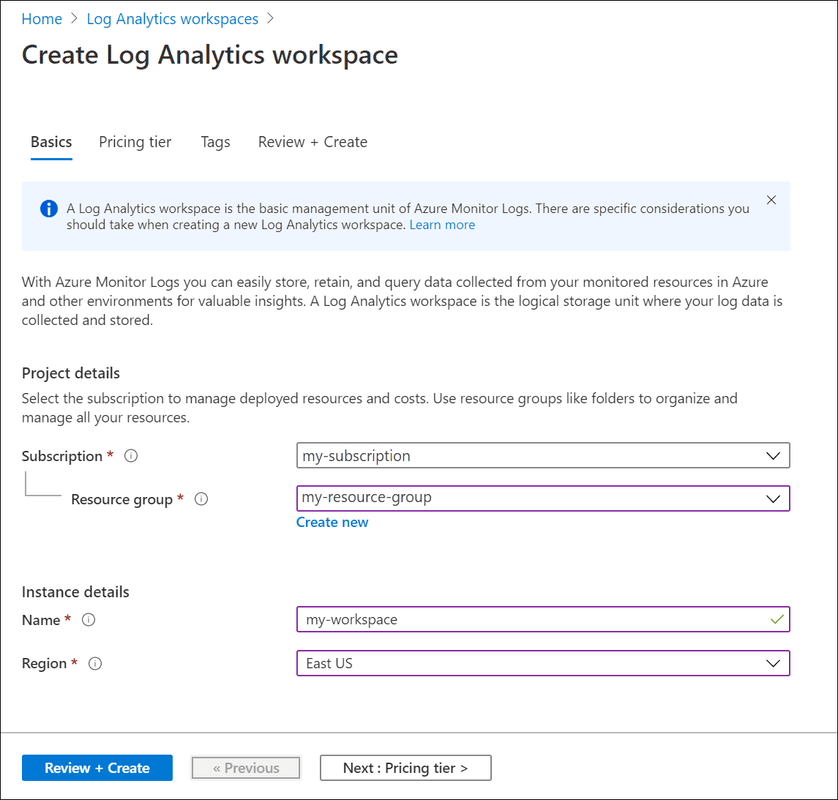
- Select the Log Analytics workspace associated with your Microsoft Sentinel deployment.
- From the Overview page, copy the following values:
- Workspace Name — the text name of the workspace (for example: my-sentinel-workspace)
- Resource Group — the name of the resource group the workspace belongs to
- Subscription ID — the unique ID of your Azure subscription
Step 5 — Assign the Microsoft Sentinel Reader Role
Your registered application must be assigned the Microsoft Sentinel Reader role. This allows Bloo to pull incidents from Microsoft Sentinel. Without this role assignment, the connector will authenticate but return no data.
- In the Azure portal, navigate to Resource Groups and select the resource group where your Sentinel workspace is deployed.
- In the left menu, click Access control (IAM).
- Click Add > Add role assignment.
- Search for and select Microsoft Sentinel Reader from the role list, then click Next.
- Under Assign access to, select User, group, or service principal.
- Click + Select members, search for your registered application by name, select it, and click Select.
- Click Review + assign to apply the role.
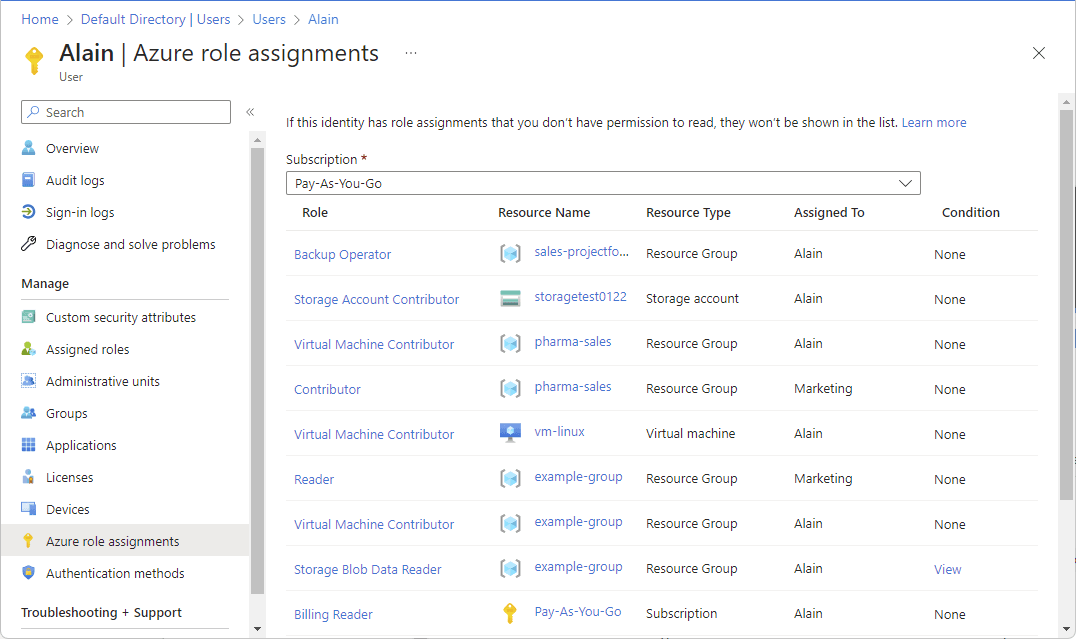
Note Microsoft Sentinel Reader allows Bloo to view incidents and data from your Sentinel workspace. This is the minimum role required for this connector. Source: Microsoft Sentinel roles and permissions
Step 6 — Configure the Microsoft Sentinel Connector in Bloo
All connector configuration is done from the Datasource page in Bloo.
| Field Name | Description |
|---|---|
| Connector Name | Enter a unique name for the connector. |
| Application (client) ID | Enter the Application (Client) ID from the Overview page of your registered app in Microsoft Entra ID. |
| Client Secret Value | Enter the Client Secret value generated in Certificates & Secrets of your registered app. |
| Directory (Tenant) ID | Enter the Directory (Tenant) ID from the Overview page of your registered app in Microsoft Entra ID. |
| Subscription ID | Enter the Subscription ID from your Log Analytics workspace Overview page. |
| Workspace Name | Enter the name of the Log Analytics workspace associated with your Microsoft Sentinel deployment. |
| Resource Group Name | Enter the name of the Resource Group in which the Sentinel workspace is deployed. |
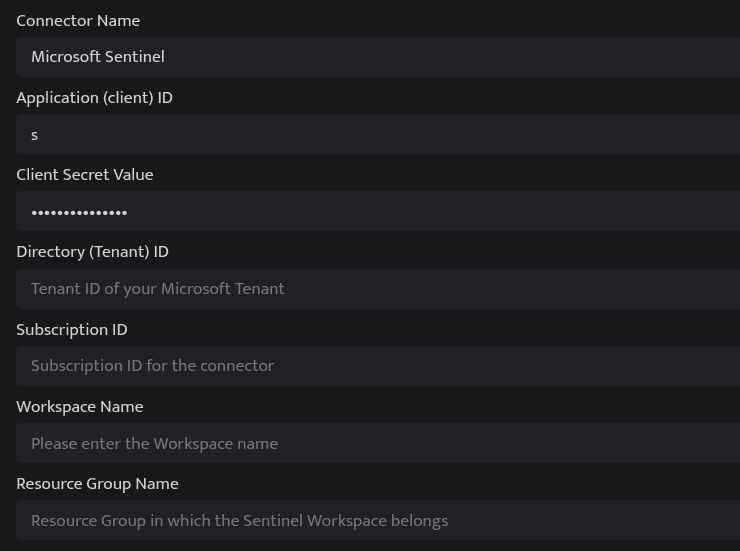
- Click Save after entering all the required details.
- Bloo will validate the configuration automatically.
- Navigate to Collection Status and confirm the connector is listed with a status of Active. This signifies the connector is configured successfully and data is ready to ingest.
Confirmed When the connector appears in Collection Status with status Active, it is configured successfully and data is ready to ingest.
Related Links
Bloo — Collection Status | Bloo — Connector Validation | Microsoft Sentinel Roles and Permissions | Bloo — Troubleshooting Connector Validations
Related
Was this page helpful?