
Connectors
Microsoft Intune Connector
Connectors in Bloo
Updated 2026-08-17
Overview
The Microsoft Intune Connector gathers data about devices from Microsoft Intune. By facilitating the efficient collection and management of device-related information, it aids organizations in meeting regulatory requirements and ensuring adherence to compliance standards. This integration enhances not only operational efficiency but also contributes significantly to maintaining a secure and compliant IT environment.
Prerequisites
- Microsoft account to access the Azure portal and register an application to use the Microsoft Graph API.
- Application (client) ID
- Client Secret
- Directory (tenant) ID
Steps to Derive Prerequisites
Sign in to the Microsoft Entra admin center.
If you have access to multiple tenants, use the Directories + subscriptions filter in the top menu to switch to the tenant in which you want to register the application.
Click App registrations.
Click New registration.
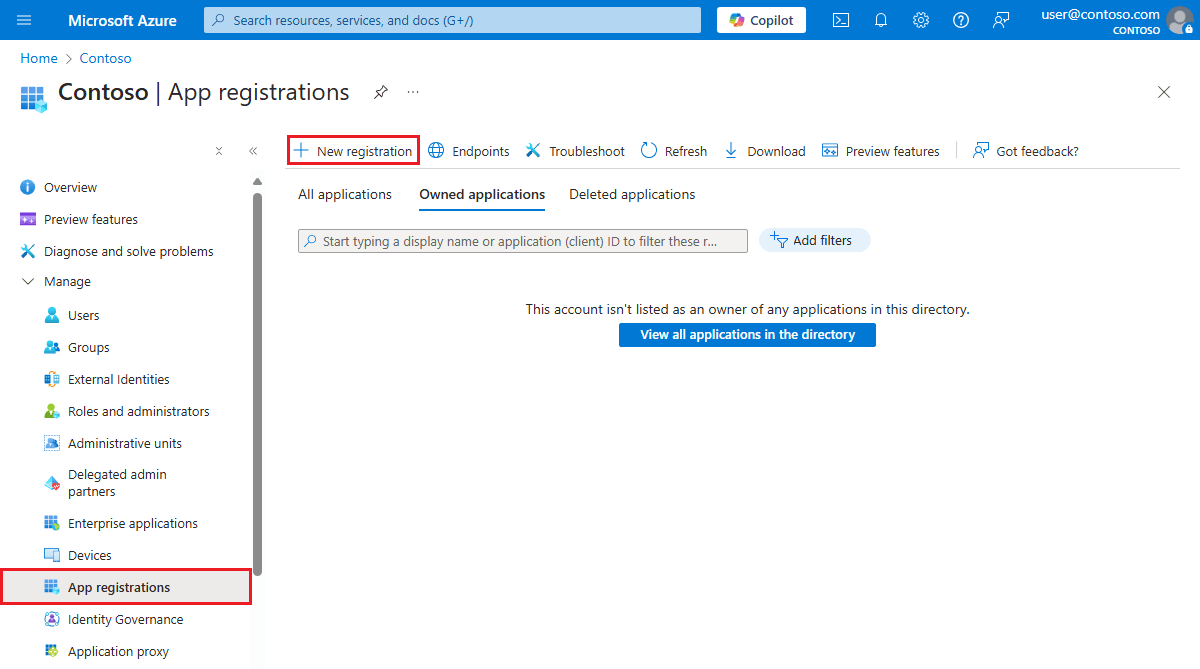
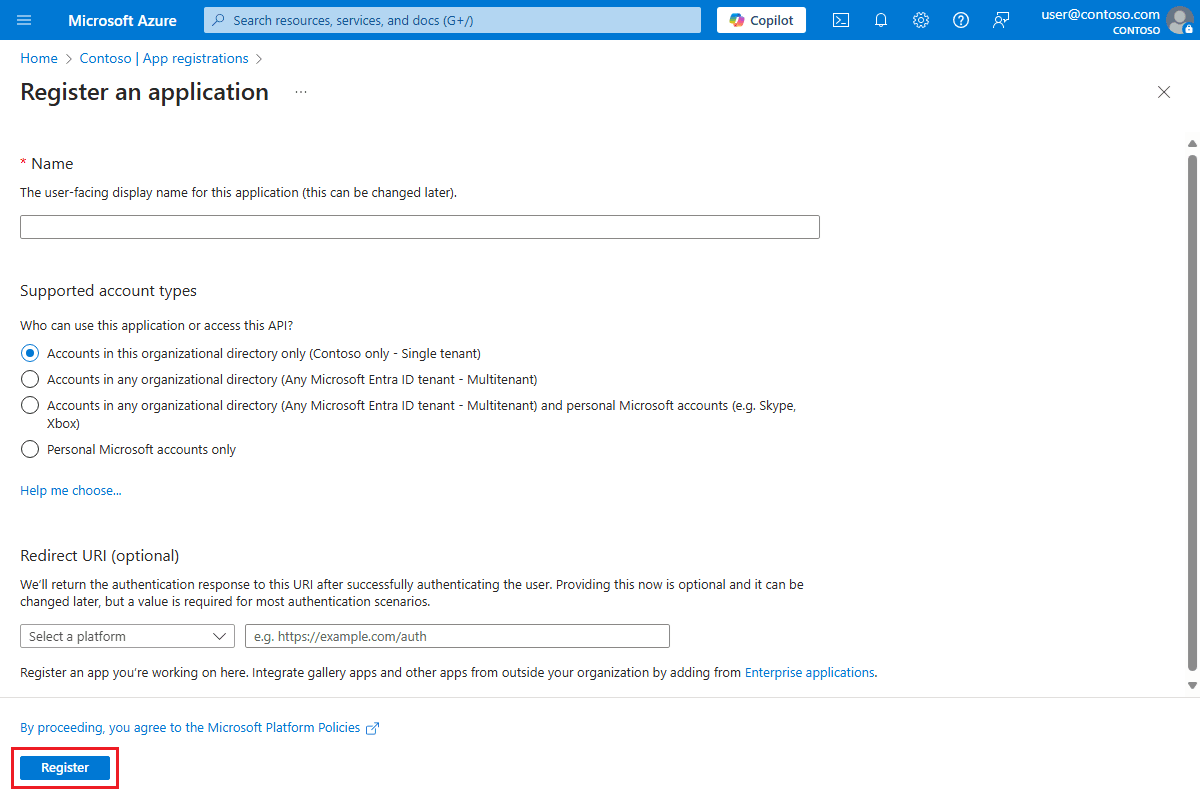
Enter a name, select the appropriate account type and click Register.
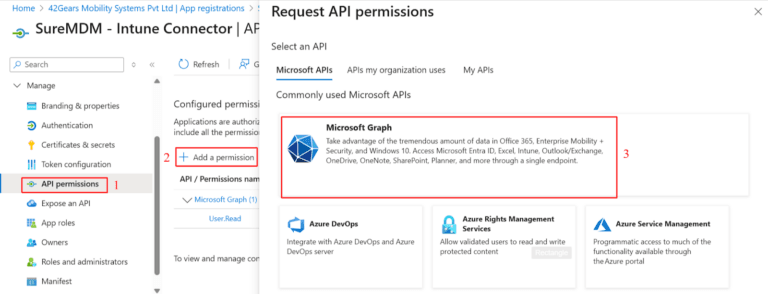
Click API permissions.
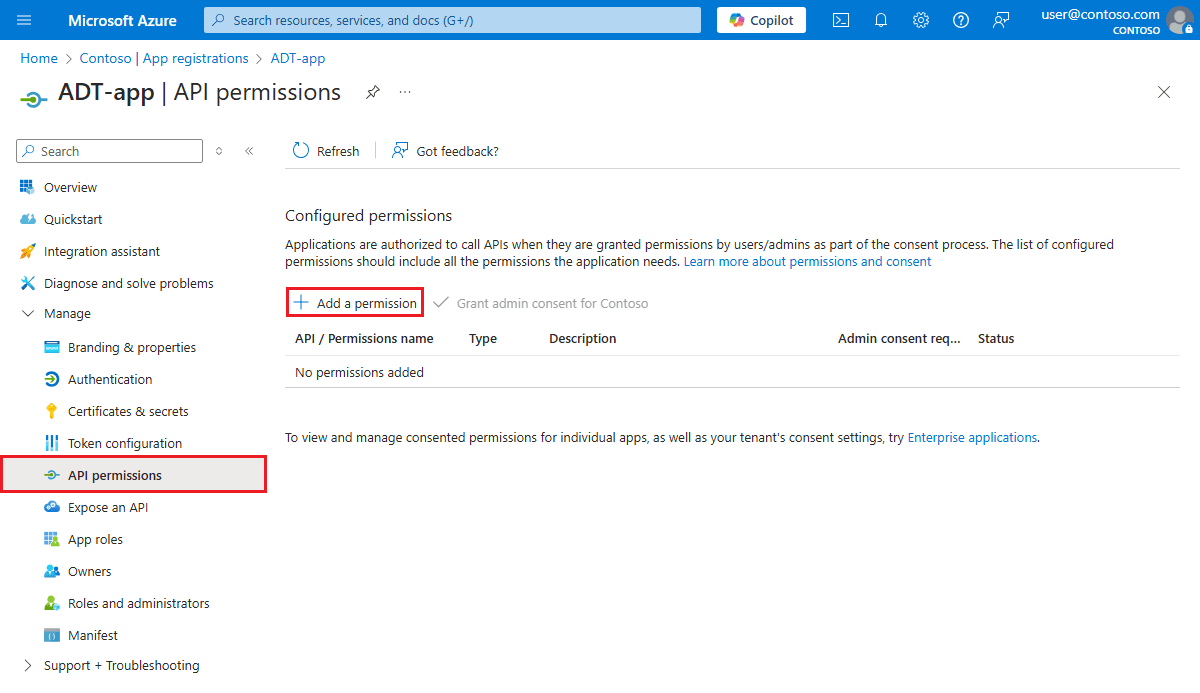
Click + Add a permission.
Select Microsoft Graph.
In the Application Permissions and Delegated Permissions — select the following permissions under DeviceManagementApps —
DeviceManagementManagedDevices.Read.All,DeviceManagementManagedDevices.ReadWrite.Alland click Add permissions.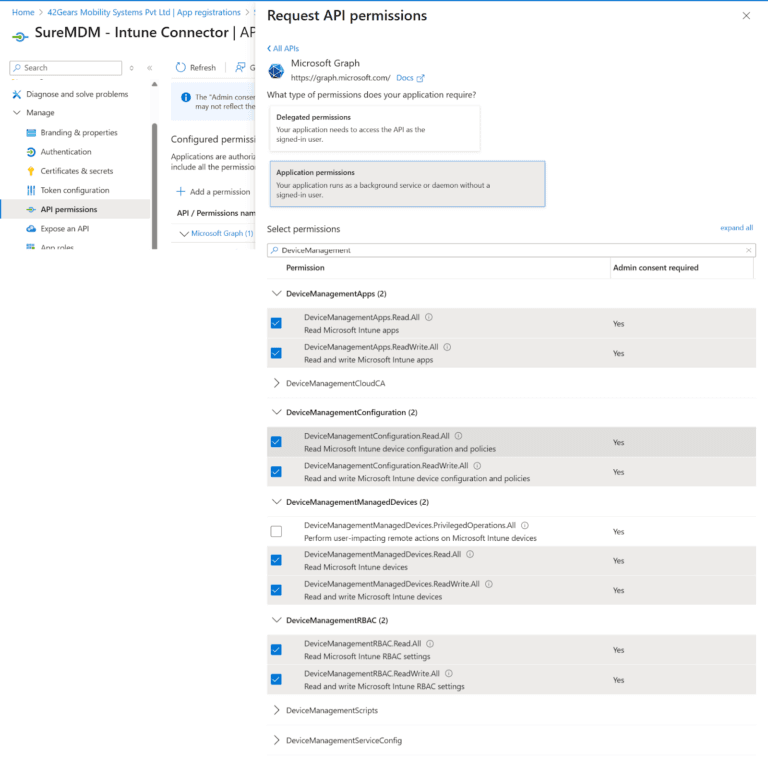
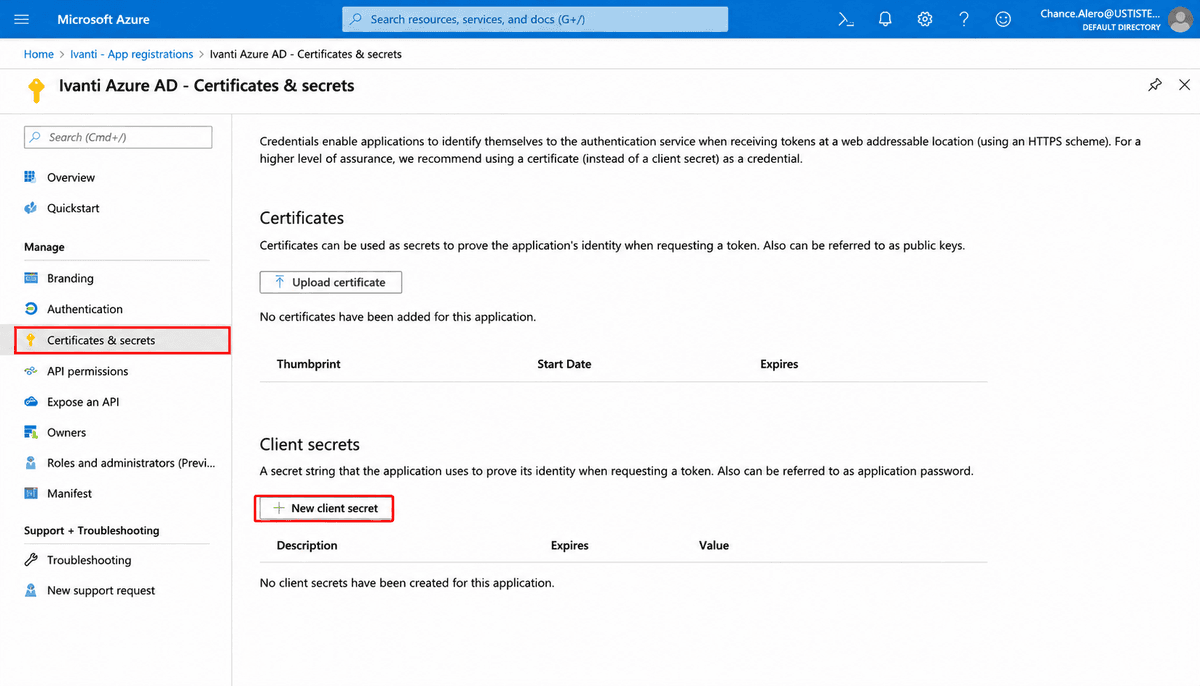
Click Certificates & secrets in the menu on the left and click + New client secret.
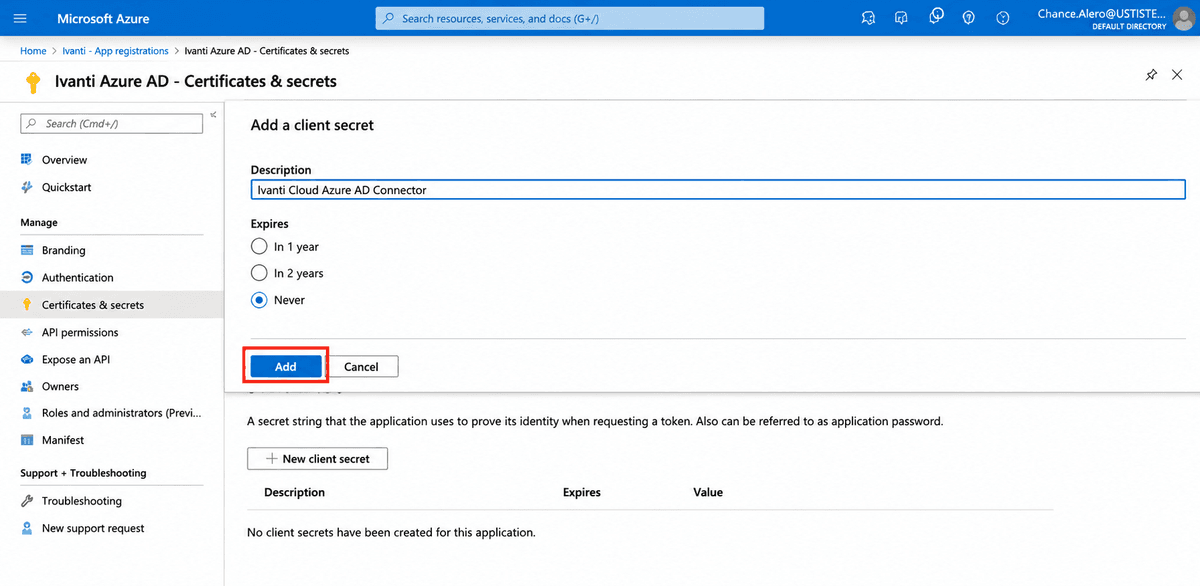
Enter a description and click Add.
Copy your newly created secret and make a note of it.
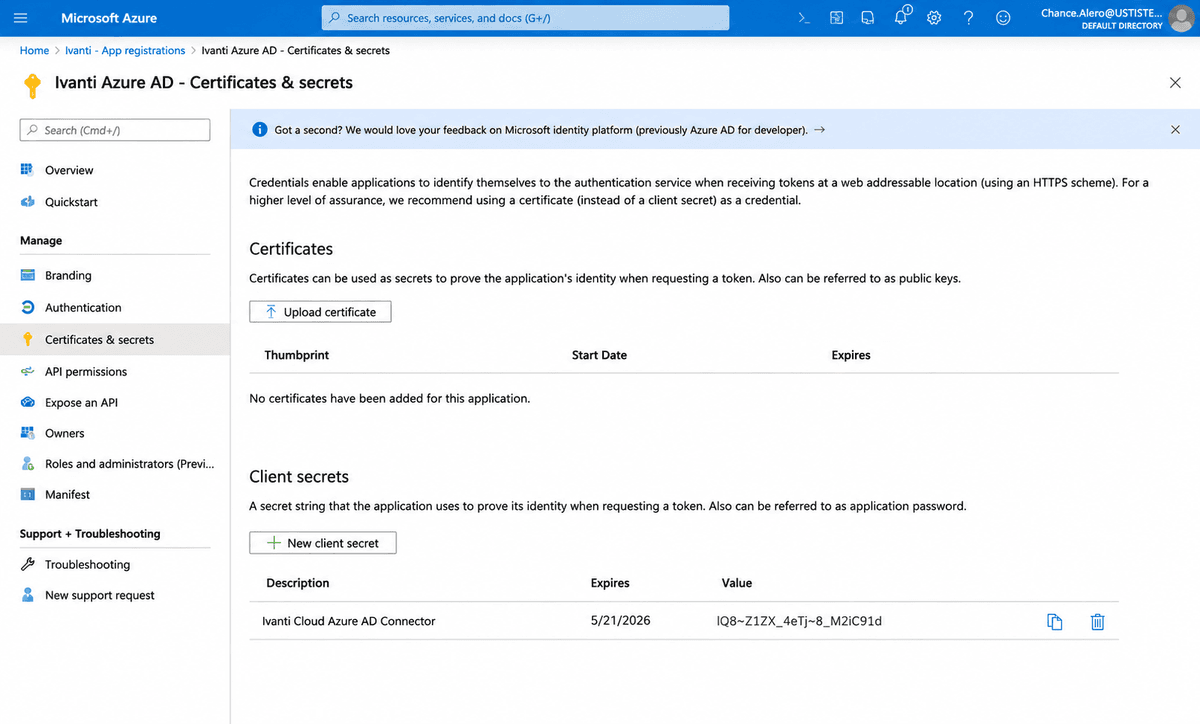
Warning Client secrets have an expiry date (6 months, 12 months, 24 months, or custom). When your secret expires, the connector will stop working. Generate a new secret and update the connector configuration in Bloo before it expires.
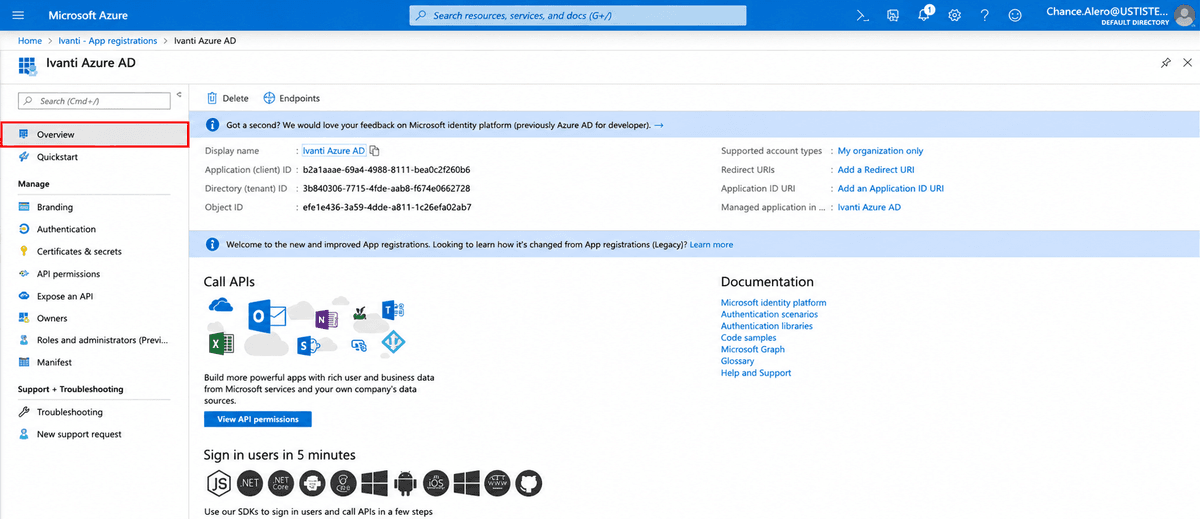
Click Overview in the menu on the left.
Copy your newly created Application (client) ID and Directory (tenant) ID and make a note of them.
Configure the Microsoft Intune Connector in Bloo
All connector configuration is done from the Datasource page in Bloo.
| Field | Description |
|---|---|
| Connector Name | Enter a name for the connector. |
| Client ID | Enter the Application (client) ID. |
| Client Secret | Enter the Client Secret. |
| Tenant ID | Enter the Directory (tenant) ID. |
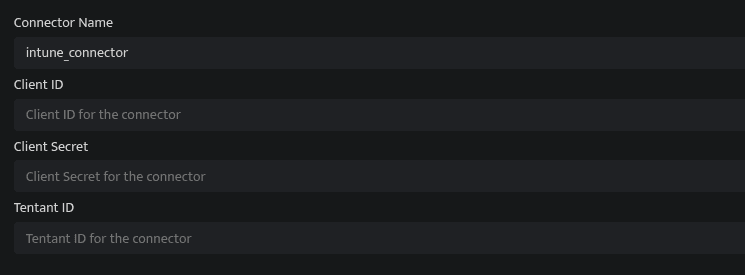
Click Save after entering all the required details.
Bloo will validate the configuration automatically.
Navigate to Collection Status and confirm the connector is listed with a status of Active. This signifies the connector is configured successfully and data is ready to ingest.
Confirmed When the connector appears in Collection Status with status Active, it is configured successfully and data is ready to ingest.
Related Links
Bloo — Collection Status | Bloo — Connector Validation | Microsoft Entra admin center | Microsoft — Intune Graph API access | Bloo — Troubleshooting Connector Validations
Related
Was this page helpful?