
Connectors
ClickSend
click send
Updated 2026-08-16
Automation Guide for Bloo
1. Overview
ClickSend is a multi channel business communications platform that offers SMS, MMS, Voice, Fax, Email, Post Letter and Postcard. This integration helps to send automated messages from apps when something happens.
2. Prerequisites
- You need an active ClickSend account to use this integration. You can sign up at https://dashboard.clicksend.com/#/signup/step1/.
| Note: ClickSend PricingClickSend is a pay-as-you-go service. There are no monthly fees or contracts.New accounts receive a small amount of free trial credit on signup. This is enough to test a few messages only.Once the trial credit is used, you must top up your account balance before any more SMS messages will send.Free trial and paid accounts have the same features. The only difference is the credit balance.If your balance runs out, SMS messages from Bloo will stop sending. ClickSend returns an INSUFFICIENT_CREDIT error in that case. |
You will need your ClickSend API credentials to configure the integration. To find them:
1. Log in to your ClickSend dashboard.
2. Click API Credentials in the top right corner of the dashboard.
3. Note your API Username and API Key. These are used to authenticate API calls.
For more details, refer to the official ClickSend API documentation: ClickSend REST API v3 — Developer Documentation
| Warning: Sending to US Phone NumbersThe 'from' field in the payload below uses a text-based sender name (called an Alpha Tag).Alpha Tags are NOT supported for sending to US phone numbers. If your recipients are in the United States, the message will fail.For US recipients, you must use a registered phone number (TFN or 10DLC) as the 'from' value instead of a text name.Source: ClickSend Help — Choosing the right Sender ID. |
3. Configuration
- In the Configuration Box, enter the Configuration Name to uniquely identify this configuration.
- Identify the content of headers and payload that you need to provide in the Configuration Box. Refer to the ClickSend REST API v3 Documentation for the headers and payload format.
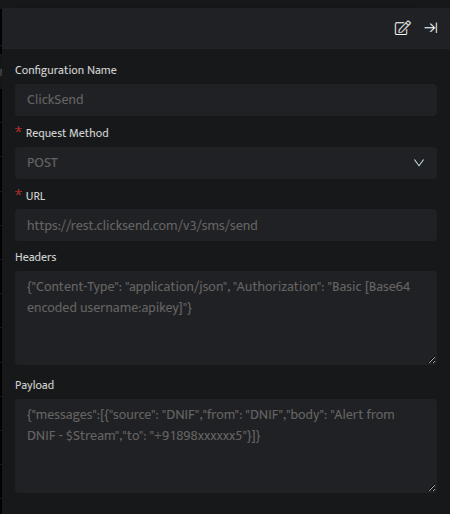
Below is an example of how you can leverage this plugin to send alerts to your mobile using ClickSend.
Payload — Single Recipient
{ "messages":[ { "source": "Bloo", "from": "Bloo", "body": "Alert from Bloo - Found Suspicious Remote Desktop Activity on host DstIP", "to": "+91898xxxxxx5" } ]}Below is the template to add more than one mobile number:
Payload — Multiple Recipients
{ "messages":[ { "source": "Bloo", "from": "Bloo", "body": "Alert from Bloo - Found Suspicious Remote Desktop Activity on host DstIP", "to": "+91898xxxxxx5" }, { "source": "Bloo", "from": "Bloo", "body": "Alert from Bloo - Found Suspicious Remote Desktop Activity on host DstIP", "to": "+91898xxxxxx6" }, { "source": "Bloo", "from": "Bloo", "body": "Alert from Bloo - Found Suspicious Remote Desktop Activity on host DstIP", "to": "+91898xxxxxx7" }, { "source": "Bloo", "from": "Bloo", "body": "Alert from Bloo - Found Suspicious Remote Desktop Activity on host DstIP", "to": "+91898xxxxxx8" } ]}ClickSend delivers an SMS based on the text mentioned in the Payload.
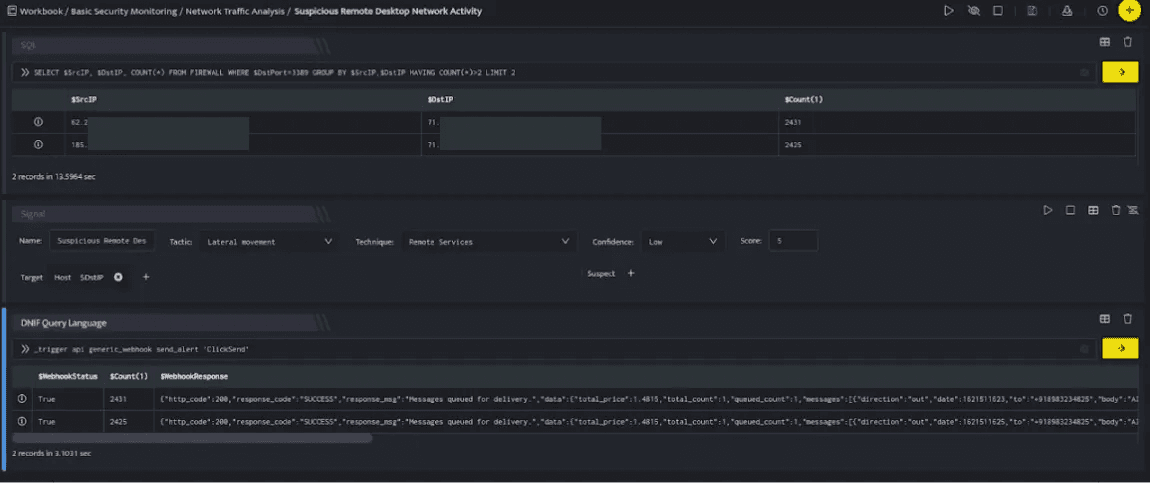
In the above figure, a workbook named Suspicious Remote Desktop Network Activity is executed which contains the following blocks:
- SQL Block: Displays two suspicious Destination IPs on execution of the workbook.
- Signal Block: This will raise a signal on detecting the suspicious IPs.
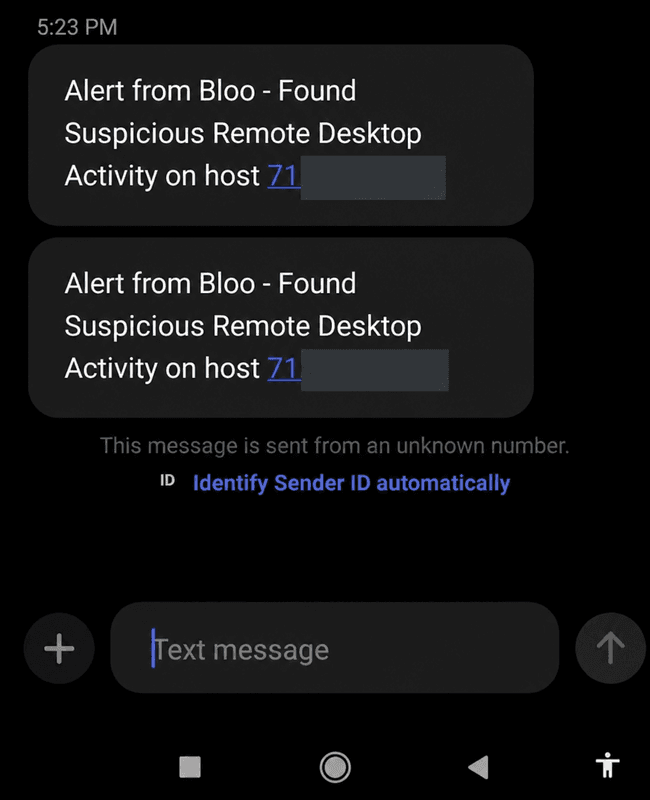
- DQL Block with _trigger query: Using Webhook integration for ClickSend, an alert will be sent to the mobile with the message mentioned in payload as displayed below:
4. Related Links
Related
Was this page helpful?