
Connectors
Opsgenie
Opsgenie
Updated 2026-08-16
Automation Guide for Bloo
1. Overview
Bloo can send webhook alerts to Opsgenie that acts as a dispatcher and determines the right people to notify.
2. Configuration
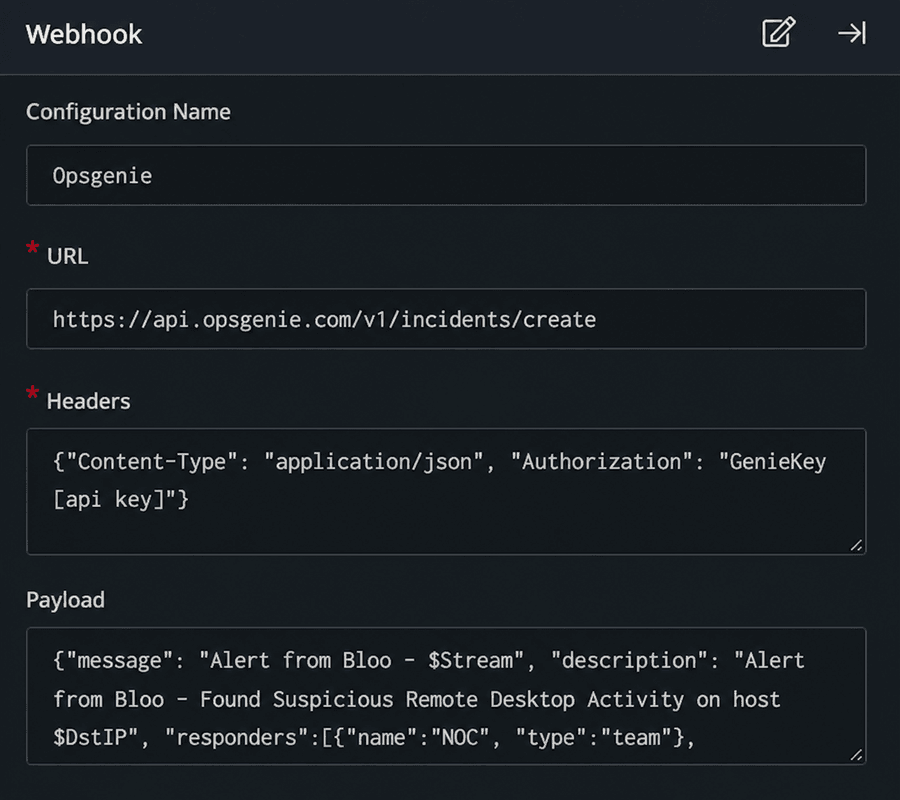
- In the Configuration Box, enter the Configuration Name to uniquely identify this configuration. Follow the initial setup steps described in How to Configure Automation? in the Bloo Knowledge Base.
- Identify the content of headers and payload that you need to provide in the Configuration Box. Use the table below as a reference. For full API details, refer to the Opsgenie Incident API documentation.
| ⚠ Important: Plan RequirementThe Opsgenie Incident API used in this integration is only available to Standard and Enterprise plans.If you are on a Free or Essentials plan, the API call will fail.Free and Essentials plan customers can use the Opsgenie Alert API instead (https://api.opsgenie.com/v2/alerts), which accepts the same payload fields and works on all plans.Source: Opsgenie Incident API documentation. |
Configuration Reference
| Field | Value |
|---|---|
| Request Method | POST |
| URL (US accounts) | https://api.opsgenie.com/v1/incidents/create |
| URL (EU accounts) | https://api.eu.opsgenie.com/v1/incidents/create |
| Header: Authorization | GenieKey YOUR_API_KEY |
| Header: Content-Type | application/json |
| Note: API KeyReplace YOUR_API_KEY with your Opsgenie API integration key.To obtain the key: in Opsgenie, go to your Team → Integrations → Add Integration → API → copy the API Key.Use the EU URL only if your Opsgenie account is hosted in the EU data centre. |
Below is an example of how you can leverage this integration to create an incident on Opsgenie.
Payload
{ "message": "Alert from Bloo - Stream", "description": "Alert from Bloo - Found Suspicious Remote Desktop Activity on host DstIP", "responders": [ { "name": "NOC", "type": "team" }, { "id": "bb4d9938-c3c2-455d-aaab-727aa701c0d8", "type": "user" } ], "tags": [ "Critical" ], "priority": "P1"}| Note: Payload PlaceholdersReplace the user id "bb4d9938-c3c2-455d-aaab-727aa701c0d8" with your actual Opsgenie user ID. This is a sample ID from Opsgenie's own documentation and is not a real user.Replace "NOC" with the name of your actual Opsgenie team.Stream and DstIP are Bloo variables that are replaced automatically at runtime with the actual stream name and destination IP from the triggering event. |
Opsgenie creates an incident on the Opsgenie account based on the values given in the payload.
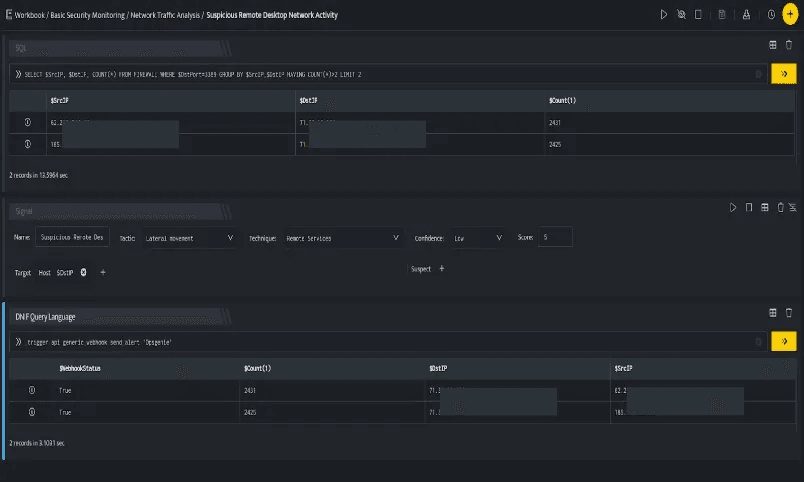
In the above figure, a workbook named Suspicious Remote Desktop Network Activity is executed which contains the following blocks:
- SQL Block: Displays two suspicious Destination IPs on execution of the workbook.
- Signal Block: This will raise a signal on detecting the suspicious IPs.
- DQL Block with _trigger query: Using Webhook integration for Opsgenie, an incident is created on the Opsgenie account based on the values given in the payload.
3. Related Links
Related
Was this page helpful?