
Connectors
SSH Configuration
Automation Guide for Bloo
Updated 2026-08-17
1. Overview
SSH, or Secure Shell, integration is used to establish a secure connection to a remote host and execute commands. It allows you to gain access and remotely manage other computers and transfer files.
2. Configuration
- Follow the initial configuration steps in How to Configure Automation? in the Bloo Knowledge Base.
- Click the edit icon to add details.
- You can authenticate the SSH connection using a host password or a private key.
| NoteTo associate an SSH automation configuration with the Investigate panel, it must provide exactly one substitution parameter — either User or Host. |
| Field | Description |
|---|---|
| Configuration Name | Name for the plugin configuration. |
| Host IP Address | IP address of the remote host. |
| Host Port (Optional) | Port of the remote host. |
| Host Username | Username of the remote host. |
| Authentication Type | Select the type of authentication — Password or Private Key. |
| Host Password | Enter the password of the host to authenticate the SSH connection (required if Authentication Type is Password). |
| Private Key | Enter the private key of the host to authenticate the SSH connection (required if Authentication Type is Private Key). |
| Commands to Execute | Enter the commands to execute on the remote host. Each command must be on a new line. Example: ping -c 1 127.0.0.1 |
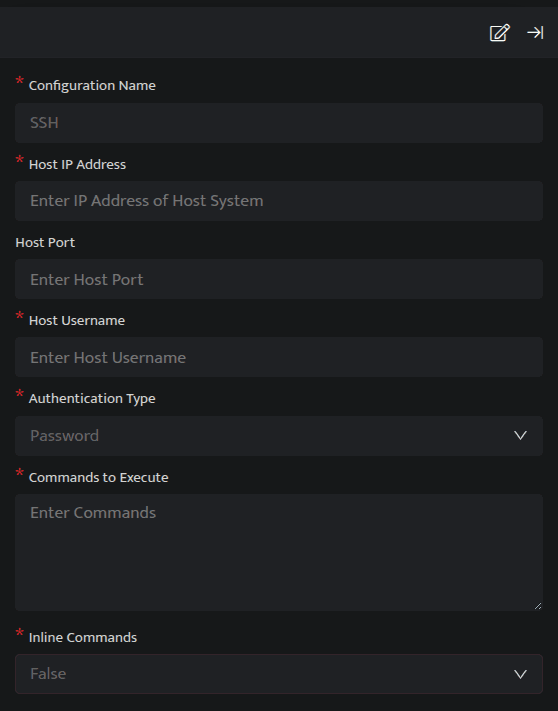
- Enter the above details and click Save.
3. Query Syntax
Use the following query in a DQL Block to trigger the SSH integration:
_trigger api ssh execute_command '<CONFIG_NAME>'Replace CONFIG_NAME with the exact Configuration Name you entered in the configuration form.
4. Examples
Listed below are a few examples to help you get started with the configuration process by demonstrating practical use cases:
- How to Secure a Compromised User Account?
- Taking Action on FortiGate Firewall (Add/Remove Host)
- Taking Action on Palo Alto Firewall (Add/Remove Host)
5. Related Links
Related
Was this page helpful?