
Connectors
CloudWatch Connector
Connectors in Bloo
Updated 2026-08-17
Overview
Amazon CloudWatch integrates with Bloo using the CloudWatch Connector. The connector pulls log data directly from your CloudWatch log groups, allowing you to write detections and perform investigations on the processed data.
Prerequisites
The following are required before configuring the connector in Bloo:
- CloudWatch Log Group name(s)
- AWS Region
- AWS Access Key
- AWS Secret Key
Follow Step 1 below to create an IAM user and obtain the AWS Access Key and Secret Key.
Step 1 — Create an IAM User and Generate Access Keys
Sign in to the AWS Management Console at https://aws.amazon.com/console/.
From the top search bar, search for IAM and open the IAM dashboard.
In the left navigation pane, choose Users, then click Create users. Enter a username and click Next.
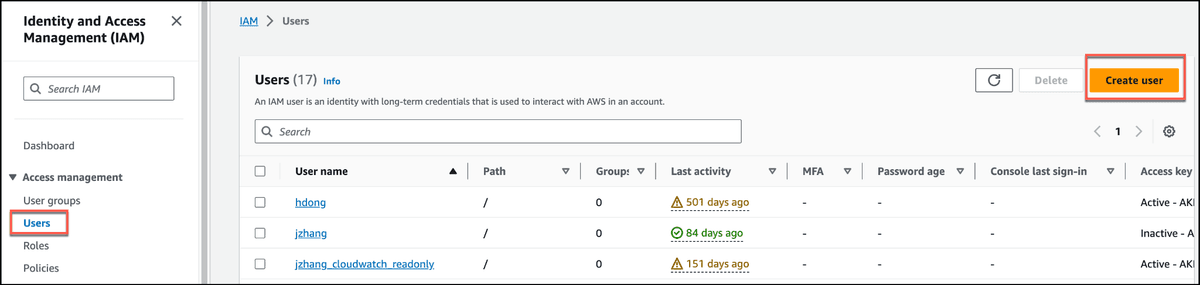
- On the Set Permissions page, attach the following policy to the user. It grants the minimum permissions Bloo needs to pull logs from CloudWatch:
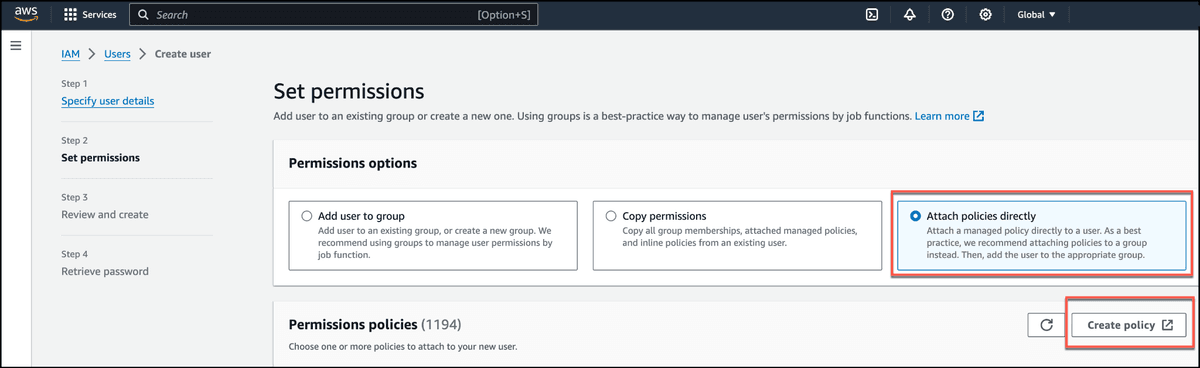
[ Screenshot: AWS IAM — Minimal CloudWatch Logs policy with logs:DescribeLogGroups, logs:DescribeLogStreams, logs:FilterLogEvents ]
{
"Version": "2012-10-17",
"Statement": [
{
"Effect": "Allow",
"Action": [
"logs:DescribeLogGroups",
"logs:DescribeLogStreams",
"logs:FilterLogEvents"
],
"Resource": [
"arn:aws:logs:*:*:log-group:your-log-group-name",
"arn:aws:logs:*:*:log-group:your-log-group-name:*"
]
}
]
}Replace your-log-group-name with the name of your CloudWatch log group. To allow all log groups, replace the entire Resource value with "*".
ℹ Permission details:
- logs:DescribeLogGroups — Lists available CloudWatch log groups. Optional if you already know your log group names.
- logs:DescribeLogStreams — Lists log streams within a log group.
- logs:FilterLogEvents — Queries and filters log events.
Click Next, review the details, and click Create user.
Once the user is created, click View user to open the user details page. Go to the Security credentials tab, scroll down to the Access keys section, and click Create access key.
Select Other as the use case, click Next, then click Create access key. AWS will display your Access Key ID and Secret Access Key.
⚠ This is the only time the Secret Access Key will be shown. Download the .csv file or copy and save both keys securely before leaving this page. If the secret key is lost, you must delete the access key and create a new one.
Step 2 — Configure the CloudWatch Connector in Bloo
All connector configuration is done from the Datasource page in Bloo.
| Field | Description |
|---|---|
| Connector Name | Enter a name for this connector. |
| Log Group(s) | Enter the CloudWatch Log Group name(s). Separate multiple log groups with a comma (,). |
| AWS Region | Enter the AWS region where your CloudWatch log groups are located (for example, us-east-1). |
| AWS Access Key | Enter the AWS Access Key ID generated in Step 1. |
| AWS Secret Key | Enter the AWS Secret Access Key generated in Step 1. |
| Scan Interval | Enter how often Bloo should pull logs, in minutes. |
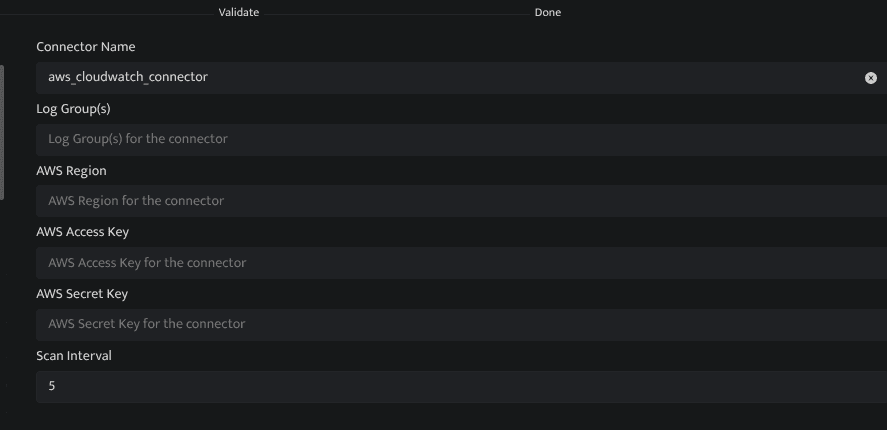
Click Save after entering all the required details.
Bloo will validate the configuration automatically.
Navigate to Collection Status and confirm the connector is listed with a status of Active.
✓ When the connector appears in Collection Status with status Active, it is configured successfully and data is ready to ingest.
Related Links
Bloo — Collection Status | Bloo — Connector Validation | AWS IAM — Create an IAM user | AWS IAM — Manage access keys | AWS CloudWatch Logs — IAM permissions
Related
Was this page helpful?