
How-to guides
Custom Extractors
Bloo provides users with the flexibility to create custom extractors.
Updated 2026-08-14
Bloo provides users with the flexibility to create custom extractors. These custom extractors can be completely new or created by cloning or modifying existing native extractors. This allows users to parse certain log events or additional fields not captured by the native extractors. It is recommended to consult your administrator when creating custom extractors.
Overview
To write custom extractors in Bloo, you can choose from the following methods:
- Bloo AI-Assisted Extractor Generator — leverages generative artificial intelligence to automatically generate extractors from provided log samples.
- Manual Method — helps to manually create new extractors using the "Extraction" interface.
- Cloning Method — helps in duplicating or modifying an existing native extractor.
Also, the Extractor Validator is a valuable feature that assists users in writing more effective extractors by providing immediate feedback and helping them avoid errors.
Bloo AI
The Extractor Generator assists the security analyst in auto-generating a custom extractor using the power of generative artificial intelligence. By analyzing the structure and content of the provided log samples, Bloo AI suggests a starting point for your extractors, effectively reducing the effort and complexity involved in manual creation. See the Extractor Generator overview to learn more.
Manual Method
To customize extractors manually through the designated interface, follow these steps:
- Navigate to the extractor page and click on the plus icon "+" to create a custom extractor.
- Select "Manual" from the options provided, as illustrated in the image below.
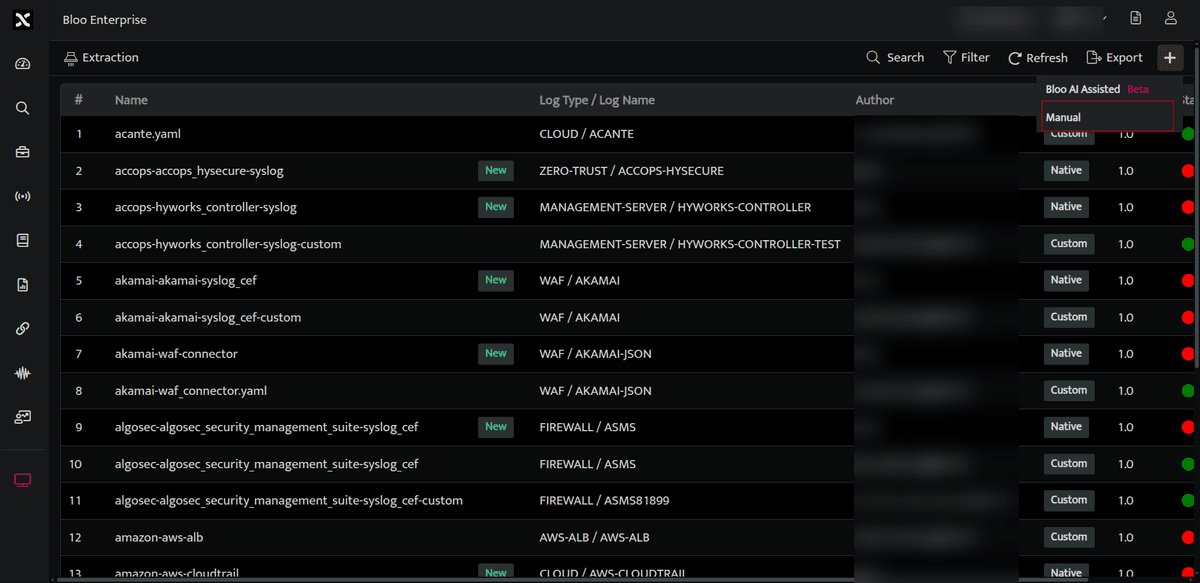
Figure: Creating a new custom extractor via the Manual option
- A new window will open as shown below. Enter a Name for the extractor you are about to create, and you can directly start writing in the YAML editor.
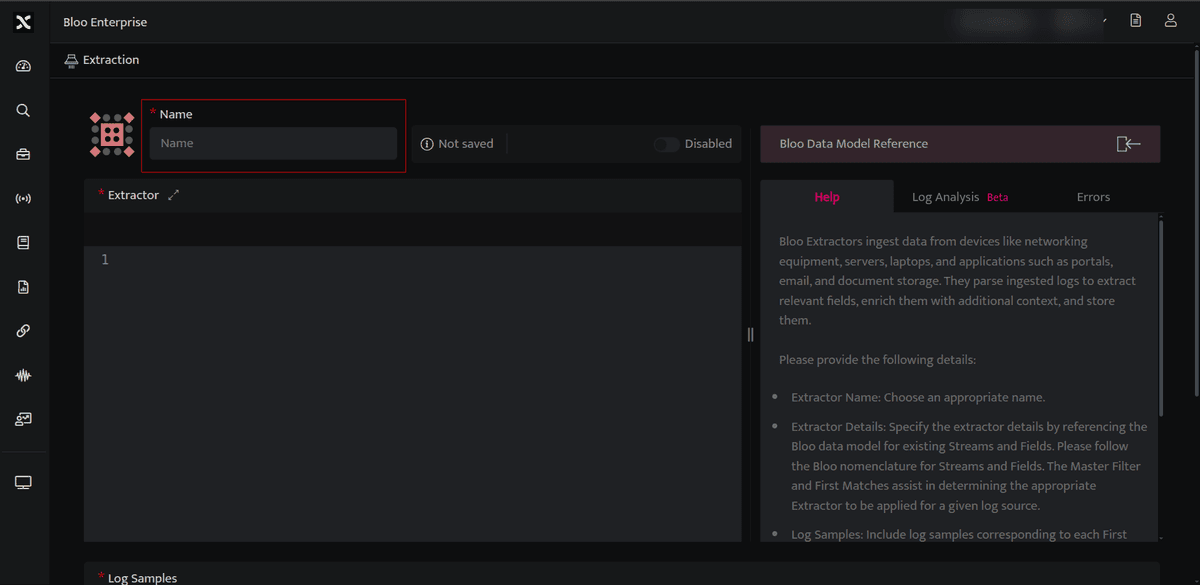
Figure: Naming a new extractor and opening the YAML editor
- Paste your log samples in the log samples section below.
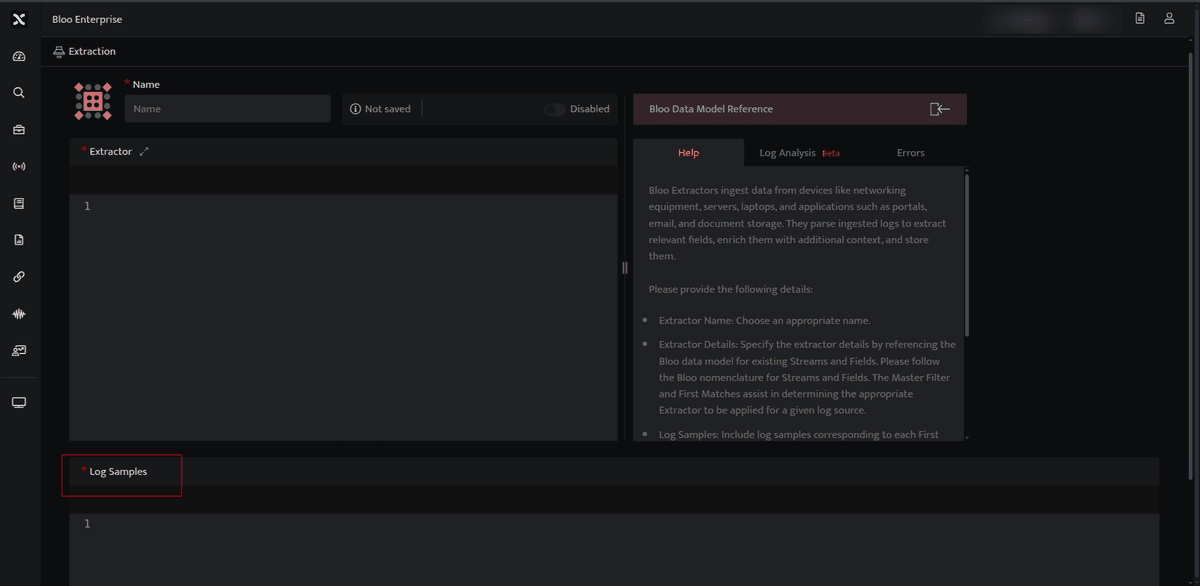
Figure: Pasting log samples for the extractor
- Click Submit after writing the parser.
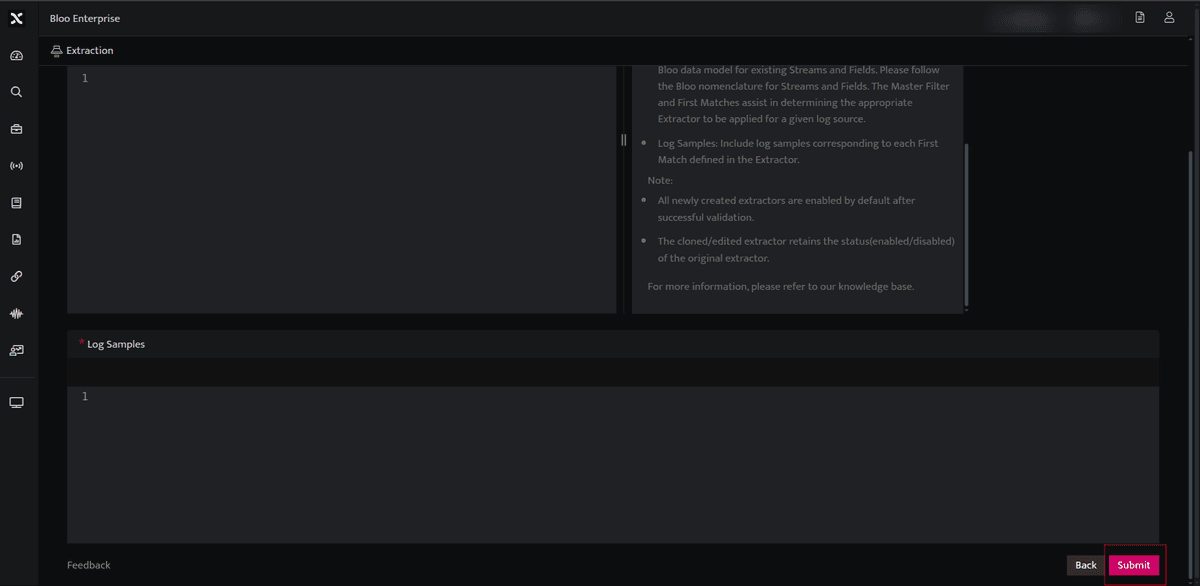
Figure: Submitting the completed parser
- It will start validating the extractor and show errors, if any. See Extractor Validation for details.
- If any of the checks fail, the extractor is saved in draft mode.
- If all checks pass, the extractor gets published and is enabled by default.
The customized extractor will then appear in the list on the extractor listing page.
Cloning Method
In this method, you have the option to create a custom extractor by duplicating an existing native extractor.
- To initiate this process, click on the name of the desired native extractor from the list.
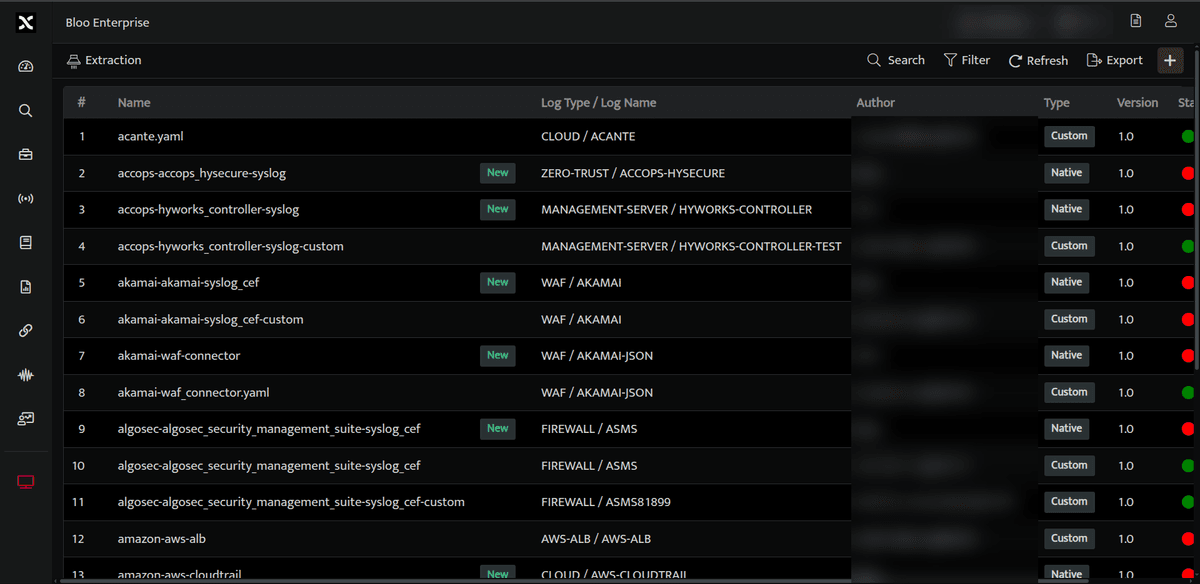
Figure: Selecting a native extractor to clone
- The current extractor listing page will appear, allowing you to modify the existing extractor according to your needs.
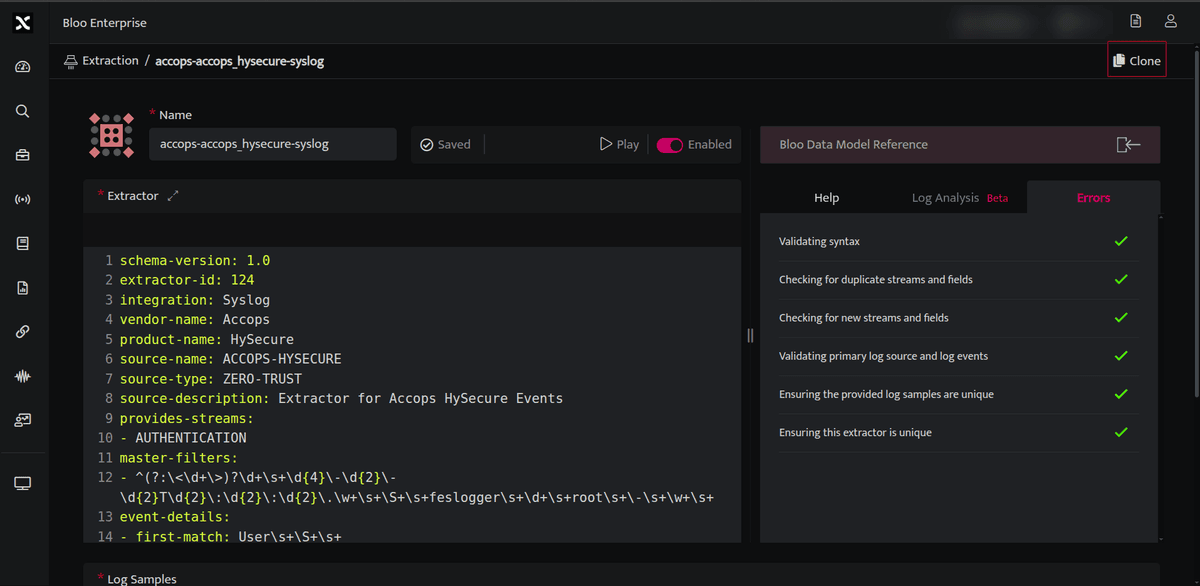
Figure: Modifying the cloned extractor
- After making the necessary changes, click Submit at the bottom of the page to save your modifications.
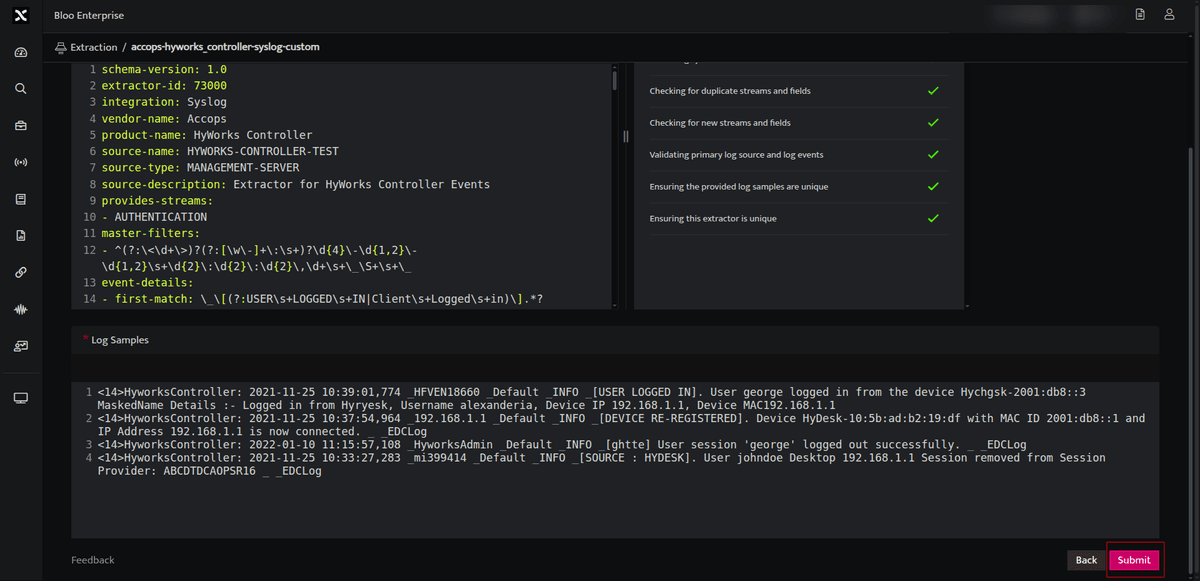
Figure: Saving modifications to the cloned extractor
A popup window will appear next, allowing you to disable the existing extractor. Click Save to finalize the creation of your custom extractor.
Note: The existing extractor will always be disabled by default to ensure that only one extractor is active at any given time. If a user attempts to enable both simultaneously, an error message will be displayed.
The new cloned extractor will open in edit mode and the validation process will begin. See Extractor Validation for details.
If any of the checks fail, the extractor is saved in draft mode.
If the extractor goes through all the checks, the extractor gets published and is enabled by default.
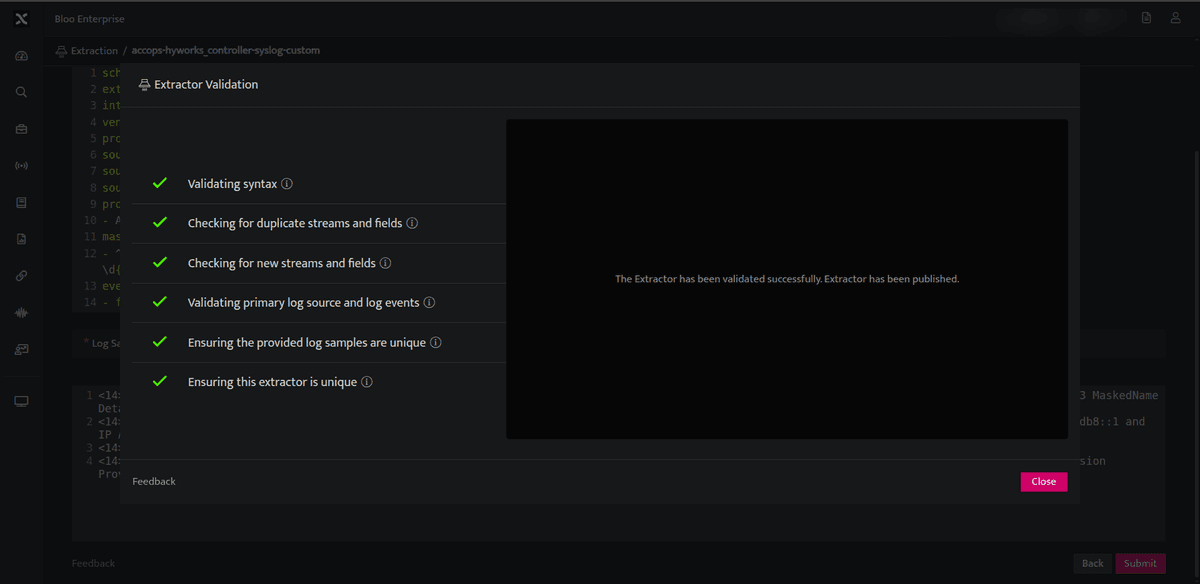
Figure: A successfully published cloned extractor
How to Write an Extractor Using a YAML File
Extractors are built in .yaml files. The value for ExtractorID, SourceName, and SourceType is populated along with the assigned key value.
Basic Information
Each extractor will have the following basic information:
| Field | Description |
|---|---|
schema-version |
The version assigned to the extractor. |
extractor-id |
The unique ID assigned to the extractor is auto-generated and does not need to be specified in the YAML file. |
source-name |
The name assigned to the extractor as per the device. Example: FortiGate, Checkpoint, etc. |
source-type |
The type of device. Example: Firewall, OS, switch, etc. |
source-description |
A short description regarding the extractor. |
Stream
Stream is a domain-specific collection of data from different sources that contributes to a unique dataset and a unique set of use cases. Each value in the Stream field within the extractor can be used to generate a search that returns a particular dataset with information.
This is the section where the streams included in the extractor are defined. There are various streams such as AUTHENTICATION, SYSMON-PROCESS, SYSMON-NETWORK, IAM, etc.
Example: AUTHENTICATION refers to login and logout activity events; IAM refers to User Management events such as create user, delete user.
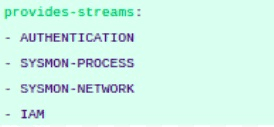
Figure: Defining streams within an extractor
Master Filters
The Master Filters and First Matches help identify the extractor to be applied to a given log source, and this process has been heavily optimized for performance.
Event Details
The following configuration should be done under Event Details.
First Match
First Matches help identify different patterns associated with a log source.
- Each first match will be associated with a decoder.
- First matches can now yield multiple events if used with
decoder=jsonordecoder=custom-kv.
The decoder=regex option is the legacy event detail approach that will be relevant for older devices.
Decoder
The Decoder section defines the type of decoder to be used based on the log format. Decoders are defined at the First Match level, so multiple decoders can be used within a single extractor file. There are 3 decoders available:
JSON — written as
decoder: json. Log samples in JSON format can be parsed using this decoder, which parses all key-values correctly as rendered in the log sample.Note: Regex is not required to parse key values.
Custom (key-value) — written as
decoder: custom. Log samples in key-value format can be parsed using this decoder. Here, a generic regex must be written to capture the key and value from the log samples appropriately.Example:
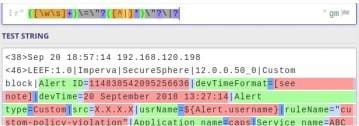
Figure: Regex written to capture key-value pairs
As per the example, a generic regex is written to capture the key-value pair in the log sample. This regex results in groups of keys and values, as shown below. The key can then be annotated as per the field annotations in the extractor.
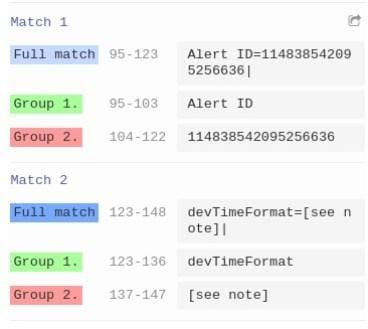
Figure: Key-value groups resulting from the regex
Regex — written as
decoder: regex. Log samples in Syslog (values-only) format can be parsed using this decoder. Here, the regex must be written and the field name defined within it. This field name can then be mapped and annotated in the extractor accordingly.Example:
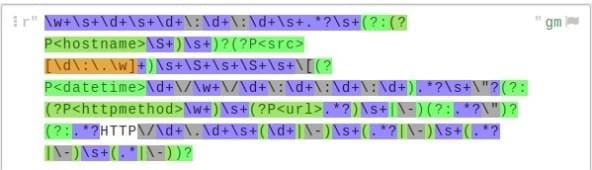
Figure: Field names defined directly within the regex
Field names are defined in the regex using (?P<field_name>) at the start of the group.

Figure: (?P<field_name>) syntax for named regex groups
Event Key Format
In the event-key-format section, the field is defined on the basis of which an accurate presence in the log event can be achieved.
Example:
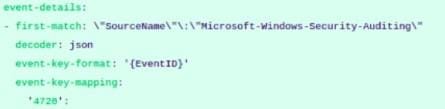
Figure: First Match defined on SourceName, segregated by EventID
In the example above, First Match is defined on the basis of SourceName, and it is further segregated on the basis of EventID in the event-key-format section.
Event Key Mapping
In the event-key-mapping section, events can be defined with the appropriate Streams. When specifying an event in this section, ensure each event identifies itself with a Stream.
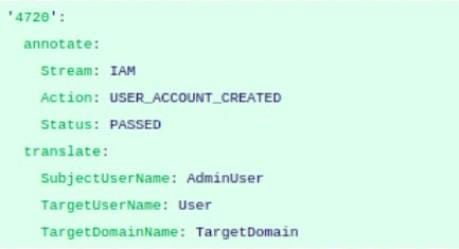
Figure: EventID used as the pointer identifying the log event
In the example, EventID is defined as the pointer that provides maximum information about the log event. Refer to the table below to understand the annotate and translate fields.
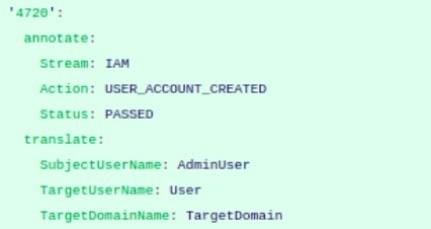
Figure: Example of annotate and translate fields
| Field | Description |
|---|---|
annotate |
Static key value for Stream, Action, and Status to be added as per the log event's information. Stream: type of log. Action: action performed in the log event, e.g. Login, Logout. Status: status of the action performed, e.g. Passed, Failed. |
translate |
All relevant fields as per the stream should be defined under the translate section. Allows you to replace fields as per Bloo terminology. |
Fallback
Fallback is a mandatory field. All events defined with a Stream will be parsed accurately, while undefined events for that particular First Match will parse under the fallback section.
Example: Consider a First Match created on the basis of SourceName for a Windows Extractor, further divided by EventID. Some EventIDs are defined with a proper stream, while others are not — the undefined EventIDs will then parse under the fallback section.
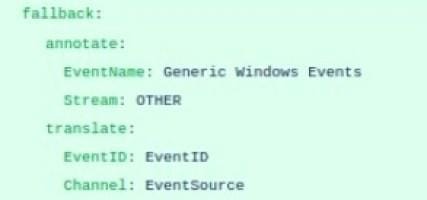
Figure: Fallback section for undefined events
Globals
Globals is a non-mandatory field. In this section, generic fields present throughout the extractor can be defined.
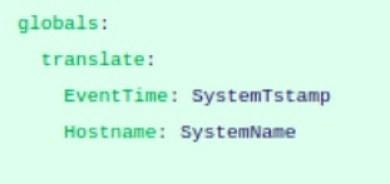
Figure: Defining globals within an extractor
Substitutions
For most devices, substitutions are provided for some fields. This substitution can be defined under the globals section as follows:
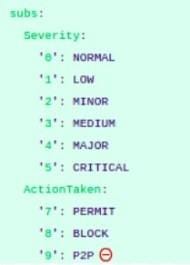
Figure: Defining substitutions under globals
To make this work for multiple samples (First Matches) in the extractor, the following procedure can be followed.
Example: Consider two first matches.
Referring to the first occurrence of First Match, subs are defined for it, with the addition of &id001) against subs. The & character denotes assigning the value of subs to the variable id001. Once this value is assigned to a variable, it can be reused wherever the same values are needed.
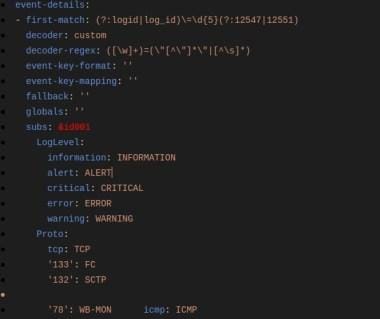
Figure: Assigning subs to a variable using &id001
Referring to the second occurrence of First Match, subs are used again, but now only *id001) is referenced — reusing the subs defined earlier. The * symbol is used with id001 to refer back to &id001.
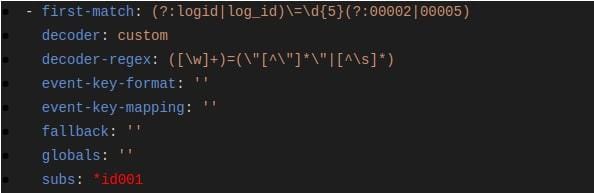
Figure: Reusing subs via *id001 reference
For all other occurrences of subs, the first occurrence can simply be referenced. Ensure that a variable is assigned a value only at the first occurrence of subs, and referenced afterwards. Basic variable naming should be alphabetic or alphanumeric.
Pitfalls to Avoid in a New Way of Building Parsers
The procedure for creating an extractor has been described in detail above. If any of the steps are not followed correctly, it will result in poor extractor performance on the setup, which could also affect EPS (events per second) hits.
Related
Was this page helpful?