
How-to guides
Create a Search Block
Search block has been added to create queries by selecting the predefined directives, filters, functions etc.
Updated 2026-08-14
Search block has been added to create queries by selecting the predefined directives, filters, functions etc. This query builder is an intelligent query processing feature which helps to form queries for new users without prior knowledge of the DQL. The Bloo Query GUI interface lets you search through the data gathered and collated by Bloo. This section introduces you to the various elements and query directives you can use to work with this interface.
How to add a Search Block?
- Hover on the Workbooks icon on the left navigation bar, it will display the folder-wise view of existing workbooks in the tenant (previously known as cluster).
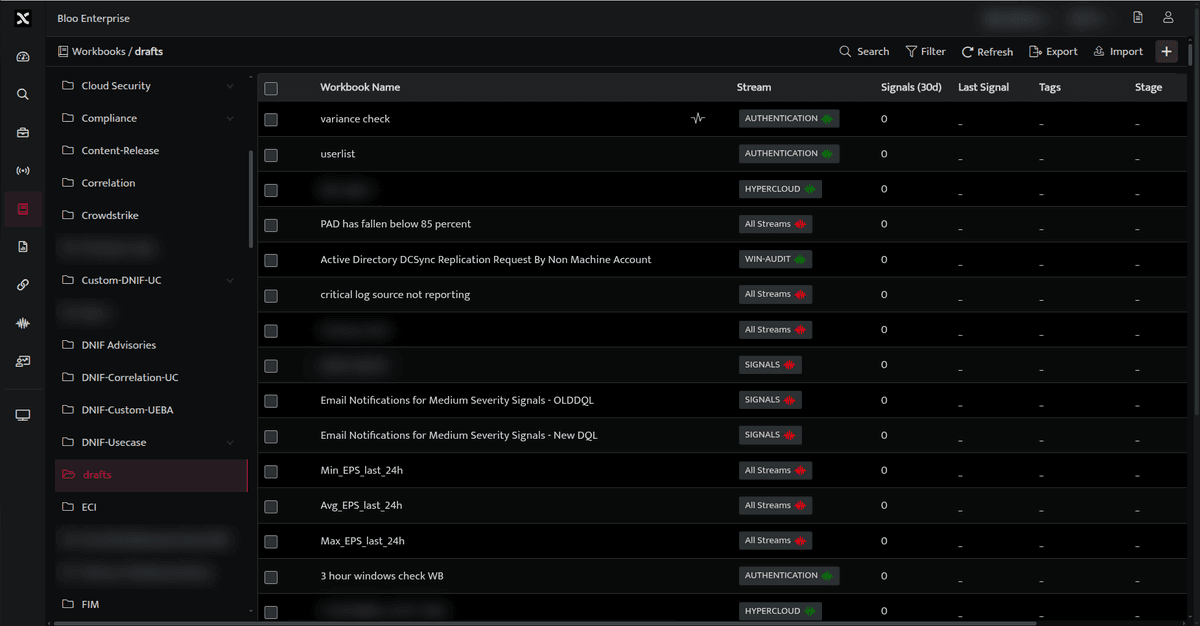
Click the plus icon at the top right corner , the following Search GUI screen will be displayed.
OR
Click search icon on the left navigation bar, the following screen will be displayed.

The Search Block is the default block, it will be automatically displayed every time you try to create or add a new workbook.
- You can now select streams while building a query using the search block. Select the stream, filters, and set the duration to fetch details
| Field Name | Description |
|---|---|
| Filter | Below are the Filter functions |
| $Stream | Select the required stream filter. The stream filter is divided into three categories Recent: Displays the list of streams accessed in the last five minutes. Active: Displays the list of streams that are accessed frequently Other: Displays the list of streams that are not accessed. |
| Operators | The valid boolean operators for search result are: AND: The AND operator displays a record if all the conditions separated by AND are TRUE. NOT: The NOT operator displays a record if the condition(s) is NOT TRUE. |
| Field | Select the required field |
| Expression | Select the required operator expression. The values are: = Equal to > Greater than < Less than |
| Value | Enter the required value as per the selected field |
Aggregate  |
Below are the Aggregate Functions |
| Select Type | Performs arithmetic functions on a specified field in the entire result set. The values are: Sum: Summation of the specified compute field in the entire result set. Min: Minimum value of the specified compute field in the entire result set. Max: Maximum value of the specified compute field in the entire result set. Avg: Average of the specified compute field in the entire result set. Count_unique: Counts the rows in each group. |
| Select Field Value | Select the specific field on which the arithmetic function should be performed. |
Filter  |
Used to add filters to the query based on your requirement. |
  |
Used to hide or unhide the query results |
| Rows | Used to select number of rows to be displayed. |
| Duration | Used to select a time range based on your requirement. Last one day: Displays the signals raised during the last one day. Last hour: Displays the signals raised during the last one hour. Last thirty minutes: Displays the signals raised during the last thirty minutes. Last day: Displays the signals raised during the last 24 hours Last week: Displays the signals raised during the last week Last month: Displays the signals raised during the last month Custom Range: Allows you to set a customized date and time range as per your requirement. |
 |
Used to search raw payload, with logevent in query or payload flag. Note: Default searches do not include raw payload unless logevent is referred in query or with payload flag. For example: _fetch $CNAMTime, $LogEvent from event limit 10 _fetch * from event where $LogEvent=DESKTOP limit 10 _fetch * from event where $Stream=FIREWALL limit 10 with payload |
 |
Used to filter the query result based on your requirement. |
 |
Used to export logs in CSV format |
- Select/Enter the required fields to build your query and click Run, a progress bar will be displayed showing that the query is being processed.

- Once the query is successfully processed, the results will be displayed as below.
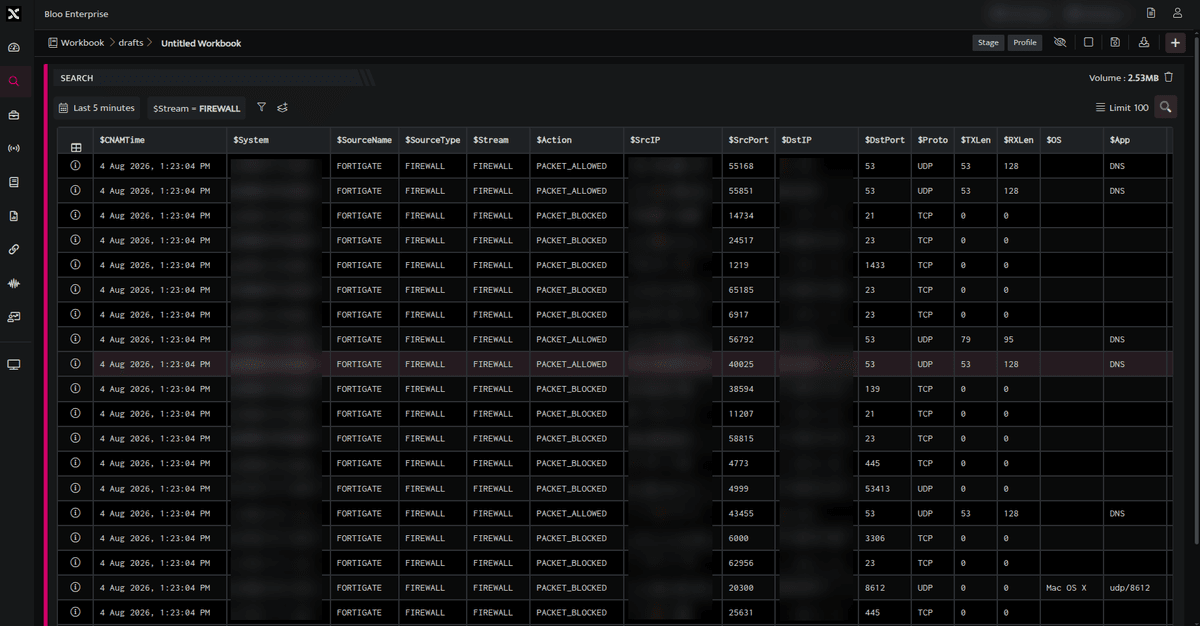
- Click Information icon, to view log details. You can view the log details in JSON and TABLE format.
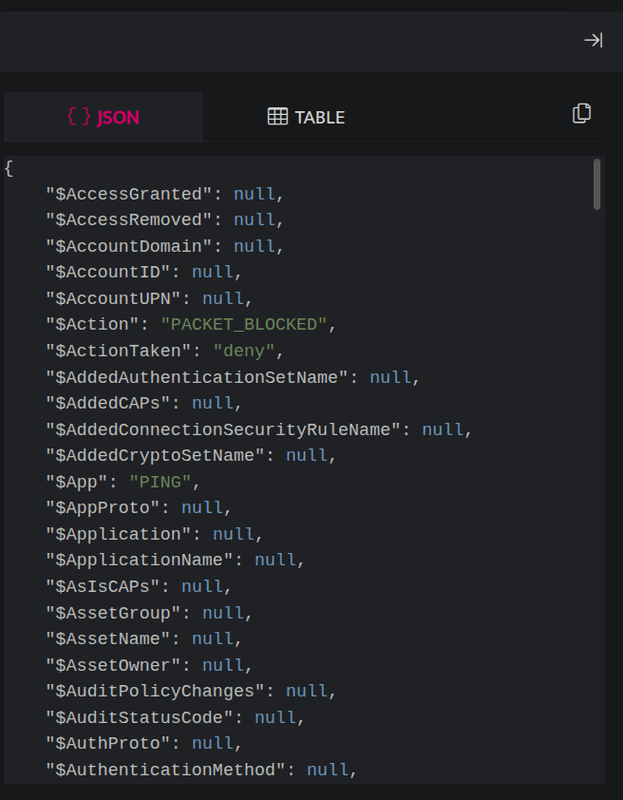
- Click Copy icon, to copy the details to clipboard.
For more details on details on Workbooks, refer Create a Workbook
How to use the search block?
Search is the query builder that will assist you in forming queries even if you don't have any knowledge of DQL
Follow the steps below to build a query using search block.
- On adding a search block, the following screen will be displayed.

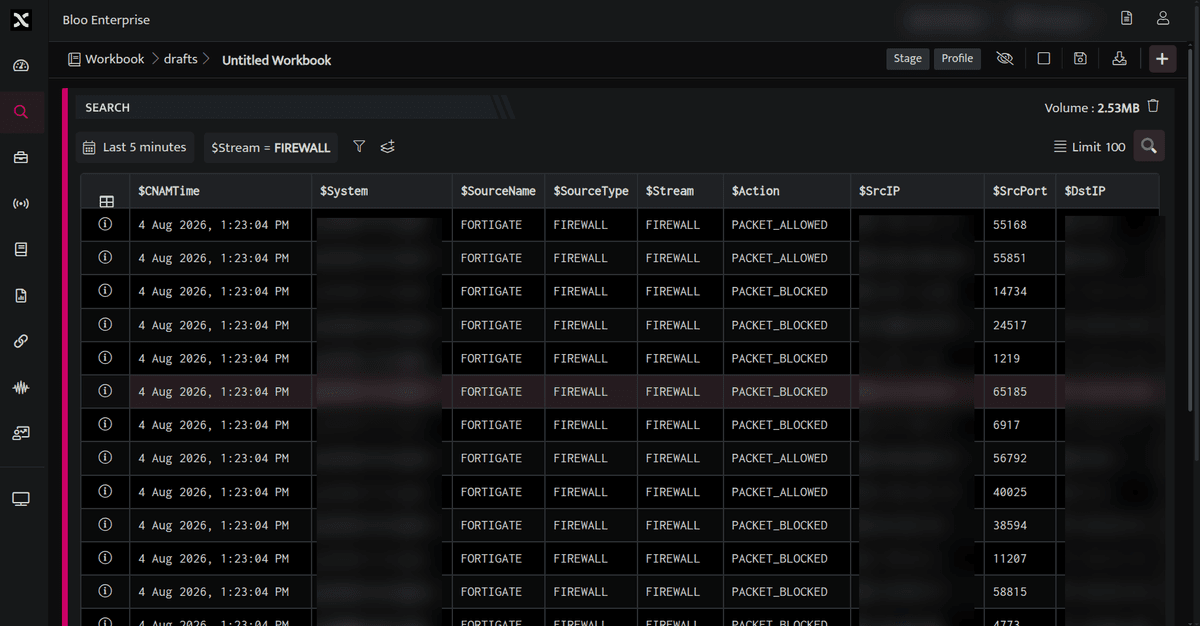
On the above screen, the duration last 5 minutes an $Stream=FIREWALL and LIMIT 100 is set by default, this is a simple query that would retrieve 100 records of the FIREWALL Stream in the last 5 minutes as in the screen below.
You can customize the query as per your requirement by changing the duration and adding filters.
Wildcard Search using the Search block
You can incorporate additional filters based on specific field values using the wildcard search.
Use wildcards in scenarios where a varied set of end results is possible. The asterisk (*) can be used as a wildcard character in conjunction with the search string.
You can use the wildcard operator for the following scenarios:
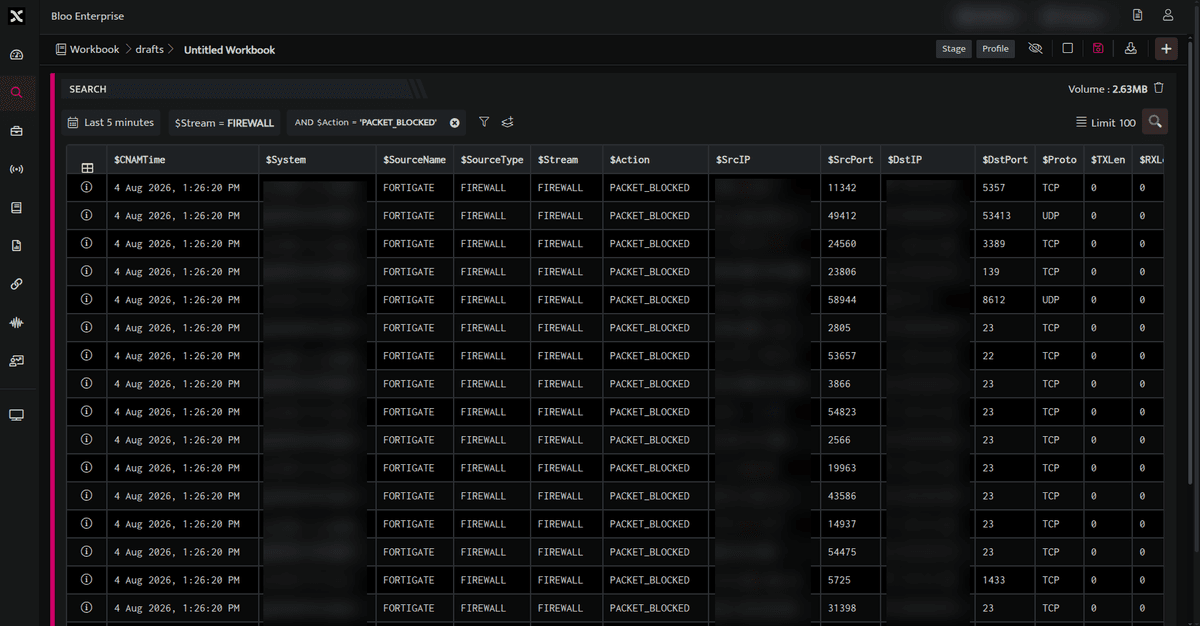
- You can view the signals with field values ending in a specific pattern by adding the character '*' at the beginning of the search string. For instance, you can view the list of signals for which the Action is tagged as 'PACKET_BLOCKED' by utilizing the wildcard character as: **$Action = _BLOCKED*
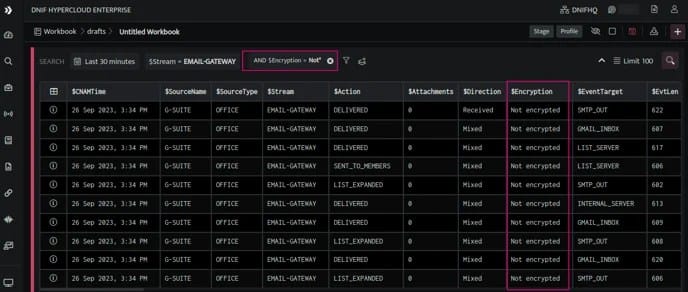
- You can view the signals with field values beginning in a specific pattern by adding the character '' at the end of the search string. For instance, you can view the list of signals for which the Encryption status is tagged as 'Not encrypted' by utilizing the wildcard character as: $Encryption = Not
Performance Consideration – It is advisable to use the wildcard-based search judiciously, since it consumes more computational resources and requires more time compared to the standard field search results.
Related
Was this page helpful?