
Connectors
Palo Alto Firewall Automation (Block / Unblock)
Palo Alto Firewall Automation (Block / Unblock)
Updated 2026-08-16
Automation Guide for Bloo
1. Overview
This guide explains how to configure Bloo to automate Palo Alto firewall actions using Webhook automation. Bloo triggers GET or POST requests to the Palo Alto firewall API, allowing security teams to block or unblock a host directly from an investigation, without manually logging into the firewall.
This is useful because it lets a team move from detecting a threat to acting on it (blocking a malicious host, for example) in a single workflow inside Bloo, reducing manual handoffs and response time.
2. Prerequisites
Before configuring this automation, gather the following details about the Palo Alto webhook or API endpoint:
- URL — the endpoint URL of the webhook or API
- Headers — the required HTTP headers, typically in JSON format
- Payload — the request body to be sent to the API, in JSON, Text, or XML format
3. Webhook Automation Configuration (Action: Block)
This section covers configuring the Webhook Automation in Bloo for a host-blocking action.
3.1 Configure Webhook Automation
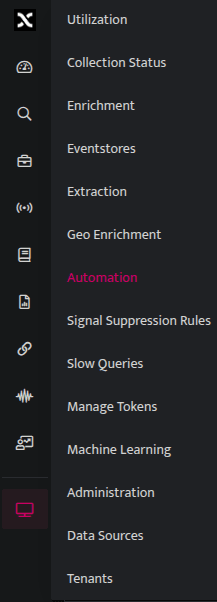
1. Navigate to Automations: Log in to the Bloo console, go to the Automations section, and select Webhook Automation.
2. Get your Palo Alto API key: Before entering the Headers field, generate an API key from the firewall by sending a request with your admin username and password. The firewall returns a key that you will place in the X-PAN-KEY header. See the official guide: Generate an API Key — Palo Alto Networks PAN-OS Documentation
3. Edit Configuration: Click Edit to open the configuration fields.
4. Add Configuration Details: Enter the required information shown below.
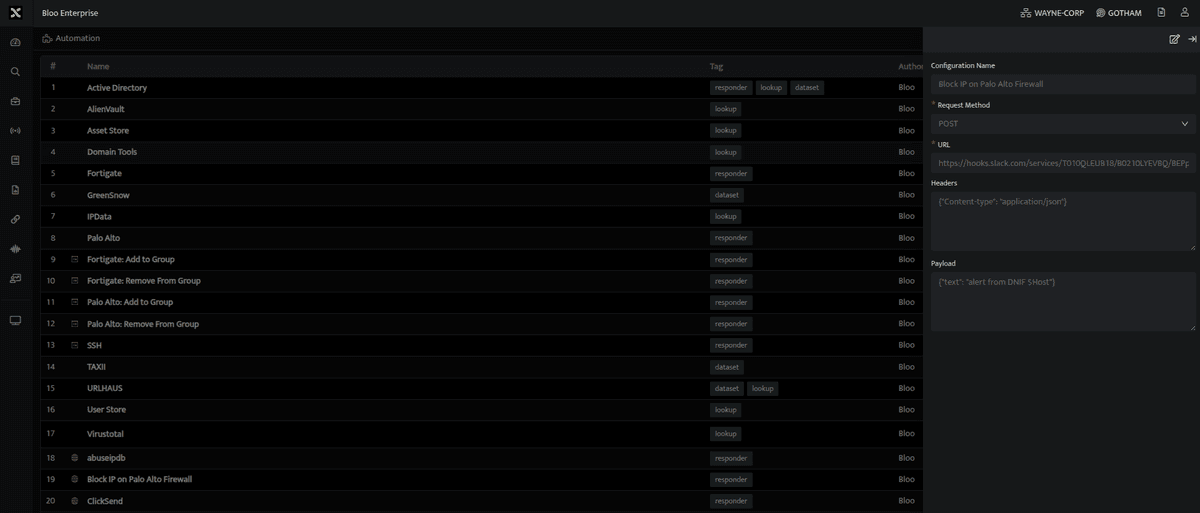
Configure the Webhook Automation in Bloo
| Field | Description |
|---|---|
| Configuration Name | Name of the automation configuration |
| Request Method | Select the request method (POST) from the dropdown |
| URL | API endpoint URL |
| Headers | Required headers, in JSON format |
| Payload | Request body, in JSON, Text, or XML format |
| Info: API key behavior on the Palo Alto sideThe Palo Alto API key used in the Headers field does not expire by default. However, generating a new key, or changing the password of the account that created it, immediately invalidates the previous key. If automation calls suddenly start failing, check whether the key was regenerated or the account password was changed.Source: Palo Alto Networks PAN-OS documentation (see Related Links). |
5. Click Save to complete the setup.
3.2 Dynamic Variable Substitution
Bloo supports variable substitution in the URL, Headers, and Payload fields, to pass dynamic values during automation execution.
Example variables: User and Host.
3.3 Investigate Panel Association Requirement
To associate the Webhook Automation configuration with the Investigate Panel, the configuration must include exactly one substitution parameter: either User or Host. Once all details are configured, click Save to complete the setup.
4. Webhook Automation Configuration (Action: Unblock)
This section covers configuring the Webhook Automation in Bloo for a host-unblocking action.
4.1 Configure Webhook Automation
1. Navigate to Automations: Log in to the Bloo console, go to the Automations section, and select Webhook Automation.
2. Get your Palo Alto API key: Before entering the Headers field, generate an API key from the firewall by sending a request with your admin username and password. The firewall returns a key that you will place in the X-PAN-KEY header. See the official guide: Generate an API Key — Palo Alto Networks PAN-OS Documentation
3. Edit Configuration: Click Edit to open the configuration fields.
4. Add Configuration Details: Enter the required information shown below.
Configure the Webhook Automation in Bloo
| Field | Description |
|---|---|
| Configuration Name | Name of the automation configuration |
| Request Method | Select the request method (POST) from the dropdown |
| URL | API endpoint URL |
| Headers | Required headers, in JSON format |
| Payload | Request body, in JSON, Text, or XML format |
| Info: API key behavior on the Palo Alto sideThe Palo Alto API key used in the Headers field does not expire by default. However, generating a new key, or changing the password of the account that created it, immediately invalidates the previous key. If automation calls suddenly start failing, check whether the key was regenerated or the account password was changed.Source: Palo Alto Networks PAN-OS documentation (see Related Links). |
5. Click Save to complete the setup.
4.2 Dynamic Variable Substitution
Bloo supports variable substitution in the URL, Headers, and Payload fields, to pass dynamic values during automation execution.
Example variables: User and Host.
4.3 Investigate Panel Association Requirement
To associate the Webhook Automation configuration with the Investigate Panel, the configuration must include exactly one substitution parameter: either User or Host. Once all details are configured, click Save to complete the setup.
5. Workbook Configuration for Action Triggering
Once the automation configuration is saved, a Workbook must be created to trigger the respective automation (for example, to block or unblock an IP address).
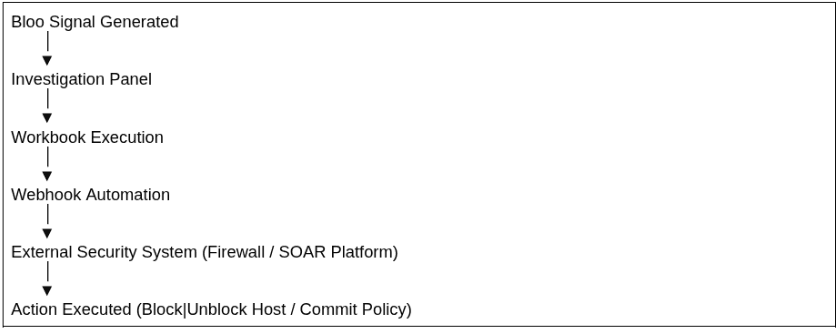
5.1 Workflow Overview
The automation follows this flow:
5.2 Configuration Procedure
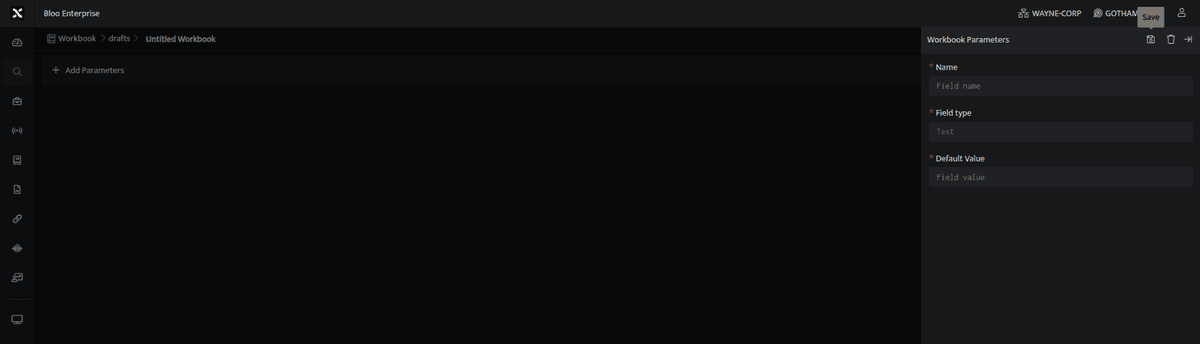
Step 1: Add a Parameter
This parameter holds the IP or hostname and enables direct action from the Signals page.
Go to the Find tab.
Click Add a Parameter.
Enter the required details. This parameter will hold the IP or hostname that the automation will act upon.
| Field | Details |
|---|---|
| Name | Host |
| Field Type | Static field (not clickable) |
| Default Value | — |
Step 2: Add a DQL Block
Create a DQL block to fetch signals based on the selected host:
stream=signals where suspecthost="{{Host}}" | duration 1d | select suspecthost | limit 1
Step 3: Add a Code Block
Include a Python transform function to validate the IP address format and prefix the suspecthost value (for example, BLOOSIEMBLOCK_) to generate a unique address object.
def transform(inward_array): for log in inward_array: if "suspecthost" in log: ip = log["suspecthost"] if isinstance(ip, str): parts = ip.split(".") if len(parts) == 4: valid = True for p in parts: if not p.isdigit(): valid = False break n = int(p) if n < 0 or n > 255: valid = False break if valid: log["srcip"] = ip prefix = "BLOOSIEMBLOCK_" log["suspecthost"] = prefix + ip.replace(".", "_") return inward_arrayStep 4: Trigger the Automation
Add another DQL block to execute the automation:
_trigger api generic_webhook send_alert '<Configuration Name>'Replace <Configuration Name> with the exact name configured in Section 3.1 (Block) or Section 4.1 (Unblock), depending on which action this workbook is triggering.
Step 5: Save Workbook
Update the workbook name and save it.
Step 6: Trigger from the Signals Page
Click the Play button next to the Workbook Name to trigger the automation, using the selected IP (suspecthost) as input.
6. Validation Steps
To confirm the automation is active and working:
1. Run the workbook from the Signals page using a test host.
2. Check the workbook output for the WebhookResponse and WebhookStatus fields. A successful call returns a response with status "success" and WebhookStatus set to True.
| ConfirmedWhen the workbook returns a successful webhook response (WebhookStatus = True), the automation is correctly configured and the block or unblock action has been sent to the Palo Alto firewall. |
7. Related Links
Related
Was this page helpful?