
Quickstart
Aruba ClearPass
Aruba ClearPass
Updated 2026-08-17
Aruba ClearPass
Automation Guide for Bloo
1. Overview
Aruba Networks' (HPE Aruba Networking) ClearPass Policy Manager is a robust NAC solution offering authentication, policy enforcement, and device management for wired and wireless networks. The following steps below have been tested on ClearPass version 6.10.8 and are applicable to versions 6.7.2 or later for forwarding audit event and system event to Bloo.
2. Adding Bloo as a Syslog Target
To integrate ClearPass with Bloo, you need to configure Bloo as a Syslog target. Follow these steps:
- Log in to the ClearPass administrative interface.
- Navigate to Administration → External Servers → Syslog Targets.
- Add a new Syslog target instance and configure the following parameters:
- Host Address: Enter the IP address of the Bloo Receiver.
- Protocol and Server Port: While these values can be customized, it is recommended to use the default combination of UDP as the protocol and 514 as the port.
Host Address can be the Bloo Receiver's IP Address.
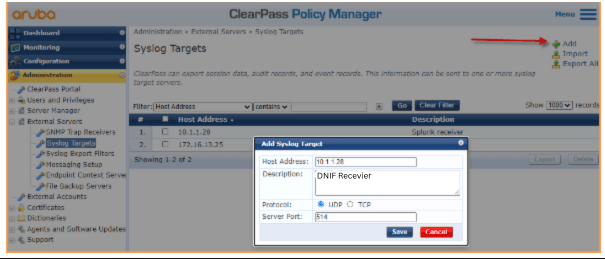
| Configuration Attribute | Description |
|---|---|
| Host Address | Syslog server hostname or IP address (IPv4). |
| Description | Short description of the Syslog server. |
| Server Port | The default port number is 514; change if necessary. |
3. Configure a Syslog Export Filter
| Warning: Adding the Syslog Target above is not enough by itself. ClearPass also requires a separate Syslog Export Filter that selects the export format and links it to the target you just created — without it, no logs will actually be sent, even though the target looks fully configured. |
- Navigate to Administration → External Servers → Syslog Export Filters.
- Click Add.
- Select an Export Event Format Type (for example, Standard or CEF).
- Select the Syslog Target you created in the previous section.
- Click Save.
4. Confirm Log Forwarding
In order to receive logs over the Bloo Platform, you also need to configure a Syslog Connector on the Bloo Console.
Once the syslog connector is configured, you're all set to start receiving logs. After completing the configuration, save the settings and verify that the logs are appearing in the Bloo Console.
To confirm successful integration:
- Check if the ClearPass IP address is listed under the Collection Status section in the Bloo Console.
- Optionally, execute a DQL query to validate log ingestion.
DQL Query
These steps ensure that ClearPass is properly integrated with Bloo and logs are being forwarded as expected.

Related Links
Related
Was this page helpful?